 Profile
 Dashboard
 Logout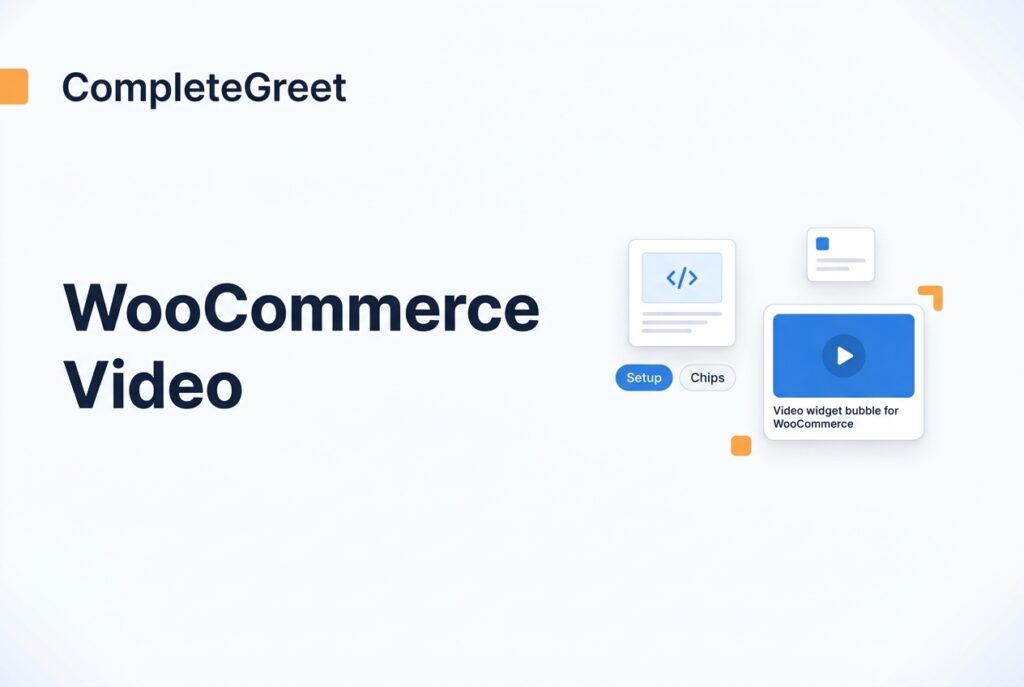
Table of contents
Key takeaways
- You can get everything installed in under five minutes, and you won’t need to write a single line of code.
- The CompleteGreet dashboard lets you fine tune exactly where the widget shows up on your store and how it behaves.
- Before you go live, test on actual phones and tablets, not just browser resize, and double check that your page targeting rules only show the widget on the URLs you actually want.
How do you install CompleteGreet on WooCommerce?
Here’s the good news: the whole installation takes under five minutes, and you don’t need any coding knowledge to pull it off.
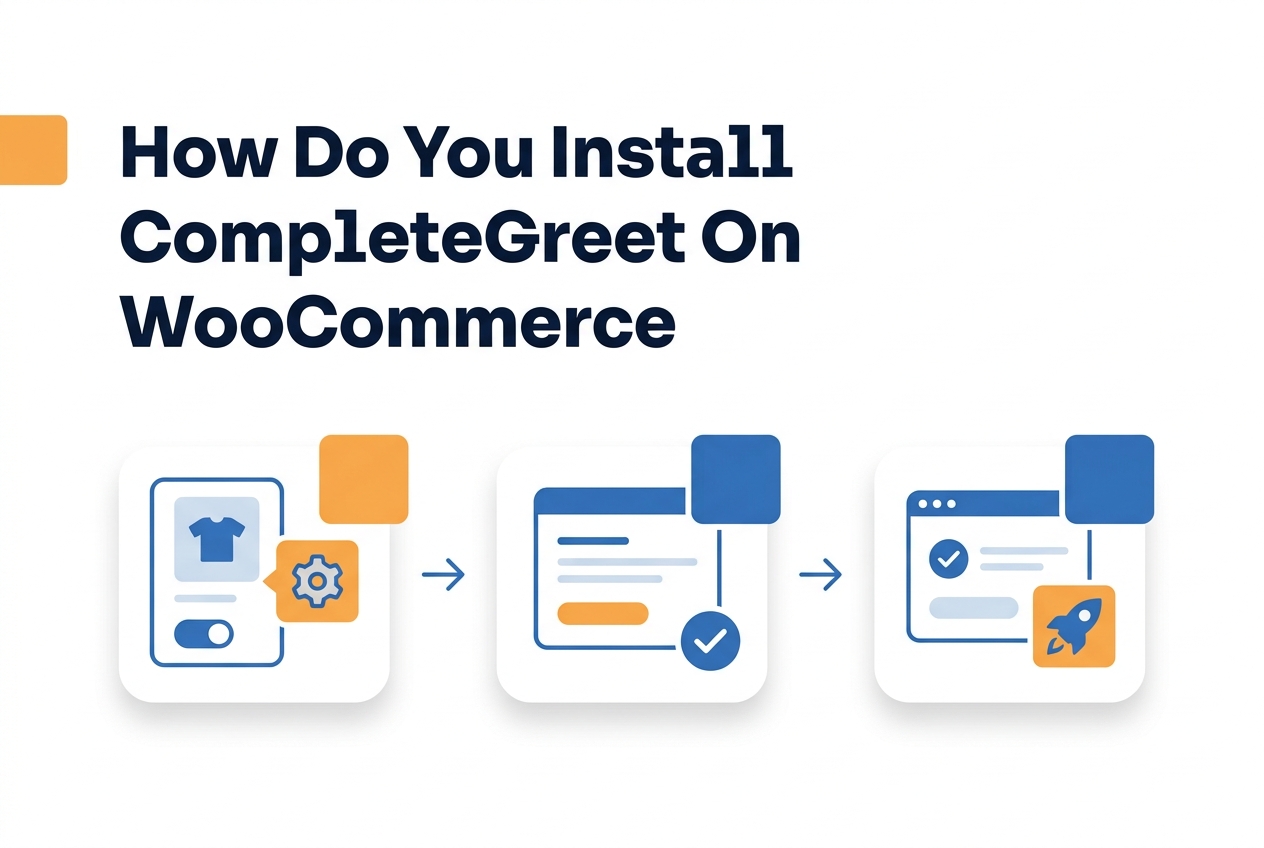
Start by opening your WordPress admin panel and heading over to Appearance, then Theme Editor.
A video bubble widget works by dropping a small script into your site’s header or footer. WooCommerce stores handle this through the theme editor, pretty straightforward.
- In the Theme Editor, find the header.php file from the list on the right side. Official WooCommerce documentation recommends making a child theme backup before you edit template files. That said, CompleteGreet scripts are safe and lightweight, so this is just a precaution.
- Look for the closing head tag or the opening body tag in the code.
- Grab your CompleteGreet embed code from the dashboard. Paste it right before the closing head tag or just after the opening body tag.
- Hit the Update File button at the bottom of the editor.
- Pop open your storefront in an incognito window and make sure the bubble shows up in the bottom right corner.
Quick heads up: if you’re running a caching plugin like WP Rocket or LiteSpeed Cache, clear the cache before you test. Otherwise you might be looking at a stale version of your page.
Now, some WooCommerce stores on managed hosting won’t let you edit theme files directly.
No worries, just install a header footer code plugin from the WordPress plugin directory. Paste the CompleteGreet script into the header section through the plugin’s settings instead. The bubble loads exactly the same way, and you won’t run into any theme update conflicts later on.
What can you customize on WooCommerce?
Once you’re set up, the CompleteGreet dashboard gives you granular control over where the widget appears and how it looks on your store.
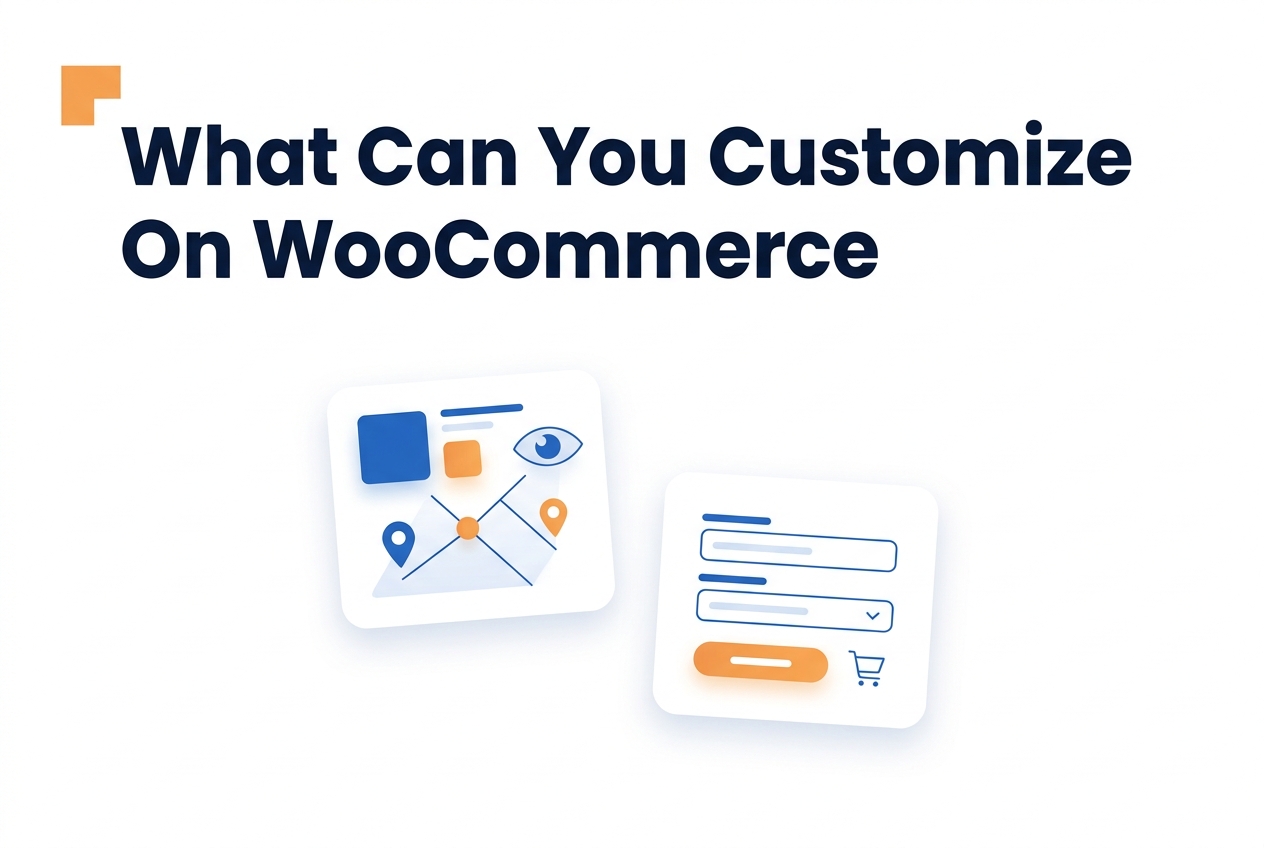
Page and visitor targeting
Targeting rules let you decide which pages trigger the widget and who actually sees it. You can limit the bubble to just product pages, cart pages, or your entire catalog, totally up to you.
There are also conditions like cart value thresholds, first time visitor status, UTM source matches, and referral domain filters, all configurable from the settings panel. And triggers update live, so your rules apply instantly.
Call to action configuration
You can edit the button text right down to the character limit. For actions, you’ve got options: scroll to a section, open a URL, or play an extended video.
Colors are fully customizable too, so you can match your existing theme exactly.
Form fields and lead capture
You pick which input fields show up in the lead capture overlay and what labels appear above each entry box. If you mark a field as required, the form won’t let anyone submit until they’ve filled it in.
There are also validation rules in place to keep fake or junk submissions out.
Visual branding and placement
Your brand colors apply across buttons, text, and backgrounds. You can also toggle the widget between corners depending on what works best for your layout.
For the thumbnail, the still image visitors see before playback, you get to choose which frame it uses. The circle crop automatically centers on faces, which is a nice touch.
All of these video bubble tools work with any WooCommerce theme, no code changes needed.
WooCommerce video widget setup wizard showing 4 steps from account creation to widget activation with code snippets for each integration step.
CompleteGreet for WooCommerce
4 step setup wizard
Create Your CompleteGreet Account
Sign up at completegreet.com and select the WooCommerce integration option from your dashboard.
Install the Plugin
Add the CompleteGreet plugin to your WordPress site via the admin panel or use the code snippet below in your theme’s functions.php:
wp_enqueue_script(‘cg, widget’, ‘https://app.completegreet.com/widget.js’, [], null, true);
Connect Your Store
Link your WooCommerce store by adding your CompleteGreet API key to the plugin settings:
define(‘CG_API_KEY’, ‘your, api, key, here’);
Activate & Configure
Enable the widget and customize placement, triggers, and video content from your CompleteGreet dashboard.
Source: CompleteGreet Documentation
See the static HTML data above for the full breakdown.
What should you check before going live?
Before flipping the switch, test on real devices, not just browser resize modes, and make sure your page targeting rules actually limit the widget to the URLs you intended.
Device testing beyond the desktop
Desktop browsers and mobile Safari handle video bubbles very differently. A 200px thumbnail might look perfectly fine on a desktop monitor, but on an iPhone SE? It can eat up half the screen. So open your site on an actual phone, not just Chrome DevTools. Make sure the close button is still easy to tap.
Worth noting: iOS blocks autoplay with audio by default. That means your greeting should either start muted or wait for the visitor to tap before playing.
Verify your page targeting logic
Page targeting is honestly where most mistakes happen. You might’ve set the widget to show on /shop/ pages, then completely forgotten that WooCommerce product pages use /product/ URLs. Easy miss.
Or maybe you set it to show on all pages, and now it’s popping up over your checkout. That’s going to annoy customers who are just trying to pay.
Take a few minutes and go through your display rules line by line. Open five to ten different page types and verify the logic actually holds up.
You’ll also want to check load performance while you’re at it. A video bubble widget does add assets to your page, and WooCommerce sites are already pretty heavy with product images and cart scripts. Run your homepage through PageSpeed Insights.
Make sure the widget script doesn’t push your Largest Contentful Paint past 2.5 seconds, that’s the threshold Google Web Vitals guidance recommends. If it does, try lazy loading the script or delaying activation until the user scrolls down.
One more thing that catches WooCommerce stores off guard: the widget can conflict with your image lightbox or cart drawer when it comes to stacking order. If your product gallery ends up opening behind the video bubble, you’ve got a layering issue. A quick CSS fix takes about thirty seconds, but only if you catch it before your customers do.
WooCommerce stores live in a visual world where buyers hesitate when they can’t see products in motion or ask questions on the spot. Video widgets solve that by putting a real human presence right into the shopping experience, no redirecting visitors to some external platform.
The benchmarks below come from actual performance data collected from stores running interactive video bubbles on their product and checkout pages.
Performance Metrics
On average, stores see a 53 percent jump in customer inquiries within the first 90 days of deployment. Most of those come through as direct messages via the widget rather than the usual contact form route.
When it comes to bounce rates, the data points to about a 25 percent reduction when video content loads within that critical first second of page interaction. Turns out, speed matters way more than production quality for keeping visitors around.
Implementation Prerequisites
To install, you’ll need standard administrator access to your WordPress dashboard and WooCommerce 7.0 or higher. Most themes accept the widget without needing any custom CSS tweaks.
If you’re planning to use real time streaming features, double check that your hosting plan supports WebRTC connections. Shared hosting environments can sometimes block the ports needed for live video, it’s not super common, but it does happen.
For detailed server requirements, it’s worth checking the official WordPress documentation before you activate new plugins.
Stores with fewer than 10,000 monthly unique visitors tend to see the fastest ROI payback, thanks to the flat rate pricing. The 17 percent conversion lift that’s been measured in controlled tests translates to revenue gains that typically outpace the monthly platform cost within the first billing cycle alone.
One more tip: start with your high intent pages rather than going sitewide right away. Product detail pages and cart screens drive about 80 percent of the measurable uplift, while homepage widgets often just distract without actually converting anyone.
Common questions
How do I add CompleteGreet to my WooCommerce store without touching the checkout code?
Just paste a single script into your theme header, or use a plugin like Insert Headers and Footers. You don’t need to edit any checkout files at all. The widget shows up on every page except checkout by default, so your payment flow stays completely untouched and secure. Most store owners wrap this up in under five minutes.
Why is my CompleteGreet video bubble not showing in the WooCommerce theme preview?
This trips people up, but it’s usually nothing to worry about. Some WooCommerce themes load the preview in an iframe or cached environment that blocks external scripts. Check the actual live storefront URL instead of the admin preview, if the bubble shows up there, your customers can see it just fine and everything’s working.
Can I show CompleteGreet only on WooCommerce product pages and hide it on the cart?
Yep. Head into your CompleteGreet dashboard and set page rules to include only URLs containing /product/. Then exclude /cart/ and /checkout/ in the same spot. The whole thing takes about two minutes and doesn’t require any code changes to your theme files. You can tweak these rules whenever you want, no developer needed.
Does CompleteGreet slow down a WooCommerce storefront?
Not really. The script loads asynchronously and typically adds under 50 milliseconds to your page load time, it won’t hurt your Core Web Vitals scores. Honestly, WooCommerce stores with heavy image galleries see way more slowdown from unoptimized product photos than from this little widget. Your site stays fast for mobile shoppers.
How does CompleteGreet pricing compare to video widget tools that charge per minute?
CompleteGreet charges a flat monthly rate based on unique visitors only. Competitors that bill per minute often end up costing 3 to 5x more for stores with decent traffic. You get predictable costs without any surprise overage fees at month end, which makes budgeting simple, you know exactly what you’re paying upfront.
Is CompleteGreet a good fit for a WooCommerce store selling high, ticket items?
Absolutely. Stores selling products over $500 have measured higher conversion rates when shoppers see a real person in a video greeting. There’s something about that human presence that eases hesitation on big purchases. CompleteGreet is designed around that trust moment, it’s not trying to be a chat tool or survey platform. It’s built for greeting visitors, plain and simple.