 Profile
 Dashboard
 Logout
Table of contents
Key takeaways
- Install it by copying the CompleteGreet embed script into GoHighLevel’s tracking code field.
- Manage the CompleteGreet bubble in CompleteGreet. GoHighLevel’s native video and popup settings are separate.
- Check the bubble’s position on desktop, how it fits on a phone, and the pages where it appears.
How do you install CompleteGreet on GoHighLevel?
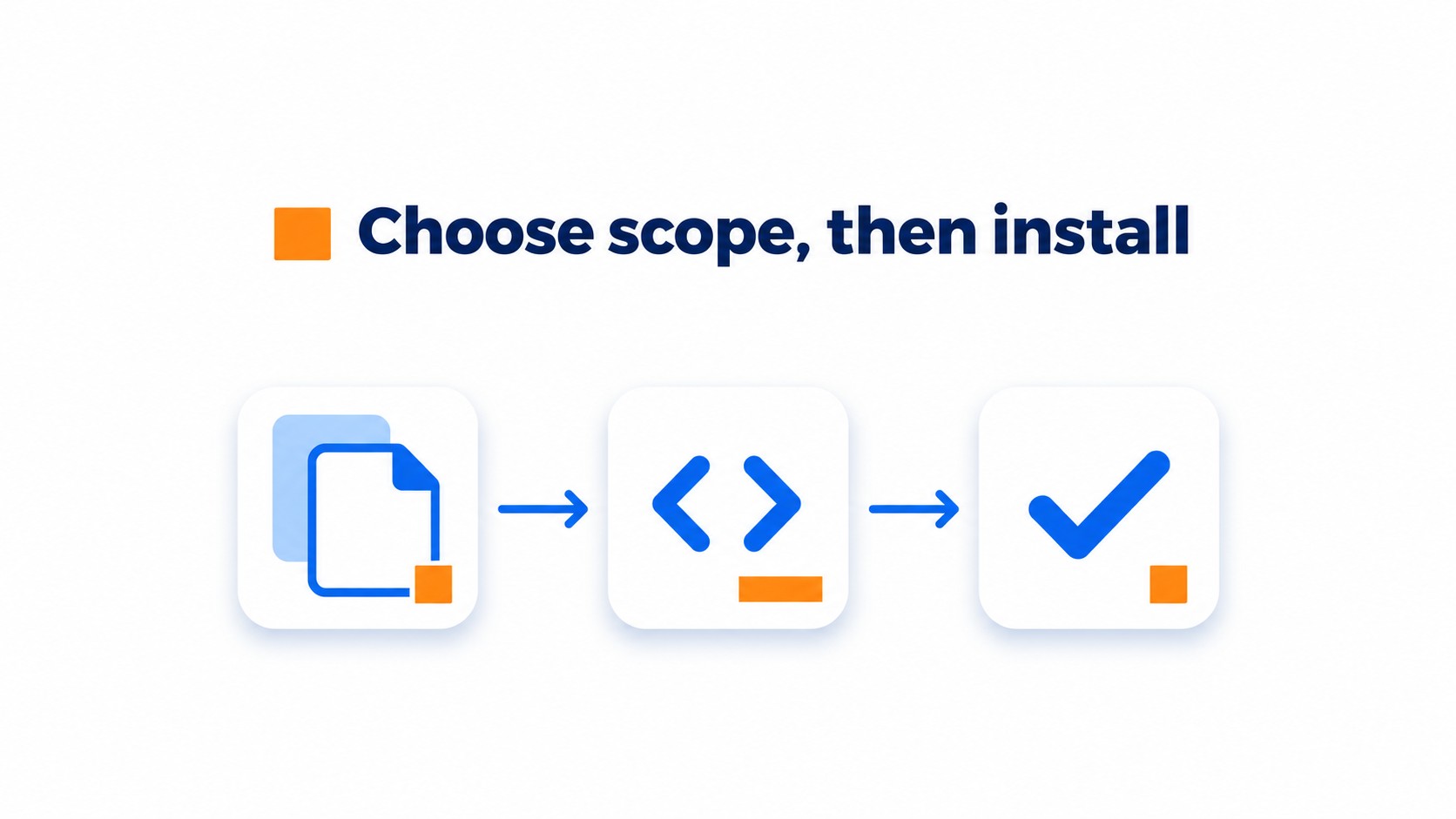
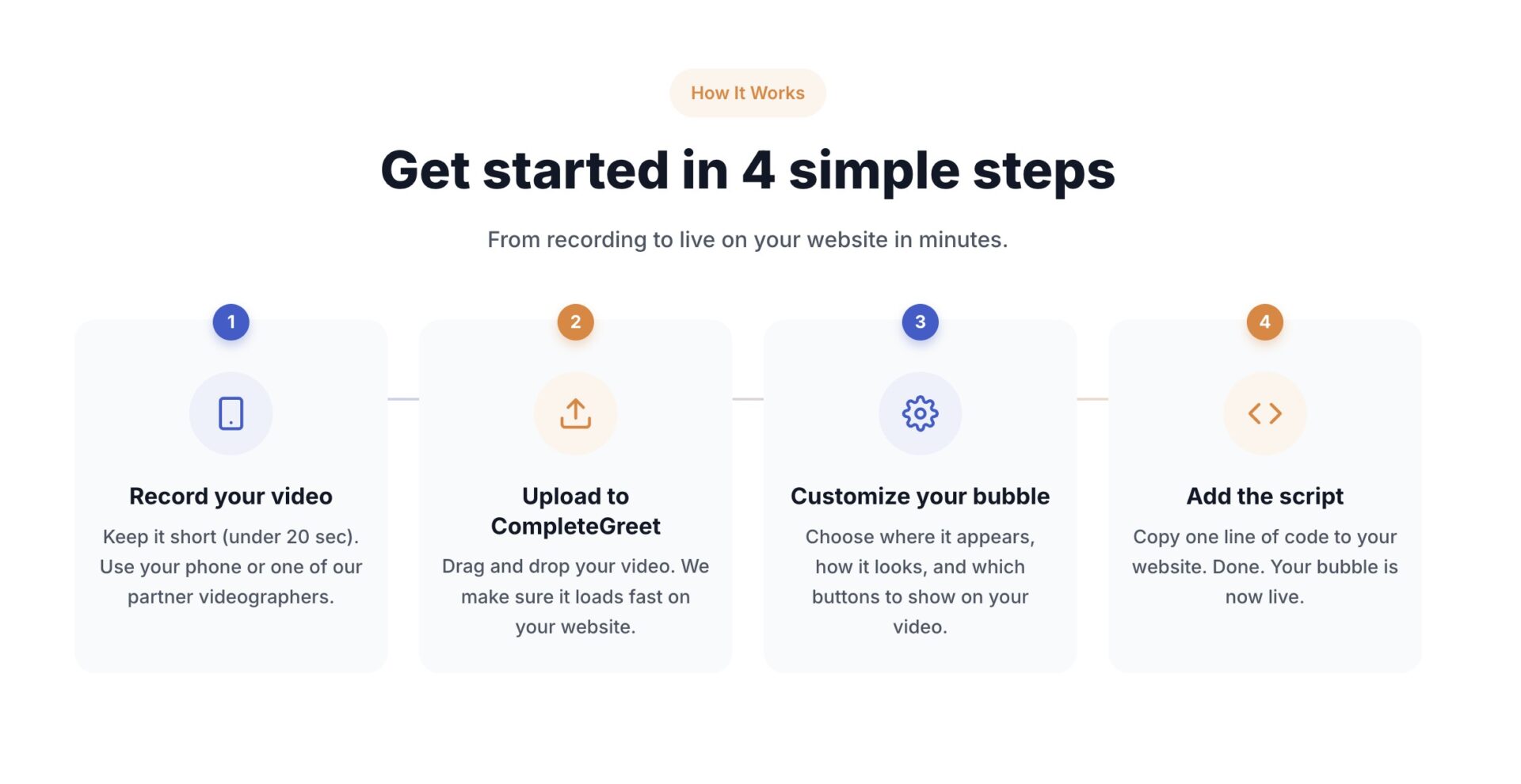
Install it by copying the CompleteGreet embed script into GoHighLevel’s tracking code field. You can add it to one page or across a whole site. Choose the scope first.
-
In CompleteGreet, open the widget setup or installation area for the bubble you want to show. Copy its embed script. Keep this tab open in case you need to replace the code.
-
In GoHighLevel, open
Sites, then chooseFunnelsorWebsites. Open the relevant funnel or website, select the page where the bubble should appear, and clickEditto open the builder. -
For one page, open
Tracking Codein the builder. Paste the script underHeader Tracking, then clickSave. Use this option for a widget that belongs on a specific landing page. -
To add the script to every page in that funnel or website, use its
Settings. Paste the script intoHead tracking codeand clickSave. Site wide code applies to that selected funnel or website, not every property in the account.
One page is usually the safer test. If the bubble should appear across several pages, use the site settings instead of pasting the same script into each page.
What can you customize on GoHighLevel?
Manage the CompleteGreet bubble in CompleteGreet. GoHighLevel’s native video and popup settings are separate. The options below apply to GoHighLevel’s own video elements and popups, not the CompleteGreet bubble.
Video, targeting, and actions
The native Video element has settings for autoplay, width, colors, and background. Add it to a page to show a video there; the documented settings don’t include URL rules for showing or hiding a floating widget.
For a popup, set a delay or exit intent trigger, or connect a button, image, or text link to open it. A button can launch a video popup, but it isn’t a clickable action inside the video itself.
Forms and branding
Hosted Video can show a selected form at a chosen timestamp. Viewers can close the form and keep watching, or be required to submit it before playback continues. This feature doesn’t work with videos inside popups.
Popup styling covers background color, overlays, spacing, margins, padding, and maximum width. Separate layout controls are available for desktop, tablet, and mobile. Check the video’s color and background settings as well: they’re separate from the popup styling.
What should you check before going live?
Check the bubble’s position on desktop, how it fits on a phone, and the pages where it appears. Use the published page, not the editor preview.
In a wide browser window, look for overlap with the navigation, cookie notice, or an existing chat button. The editor canvas can hide those collisions, so preview alone is a weak test. Check the live page.
A clean desktop view proves little on a phone.
Open the page in portrait and scroll from top to bottom. Tap the bubble, close it, then try the video controls. A close button tucked under the browser bar is a real nuisance. Test with one thumb.
For page targeting, choose one URL where the bubble should appear and one where it should stay hidden, such as a product page and checkout. Open both published URLs in a private window. If the bubble appears on each, narrow the URL rule before publishing. A rule that matches too broadly can put the greeting on pages where visitors are trying to finish a task.
GoHighLevel offers several ways to add video to a funnel or website page. The details below cover the standard Video element, hosted video, and video backgrounds.
Video sources and settings
The Video element can use YouTube, YouTube Shorts, Vimeo, Wistia, custom embed codes, or HTML5 video URLs. Settings include autoplay, width, colors, and background options.
Hosted Video is available through the Video element.
Hosted uploads are managed through the Media Library, support quality options up to 1080p, and can be up to 4 GB. The hosted player also includes playback speed controls and picture in picture.
Video backgrounds are separate
For a moving background rather than an embedded player, GoHighLevel lets users apply MP4 or WebM files from the Media Library to funnel or website sections, rows, and columns. Check that the selected asset fits the background area before publishing.
Choose the Video element for a player visitors can interact with. Use a video background when the video should sit behind page content. For hosted uploads, confirm the file is no larger than 4 GB before adding it in GoHighLevel.
Common questions
How do I add the CompleteGreet video widget to GoHighLevel?
Paste the CompleteGreet embed snippet into GoHighLevel site or funnel Settings under Head tracking code or Body tracking code to load it across the site. For one page only, open that page, choose Tracking Code, add the snippet under Header Tracking or Footer Tracking, then save and publish. Check the live URL afterward because the editor preview may not show an external widget reliably.
Why is my CompleteGreet widget missing from the GoHighLevel preview?
An empty GoHighLevel preview does not necessarily mean the widget install failed. Third party scripts can load asynchronously or depend on the published domain, consent settings, or provider configuration, so check the published page first. Confirm the script was saved in the intended tracking field, then review browser console or network errors if it is still missing.
Can I show CompleteGreet only on certain GoHighLevel pages?
Yes. Add the CompleteGreet script in the GoHighLevel page editor under Tracking Code, using Header Tracking or Footer Tracking on each page that should show it. Site or funnel settings apply more broadly. Avoid installing the same base script in both places, and check tracking settings after copying a page because page level code may not copy over.
Will a video widget display on mobile and slow down my GoHighLevel page?
Check the layout in GoHighLevel device preview at mobile widths, then test the published page on a phone. Third party widgets can affect page performance, and HighLevel’s Optimize JavaScript setting can defer nonessential scripts, which may improve Total Blocking Time. That can also change when a widget loads, so verify it still appears and check for overflow from fixed width embeds.
Is GoHighLevel’s Video element the same as a CompleteGreet video widget?
No. GoHighLevel’s Video element places video content on a page and supports sources such as YouTube, Vimeo, Wistia, custom embed codes, and HTML5 video URLs. A CompleteGreet widget is added with its embed script for a visitor greeting bubble, so use the Video element for an in page video and the widget script for the greeting.