
 Profile
 Dashboard
 Logout
Table of contents
Key takeaways
- Installing CompleteGreet on any Squarespace site takes under five minutes, you just paste one line of code into your header injection field.
- Once it’s installed, you’ve got control over pretty much every visual and behavioral detail of your video bubble.
- Before you hit publish, there’s a quick checklist worth running through, it’ll catch the stuff most teams overlook.
Here’s the short version: you add a video bubble to Squarespace by pasting a single line of JavaScript into your site’s header code injection area. That’s it.
CompleteGreet takes care of the rest. The widget shows up on every page you specify, loads without dragging down your site speed, and starts at $29/month when billed yearly for up to 5,000 unique visitors, no surprise overage fees lurking in the fine print.
A lot of other tools charge per impression or lock you into platform specific apps that tend to break whenever Squarespace pushes a template update. CompleteGreet runs on any Squarespace plan, including Personal, and works across all templates. No custom code beyond that initial paste.
The whole setup? Under five minutes.
Now, there’s a tradeoff here, and it’s intentional. CompleteGreet is laser focused on video greetings and trust building, it’s not trying to be a chat tool or a survey platform. If you’re running a Squarespace store or service site and you want a human face on your homepage without needing a developer, that focus is exactly the point.
How do you install CompleteGreet on Squarespace?
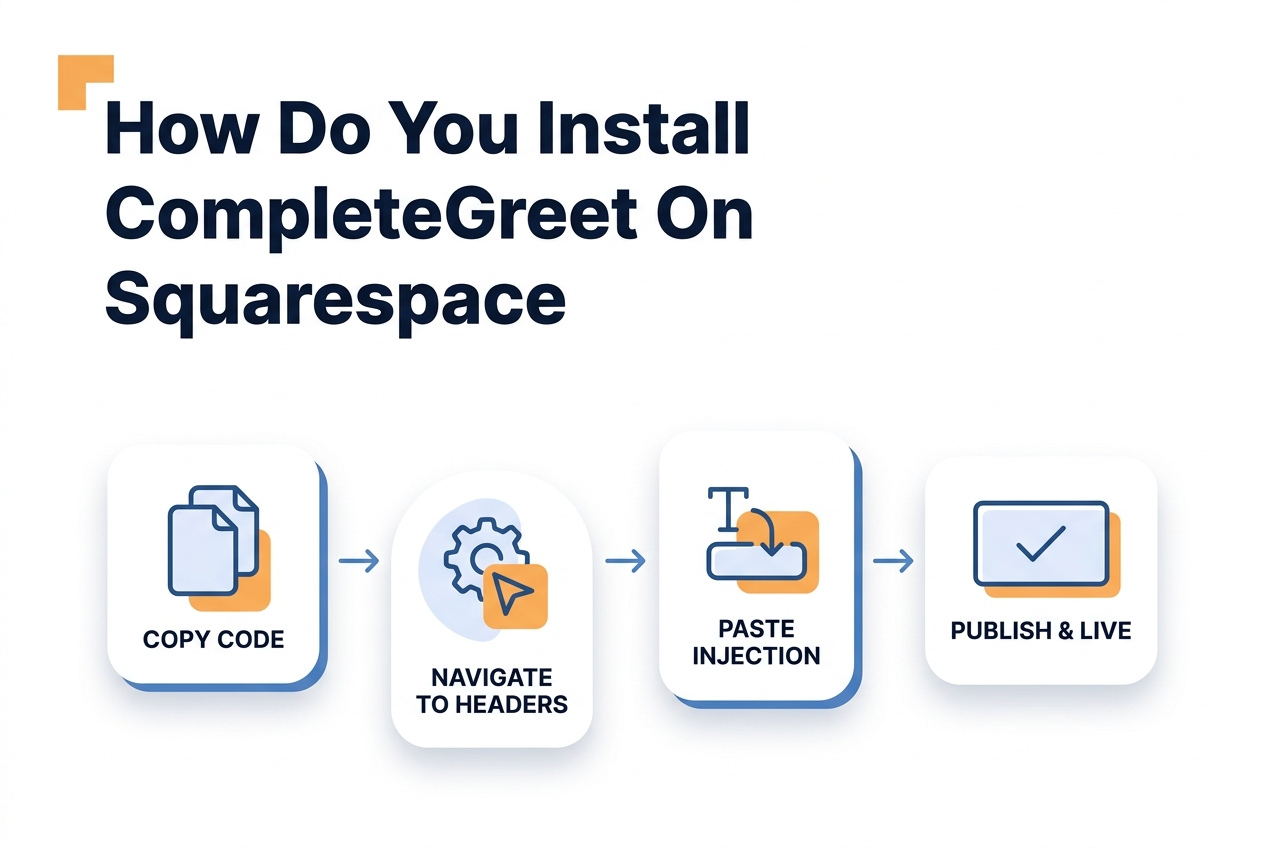
You can get CompleteGreet running on any Squarespace site in under five minutes, all it takes is pasting a single line of code into your header injection field. Squarespace makes this pretty painless, honestly. It’s one reason a lot of creators prefer it over platforms that need plugin installs or developer access.
So what exactly is a video bubble widget? It’s a small element that sits in the corner of your site and plays a greeting message from you or your team. If you’re new to this kind of tool, the guide on what is video bubble technology breaks it all down.
Here’s exactly how you set it up:
1. Log into your CompleteGreet dashboard and click “Add New Widget.” Give it a descriptive name, something like “Squarespace Home”, so you can easily find it later.
2. Record or upload your greeting video. You can use MP4, MOV, or WebM files up to 100MB. Most people just record directly in the browser, which honestly saves a ton of hassle transferring files between devices.
3. Customize how your bubble looks. Pick your colors, choose a position, set the button text. And don’t worry, you can always tweak these later without touching code again.
4. Hit “Publish” and copy the script snippet that pops up. It’s a standard JavaScript tag with your unique widget ID baked in.
5. Open your Squarespace admin panel in a new tab. Go to Settings, then Advanced, then Code Injection. This is where Squarespace lets you add third party scripts that load across your entire site. The official Squarespace documentation confirms this is the right spot for header scripts that need to run on every page.
6. Paste your CompleteGreet snippet into the Header section. Don’t put it in the footer, the widget needs to load early so your video assets start caching while the rest of the page renders.
7. Save your changes. You’ll see a confirmation banner from Squarespace.
8. Now open your live site in an incognito window. Your bubble should appear in the corner within a few seconds. If it doesn’t show right away, try a hard refresh or clear your browser cache.
Most people wrap this up in three to five minutes. But here’s one thing that catches folks off guard: Squarespace’s Personal plan doesn’t actually support Code Injection. You’ll need at least the Business plan to add custom scripts. That goes for any third party widget, not just CompleteGreet, so if you’re on Personal, you’ll have to upgrade first.
Once it’s installed, the widget only counts unique visitors. So you won’t get charged extra when the same person browses around your site and hits multiple pages.
What can you customize on Squarespace?
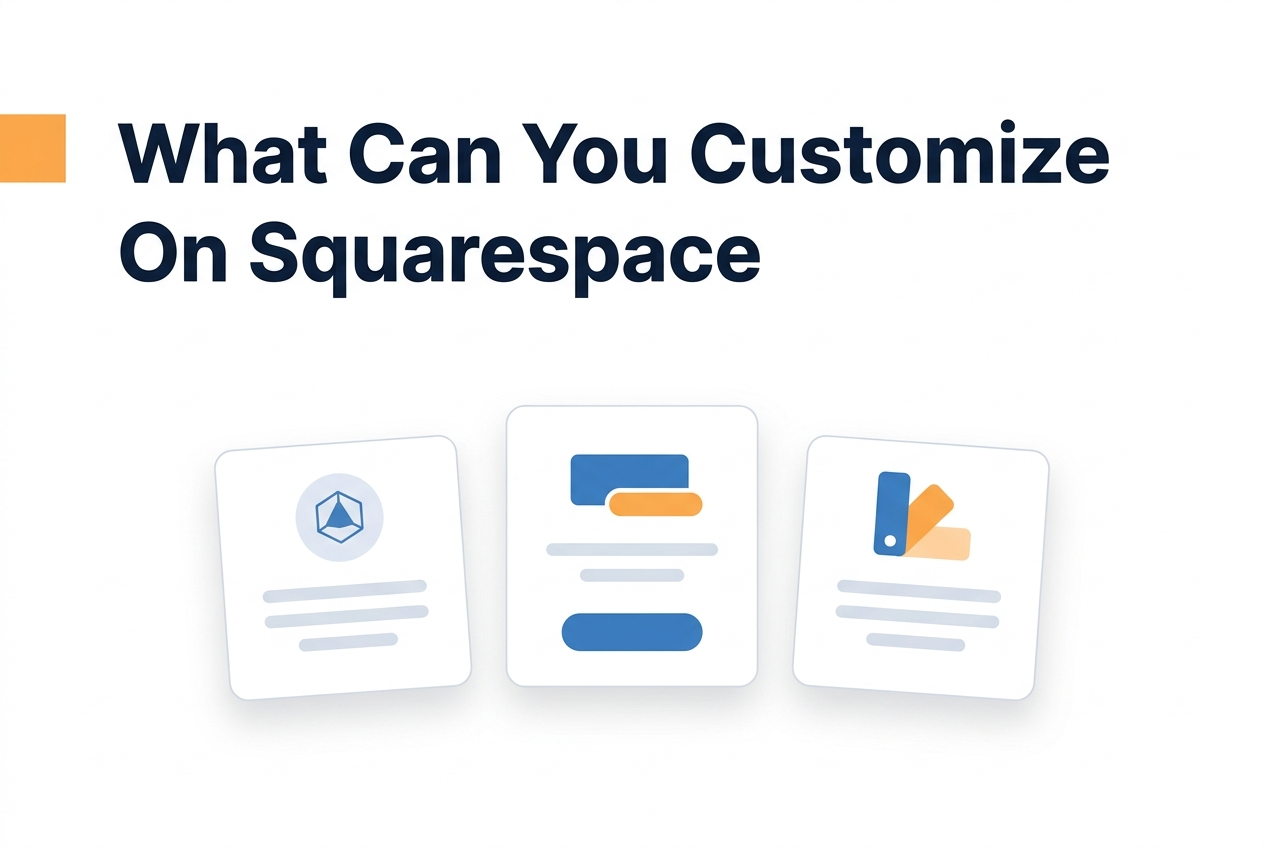
Pretty much everything, actually. Once CompleteGreet is installed, you’ve got granular control over how your video bubble looks and behaves. The dashboard gives you options that most video bubble tools tend to hide behind paywalls or lock inside advanced tiers.
Page and visitor targeting
You get to decide exactly where the bubble shows up. Want it only on your homepage? Done. Need to hide it on checkout pages? Easy. You can even trigger it exclusively for returning visitors. Time delays work down to the second, so if you’d rather wait until someone’s scrolled halfway through a portfolio piece before the greeting appears, you can do that too.
Device targeting is worth paying attention to on Squarespace since mobile and desktop layouts behave pretty differently. You can turn off the bubble on mobile entirely, or show a smaller thumbnail version that won’t cover up your navigation menus.
Calls to action and forms
The CTA button text is totally up to you. “Book a Call,” “Get a Quote,” “Watch Demo”, whatever fits your offer. You can link it to a Calendly URL, a Squarespace form, or an external landing page.
There are also built in lead capture forms that collect name and email without sending visitors away from the page. When someone clicks your CTA, the form fields pop up as an overlay, keeping people on your site while you grab their details.
Branding and visual styling
You can match colors to your Squarespace palette using hex codes or a color picker. The bubble position works in any corner, and you can adjust the margins so it doesn’t overlap with a live chat widget or cookie banner you might already have running.
Thumbnail size goes from a subtle 60 pixels up to a more prominent 120 pixels. For most Squarespace templates, somewhere between 80 and 100 pixels tends to look best, big enough to notice, small enough to stay out of the way.
One thing that trips up first time users: the video preview thumbnail gets auto generated from your uploaded greeting video. If you re record your greeting, don’t forget to refresh the widget cache, otherwise returning visitors will keep seeing the old thumbnail.
Install CompleteGreet on Squarespace
Add your video bubble widget in 5 minutes, no coding required.
Create your CompleteGreet account
Sign up at completegreet.com and set up your video bubble profile.
Copy your embed code
In your CompleteGreet dashboard, go to Install → Copy Code.
<script src=”https://app.completegreet.com/widget.js” data-id=”YOUR_ID”></script>
Paste this code into your Squarespace header.
Open Code Injection settings
In your Squarespace admin, navigate to the code injection area.
Settings › Advanced › Code Injection
Paste code in Header section
Paste your CompleteGreet embed code into the HEADER text area.
Save and publish
Click Save, then visit your live site to see your video bubble appear.
See the static HTML data above for the full breakdown.
What should you check before going live?
Before you go live, it’s worth spending a few minutes on a quick checklist. Trust me, it catches the mistakes most teams end up kicking themselves over later.
Start with desktop. Pull up your site in an incognito window and watch the video bubble load. Does it show up where you placed it? Does the thumbnail look sharp, or is it grainy because of a low res upload?
Click the play button. Make sure the audio actually works. You’d be surprised how many people record with their mic muted and don’t realize until customers have already seen the silent version.
Now switch to mobile. The video bubble widget behaves differently on smaller screens. On phones, it usually sits in the bottom corner and goes full screen when someone taps it. Make sure the close button is easy to hit with a thumb, this one matters more than you’d think.
Got a CTA form with three fields? That might feel fine on desktop, but it’s going to feel cramped on a phone. Consider trimming it to one or two fields for mobile visitors.
Page targeting is the next spot where teams tend to stumble. Squarespace lets you control where code appears through their code injection settings, so make sure the video bubble only shows on pages where it genuinely helps.
A personal greeting from the founder? That makes total sense on your pricing page or homepage. On a checkout page or a password reset screen? Not so much. Head into your CompleteGreet dashboard and set page rules that match your actual site structure.
Speed is another thing to keep an eye on. Video bubbles add a small script to your page, but a misconfigured widget can quietly drag down your load times. Run your page through a speed test.
Compare your scores against Google Web Vitals guidance to make sure you’re not hurting performance. If you see layout shift or render blocking warnings, hop into your dashboard and adjust the loading settings.
And here’s one people forget, test on a cellular connection, not just wifi. A video that streams beautifully on your office broadband might stutter on a spotty 3G connection. Most tools compress files automatically, but you should still see what your actual visitors will experience.
Finally, send the link to someone who’s never seen the site before. Ask them to record their screen and talk through their reactions. You’re way too close to your own site to notice the friction points.
Fresh eyes catch things in seconds that you’d miss for weeks.
Once everything looks good, you’re ready to go live.
Squarespace sites depend on clean visual hierarchy to convert visitors, and a video bubble brings human presence to the page without messing up that layout.
Most Squarespace templates handle the script injection without any conflicts, though it’s smart to double check mobile rendering before you push changes to your live site.
Video bubbles load asynchronously, so they won’t block your page from rendering.
Accessibility Considerations
Video bubbles need to play nicely with user preferences for reduced motion and screen reader compatibility. Make sure the close button works with keyboard navigation and that autoplay respects browser policies.
Check out the W3C accessibility guidance for the full rundown on keyboard navigation and focus management standards.
It’s worth testing your bubble on both iOS Safari and Chrome mobile before you start sending traffic to the page, Squarespace template variations can occasionally shift the widget position on smaller viewports.
Common questions
How much does CompleteGreet cost per month for a small business website?
CompleteGreet starts at $29/month when billed yearly on the BUILD plan, which gets you 5,000 unique visitors and 2 video bubbles on one website. Go annual and you’ll save 20%. The GROWTH plan runs $74 per month with monthly billing and bumps you up to 10,000 visitors with 5 bubbles. Every paid plan removes the “Built With” badge and includes URL targeting plus basic analytics.
Which website platforms work with CompleteGreet video widgets?
CompleteGreet plays nice with Shopify, WordPress, Wix, Squarespace, Webflow, WooCommerce, and any custom site built with HTML, React, or Vue. It installs with a single code snippet. There’s no platform lock in, so you can switch builders or move your site without losing your greeting setup.
How long does it take to set up CompleteGreet on a Shopify store?
Most Shopify stores get CompleteGreet up and running in under 10 minutes. You record your video, drop the embed code into your theme, and position the bubble where you want it. After that, the dashboard handles URL targeting and visibility rules, no need to touch code again.
What happens if my website gets more visitors than my CompleteGreet plan allows?
CompleteGreet only counts unique visitors, not total page views, so your plan goes further than tools that bill by impressions. If you go over your tier limit, the widget keeps working, you just upgrade to the next plan. There are no surprise overage fees or sneaky per minute charges.
Is CompleteGreet good for collecting customer feedback or just greetings?
It’s really built for trust building and greetings, not for heavy survey workflows. If your team needs complex multi step forms or a chat first support tool, you’re better off with a dedicated survey platform. But for welcome messages, product walkthroughs, and personal introductions? It’s hard to beat.
Does CompleteGreet charge overage fees when traffic spikes?
Nope, no overage fees on any plan. Pricing is a flat rate based on monthly unique visitors, with tiers running from $23 to $349. A traffic spike won’t trigger surprise charges. You know your cost upfront, regardless of seasonal fluctuations.