 Profile
 Dashboard
 Logout
Table of contents
Key takeaways
- You can get a video bubble widget running on Webflow in under five minutes, no coding needed, just copy and paste one script snippet.
- CompleteGreet lets you decide who sees your video bubble, what happens when they click it, and how it looks on your Webflow site.
- Before hitting publish, there’s a quick checklist worth running through, it catches the stuff most teams forget about.
Here’s the short version: you paste a single script into your Webflow site settings, and CompleteGreet takes it from there. The bubble shows up on every page and starts playing your greeting automatically. That’s it.
The whole setup takes about five minutes. You don’t need to touch page level code or wrestle with Webflow’s designer. One paste in your project settings and the widget loads everywhere.
And here’s something worth knowing, unlike competitors that charge per video play or cap your views, CompleteGreet only bills by unique visitors. Plans start at $29/month when billed yearly for up to 5,000 unique visitors, and there are no overage fees. Period. That kind of predictability really matters when traffic spikes out of nowhere during a product launch.
It works on Webflow’s free plan and every paid tier, too.
You can tweak the bubble color, position, and call to action buttons without touching any CSS. And honestly, video bubbles build trust way faster than text chat, visitors see a real person the moment they land on your site.
CompleteGreet is all about greetings, not complicated survey workflows. If your Webflow site needs that human connection without the bloat, this tradeoff actually works in your favor, it keeps things lightweight and fast.
How do you install CompleteGreet on Webflow?
Getting a video bubble widget onto your Webflow site is surprisingly quick, we’re talking under five minutes, and there’s zero actual coding involved. Just copy one script snippet and paste it. You’ll need at least a Basic site plan (or higher) for live domains, though you can absolutely test things on the free staging subdomain before upgrading.
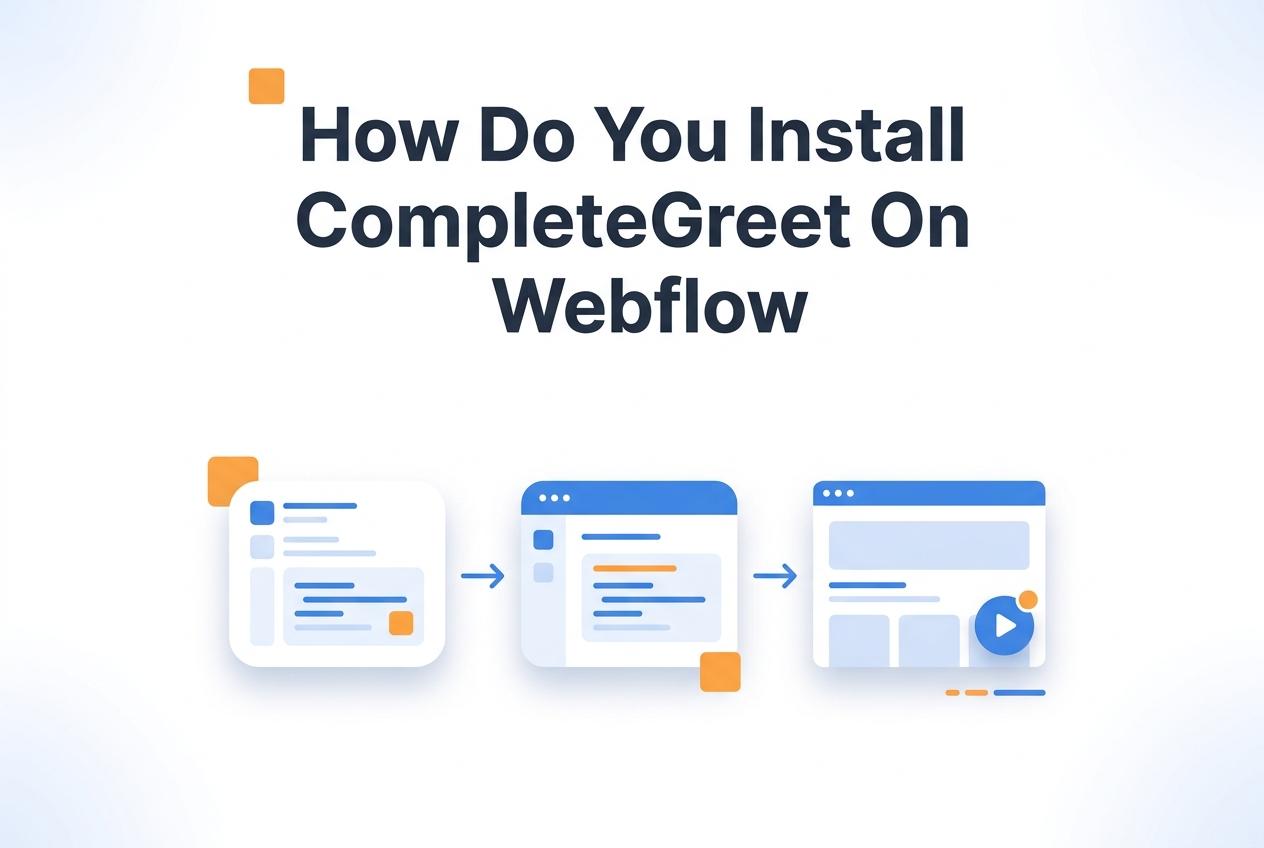
Here’s exactly what you do:
-
Log into your CompleteGreet dashboard and hit Create Widget. Pick your video, write your greeting message, and set up the initial display behavior.
-
After you save the widget, click Get Code, that’s where your unique installation script lives. Copy the whole thing. It’s basically a standard async JavaScript loader, nothing fancy.
-
Now hop over to your Webflow project. Go to Project Settings, then Custom Code. Paste the CompleteGreet script into the Head Code section, not the Body section. Putting it in the head means the widget loads early without slowing down your page.
-
Save your settings and publish your site. One thing to know: Webflow won’t show custom code in the Designer preview. You’ve gotta publish first to see it live.
This trips people up sometimes, Webflow’s custom code only runs on published sites, not in the Designer or read only preview mode. The official Webflow Help Center confirms this. So don’t panic when you can’t see the bubble while editing. Just open your live URL or staging subdomain to check that everything’s working.
Once you’ve published, do a hard refresh in your browser to clear any cached assets.
The widget should pop up within seconds of your page loading, sitting right where you placed it in your CompleteGreet dashboard settings.
What can you customize on Webflow?
You’ve got a lot of control here, who sees the video bubble, what they can do with it, and how it looks on your Webflow site. Let’s break it down.
Page and Audience Targeting
Page targeting is pretty straightforward. Maybe you want a greeting on your pricing page but not cluttering up your blog. The rules update instantly, no new code required.
Returning visitors get different messages than first timers, which is a nice touch.
You can even target by referral source. Someone coming from LinkedIn might see a buttoned up professional greeting, while your Instagram crowd gets something more laid back. And you can update these segments without making any CMS changes.
Calls to Action and Forms
CTA buttons can point to a calendar, a download, or really any URL. You can also change the button text, and this actually matters. “Book a call” performs differently than “Get a quote” on agency sites.
Try testing both. No developer needed.
The forms inside the widget collect leads without sending visitors away from the page. Name, email, and a short message all fit neatly in the bubble interface. You decide which fields are required and which are optional.
Submissions go straight to your CompleteGreet dashboard.
Your team gets email notifications automatically, too.
Visual Branding and Positioning
For branding, you can add your logo, match your brand colors, and set an agent photo or video thumbnail. Upload a custom thumbnail or just pull a frame from your greeting video. The bubble sits in either the bottom right or bottom left corner.
Corner radius, shadow depth, the initial greeting text, it’s all editable in the visual editor. Just keep your greeting under 100 characters so it doesn’t get weird on mobile screens.
Here’s one thing most teams overlook: the mobile breakpoint setting. You can turn off the widget on small screens entirely or switch to a compact mode. Most Webflow designers use 768px as the phone breakpoint, for reference.
All of this matters because a generic looking video bubble feels like a popup, but a well targeted one with the right CTA feels like it belongs on your site. Take a look at our video widget comparison if you want the full picture.
Add Video Bubble to Webflow
Follow these 4 steps to install CompleteGreet on your Webflow site
Get Your Embed Code
Log into CompleteGreet and copy your unique widget embed code from the dashboard.
<script src="https://app.completegreet.com/widget.js" data-id="YOUR_ID"></script> Open Project Settings
In your Webflow dashboard, select your project and click Project Settings in the top menu.
Paste in Custom Code
Navigate to Custom Code tab. Paste your CompleteGreet script in the Head Code section.
<!-- CompleteGreet Video Bubble -->
<script src="..."></script> Save & Publish
Click Save Changes, then publish your site. Your video bubble will appear on all pages.
See the static HTML data above for the full breakdown.
What should you check before going live?
Before you hit publish, take a few minutes to run through this checklist. It’ll save you from the mistakes most teams don’t catch until it’s too late. Start on desktop, open your site in Chrome, Safari, and Firefox. Make sure the video bubble widget shows up in the bottom corner, plays when you click it, and isn’t covering your navigation or footer CTAs.
Here’s something people consistently underestimate: mobile testing. Over half your visitors are going to see that widget on a phone.
Pull up your site on iOS Safari and Android Chrome. The bubble should resize cleanly, the video needs to play inline (not hijack the screen into fullscreen mode), and the close button should be somewhere a thumb can actually reach. If the widget’s blocking your mobile menu or checkout button, go adjust the position offset in your settings.
Next up, check your page targeting.
Make sure the widget’s only loading where you actually want it. Most teams set it to show on the homepage, pricing page, and product pages, then keep it off checkout and thank you pages. But seriously, double check those URL rules. One typo in a path pattern and your widget either won’t show at all, or, worse, it’ll show everywhere.
Do a quick speed check while you’re at it. Video assets can add weight to your page. Run your site through Google Web Vitals guidance to make sure the widget isn’t pushing your LCP or CLS scores past acceptable limits. If your scores dip, check that you’re loading the script asynchronously and that your video file is compressed under 5MB.
One more thing: test your form submissions all the way through. Fill out the contact form in the widget, submit it, and confirm the lead actually hits your inbox or CRM. Nothing kills trust faster than a form that doesn’t work.
Once everything looks good, go ahead and publish your Webflow site. Your video bubble is officially live.
Webflow sites tend to convert better when visitors can see a real person behind the brand. A video bubble widget puts a human face on your pages without messing up the design flow you’ve already built.
Customizing the appearance
Once the code is live, you control everything from the CompleteGreet dashboard. Change the size, position, and initial greeting whenever you want, no need to go back into Webflow. The widget plays nicely with your site’s CSS and sits above the canvas without getting in the way of navigation menus or mobile hamburger icons.
You can set display rules so the bubble only shows on specific pages, like your pricing or contact page. There’s also an option to delay it by a few seconds so visitors see your hero section first before the greeting pops up.
Connecting forms and CTAs
Want to tie the bubble to a Webflow form? Just map the form ID in your CompleteGreet settings. When someone fills out the video form, the data flows right into your Webflow form submissions or whatever email tool you’ve integrated.
Testing before you publish
Give the bubble a test drive on both desktop and mobile before you announce anything. Make sure the video loads quickly and that audio is muted by default, you don’t want to startle anyone. It’s also worth following W3C accessibility guidance so keyboard users can dismiss or tab past the widget without trouble.
Common questions
How much does CompleteGreet cost per month and what do you actually get?
Plans start at $29/month when billed yearly for 5,000 unique visitors. That gets you two video bubbles, click and view tracking, and the ability to show greetings on specific pages. If you need more, higher tiers go up to $349 for 500,000 visitors with unlimited bubbles. The big thing here is that all plans bill by unique visitors only, not video plays or minutes watched. So if the same visitor watches your greeting ten times, you’re not paying extra for that.
Does CompleteGreet work with Shopify, WordPress, and custom React sites?
Yep. CompleteGreet works on Shopify, WordPress, Wix, Squarespace, Webflow, WooCommerce, React, Vue, and really any site that can accept a script tag. Shopify has its own dedicated app for one click install, which is nice. For everything else, it’s the same embed code, paste it once in your header or custom code section and you’re done. The widget loads after your site renders, so it won’t slow anything down.
How long does it take to set up CompleteGreet on a website?
Most people are live in under five minutes. You upload a video from your phone or computer, pick your bubble color and position, and paste one line of code into your site header. Shopify users can skip the code entirely and just install from the app store. Even if you factor in recording the video and tweaking the design, you’re looking at maybe ten minutes total. The widget handles video compression and lazy loading on its own.
What kind of businesses should use CompleteGreet instead of live chat?
It’s a great fit for service businesses, coaches, consultants, and ecommerce stores that want to build trust before the conversation even starts. Think about it, live chat just sits there waiting for the visitor to make the first move. A video greeting introduces your face and voice right away, and that tends to increase form fills and call bookings. Now, if your team needs real time back and forth messaging, stick with live chat. But for everyone else? A human greeting that works around the clock without staffing costs is hard to beat.
How does CompleteGreet count unique visitors for billing?
Each unique visitor gets counted once per month, doesn’t matter how many times they come back or how many videos they watch. If someone visits your site twenty times and watches three different greetings, that’s still just one visitor on your bill. You’re charged based on monthly unique visitors, not total plays or bandwidth. It keeps costs flat and way more predictable than per minute or per play pricing.
What are the limitations of CompleteGreet I should know before signing up?
Let’s be upfront about this: CompleteGreet is built for trust building and greetings, not survey heavy or chat first workflows. If you need complex branching logic, multi step forms, or real time two way chat, this isn’t the right tool for you. It focuses on one way video introductions that push visitors toward taking action. Teams that need advanced conversation flows should look at other options. But for pure trust building and lead capture? It’s right in the sweet spot.