
 Profile
 Dashboard
 Logout
Table of contents
Key takeaways
- Shoppable video lets homepage visitors explore and shop products inside a video through product tags, links, quick views, or add to cart actions.
- Homepage video can support product discovery when it helps visitors move from noticing an item to viewing or buying it.
- Place homepage video where it answers the visitor’s next question, not wherever the template leaves an empty rectangle.
What can shoppable video do on a homepage?
Shoppable video lets homepage visitors explore and shop products inside a video through product tags, links, quick views, or add to cart actions. A visitor can tap a tagged item, check its details, then open the product page or add it to a cart without hunting through the site menu.
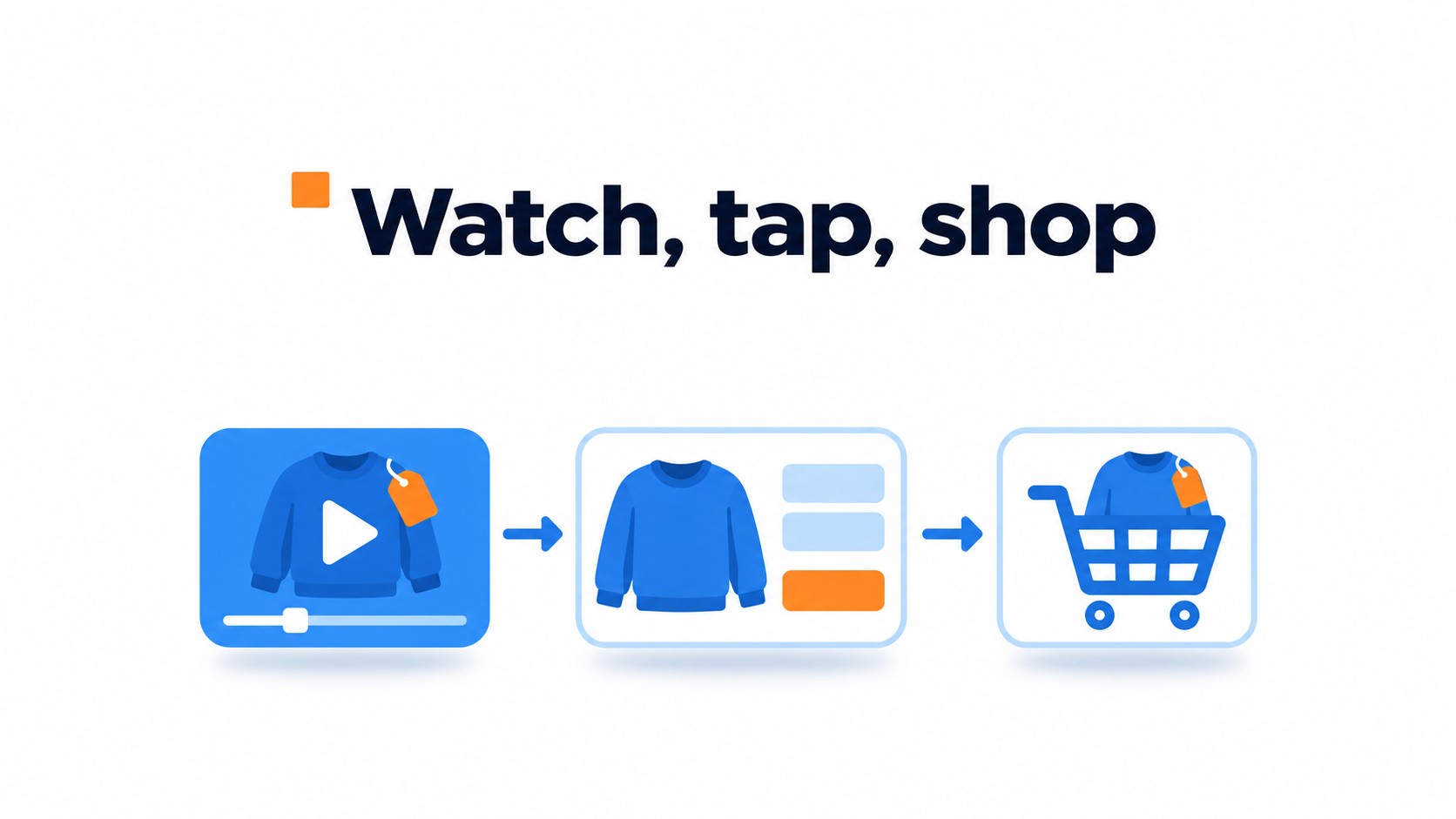
The video becomes a product entry point. On a homepage, it might sit in a hero area, carousel, or product story. Match each tag to the moment the item appears rather than putting every product link at the end.
What the evidence says
A field experiment on 66 apparel product pages reported a 14.5% increase in sales after product video was added. That was one retailer’s result, not a forecast for every homepage or product category.
Whatmore reports conversion improvements in selected shoppable video tests. Those vendor results are not a universal benchmark or a forecast for your homepage. Results can vary with the products, audience, placement, and measurement method.
For a homepage test, keep the product action visible without covering the item or competing with the main navigation. Check the tag on a phone, too. A label over a sleeve or shoe can hide the product.

How can homepage video affect your bottom line?
Homepage video can support product discovery when it helps visitors move from noticing an item to viewing or buying it. That path is measurable.
Start with product clicks from the video. Then follow those visitors through add to cart events, conversions, and revenue. Track revenue per session as well; it shows whether sessions that include video produce more value on average than sessions without it. A rise in plays alone says little about sales.
Keep the events distinct. A product click is not an add to cart, and an add to cart is not a completed order.
For stores with product variants, check that the selected size or color carries through when a video link opens the product page. If the page resets to the default option, click counts can look healthy while the shopping path is broken.

Compare sessions that saw the video with a similar group that did not. Keep the time period and traffic sources consistent where possible. That gives a more useful read than comparing this week’s revenue with last week’s, when campaigns or traffic may have changed.
Shoppable video examples show how product links can sit inside the viewing experience. Check that the controls stay clear on a small screen.
Where should you place video on your homepage?
Place homepage video where it answers the visitor’s next question, not wherever the template leaves an empty rectangle. A new collection may belong in the hero. A broad catalog often needs a carousel, story row, or grid that lets shoppers choose a direction.

Start with the visitor’s task. A hero suits one lead product or campaign. Give it a direct action such as “Shop the new collection” linked to that exact destination rather than a generic shop page. For several categories, give each carousel or grid tile its own route.
Stories work for short clips that show a product in use or walk through a few details. Keep the next action visible, such as “View the bag” rather than making visitors hunt for a link after watching. A pop up can put a timely offer in front of visitors, but it interrupts browsing. Trigger it after a deliberate action or delay, and make the close control easy to find.
Check the actual tap area and control order on a phone. Small buttons get missed. Keep the video inside its card, add captions to clips that start muted, and make sure a carousel swipe doesn’t compete with page scrolling.
A full screen takeover is a poor default for a homepage visit. Check the page with the widget open and closed; the menu, search, and primary button should still be reachable without scrolling around an overlay.
How to add a homepage video with CompleteGreet
Start with a product video, then set up its shoppable version in CompleteGreet. Keep the first pass simple.
Launch checklist
Choose a clip that shows the item clearly. Upload or import it and connect your Shopify or WooCommerce store. Link the products shown in the clip. Check variants before publishing, as an incorrect product or option is easy to miss in the editor.
Keep the linked products relevant to the clip. Preview the product cards and check that each one opens the correct item. Do not assume that product links support timed tags or quick views.
CompleteGreet supports add to cart actions for Shopify and WooCommerce. Test the action with your connected store before publishing.
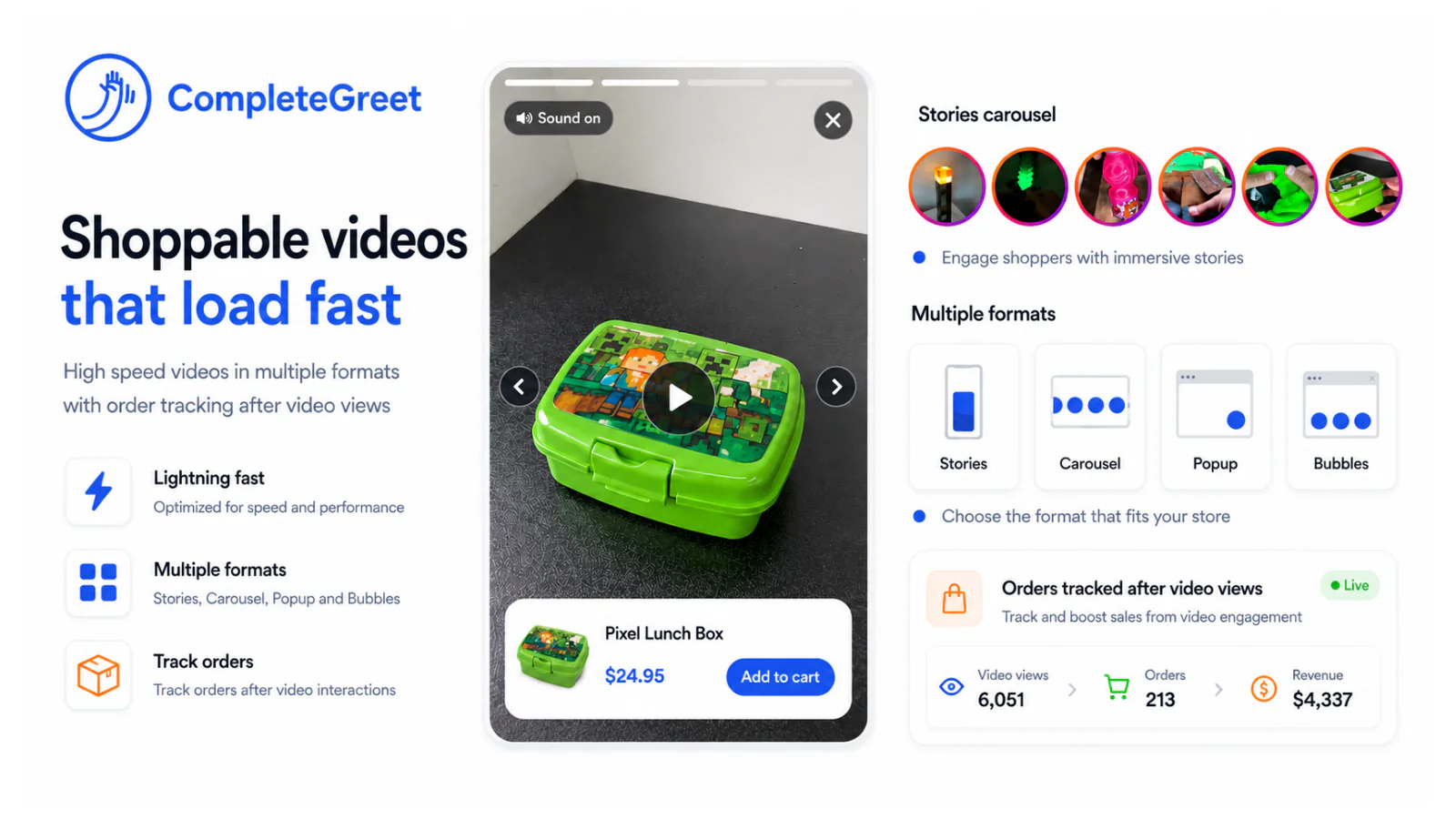
Publish through an embed or commerce component supported by your setup. Check the live homepage, not just the editor preview. Test the video, product destination, close control, and page layout on desktop and mobile. On a narrow screen, product cards can cover video controls.
For examples of shoppable video use, browse shoppable video examples.
Quick FAQ
Can any video become shoppable? A clip can be tagged when the video setup and product catalog support those actions.
Do tags need exact timing? Place them when the product is visible or relevant, then preview the clip from the start.
Can visitors add items to a cart? Only when both the storefront and the CompleteGreet integration support add to cart.
What should be checked on mobile? Confirm the video resizes, tags remain tappable, and cards do not block the controls.
Assess shoppable homepage video by how it helps visitors move from watching to shopping. These measures show where that path works and where it needs adjustment.
For this test, calculate product click rate as product clicks divided by video starts, then multiply by 100. Calculate the rate from product click to cart as add to cart events divided by product clicks, then multiply by 100. Calculate revenue per homepage session as revenue attributed to those sessions divided by the number of homepage sessions.
Read the measures together: views show reach, clicks show product interest, and cart events and revenue show whether that interest continues. Keep attribution rules consistent when comparing results.
Check page performance with Google Web Vitals guidance, which covers loading, interactivity, and visual stability.
Compare the video placement with a period when it wasn’t shown, keeping traffic sources and promotions as consistent as possible. Keep the test running until you have enough sessions and purchases for a useful comparison before changing the placement or product tags.
Common questions
What does shoppable video on a homepage let visitors do?
Shoppable video lets visitors explore or buy products from inside a video. It can use product tags, links, quick views, or add to cart actions, so shoppers can move from seeing an item to taking a shopping step. A typical setup syncs a product catalog, tags items at useful timestamps, then publishes the video through an embed or commerce component.
Does shoppable video increase sales on a homepage?
It may help, but the available figures are not a promise of homepage results. A field experiment on 66 apparel product pages reported a 14.5% sales increase after adding product video; it did not test homepage shoppable video. Whatmore also reports conversion improvements in its own shoppable video tests, but those vendor results are not a universal benchmark.
What should I measure to see if homepage shoppable video works?
Track product click through rate, add to cart events, conversions, revenue, and revenue per session alongside video views and engagement rate. Views show exposure, but they do not prove a sale. Compare the shopping metrics before and after launch, and break them out by placement or device when analytics allow, so a busy video does not hide a weak purchase path.
Where should shoppable video go on a homepage?
Match the placement to the visitor’s next step. A hero can spotlight one offer, while a grid or carousel can show several products; stories suit short browsing, and pop ups should be used sparingly. Keep calls to action clear, make controls easy to use on mobile, and check that the video does not crowd the page or interrupt browsing.
Can CompleteGreet add product tags and add to cart actions to homepage videos?
Yes. Our shoppable videos link products from Shopify and WooCommerce and support add to cart actions. You can choose a carousel, floating bubble, or popup and track product clicks, cart actions, and attributed purchases. Check the linked product and cart action on your own store before publishing. Product linking does not by itself confirm support for timed tags.