 Profile
 Dashboard
 Logout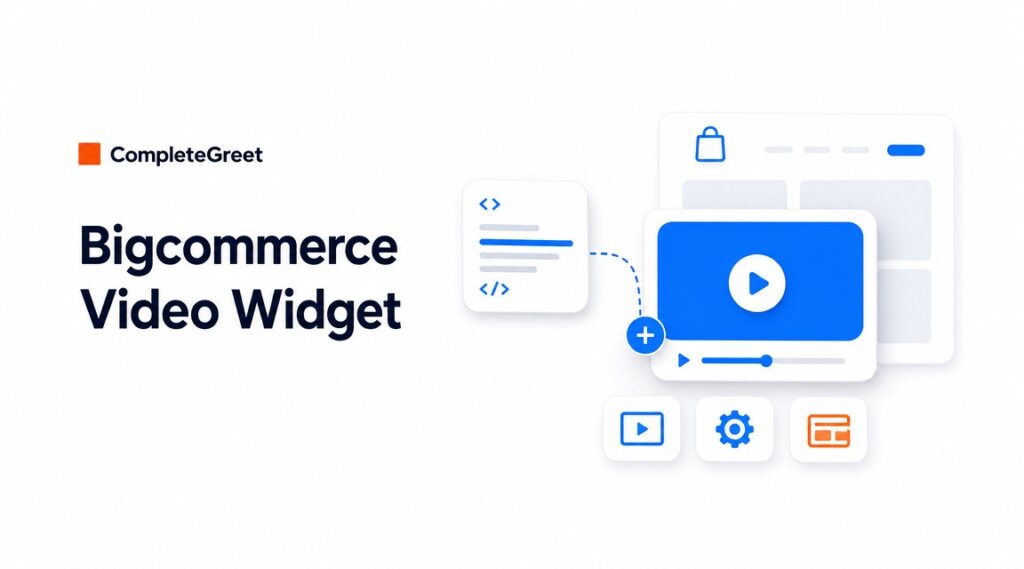
Table of contents
Key takeaways
- Installation takes about four minutes and happens entirely inside your BigCommerce dashboard.
- Every element of the video bubble can be adjusted to match your store layout and conversion goals without touching code.
- Open your BigCommerce store in Chrome, Safari, and Firefox before you announce anything.
How do you install CompleteGreet on BigCommerce?
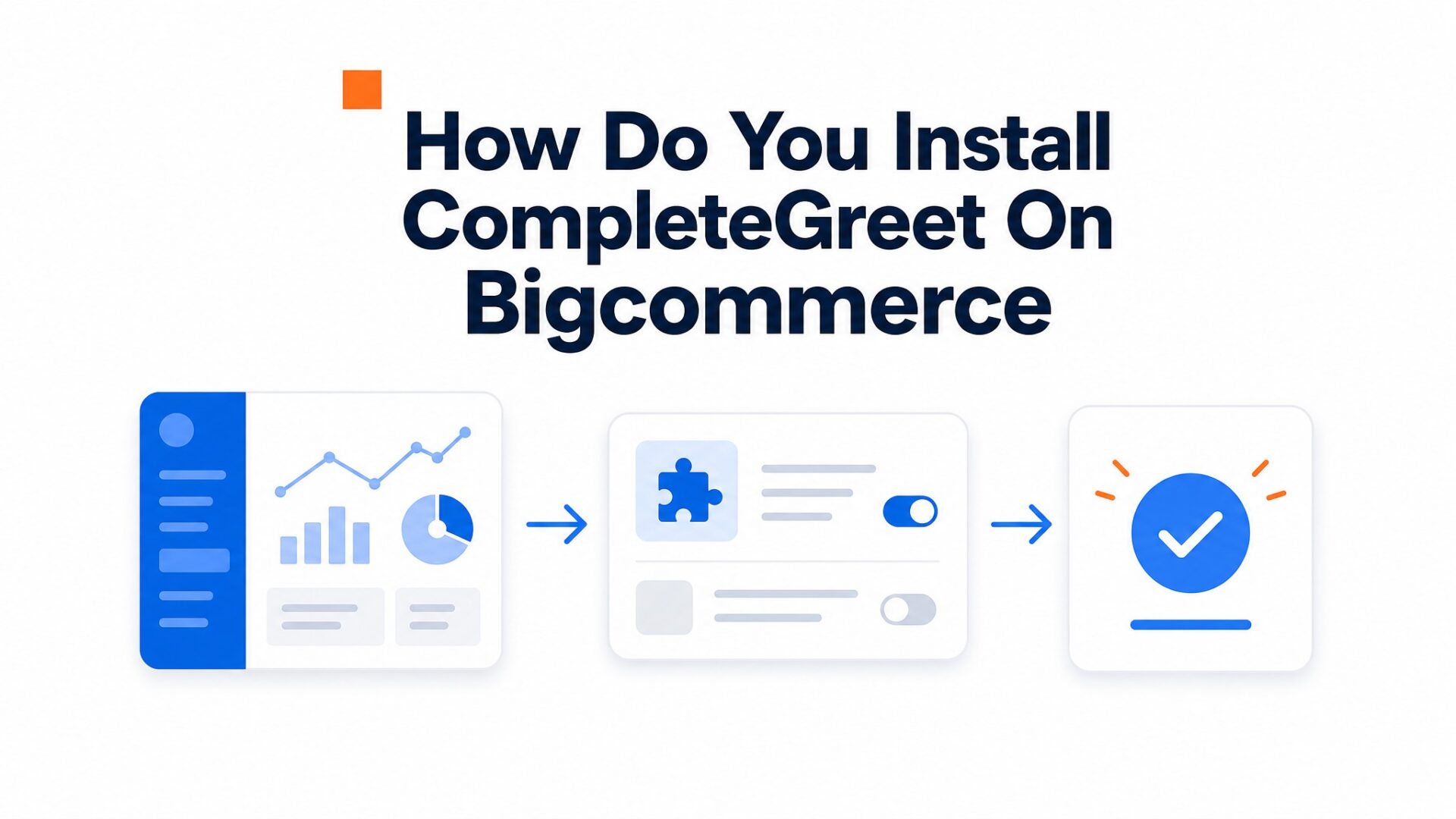
Installation takes about four minutes and happens entirely inside your BigCommerce dashboard. You won’t need to touch any code.
Have your video file ready before you start. MP4 format with H.264 encoding works most reliably across BigCommerce themes.
- Log into your BigCommerce store admin and navigate to Channel Manager. Find CompleteGreet in the BigCommerce App Marketplace and click Install. Approve the permission requests when the modal appears. The app needs access to your storefront scripts so it can inject the widget code. Wait for the automatic redirect to the setup screen.
- Connect your account on the authentication page. Existing users should enter their credentials. New users can click Create Account and complete the registration form. The integration syncs automatically once authentication finishes. You’ll see a green checkmark when the connection is live.
- Upload your video greeting from the CompleteGreet dashboard. Click Upload Video, select your file, and wait for the processing bar to reach 100%. Files under 10MB work best for BigCommerce stores so you don’t slow down the checkout page. The system generates three resolution variants automatically.
- Set your widget position in the Display Settings tab. Most BigCommerce themes handle bottom right placement at 20 pixels from the edge and won’t overlap important elements. Check the mobile preview to ensure the close button sits above your add to cart button. Save your configuration.
- Toggle the Live switch to activate. Open your storefront in a private browsing window to verify the bubble appears. If you see a blank square instead of your video, clear your browser cache and reload.
BigCommerce’s default script loading order can delay the bubble by several seconds on product pages with heavy image galleries. Toggle Async Load in Advanced Settings.
This forces the script to load independently of your product images.
See integrations for other platforms if you run multiple stores.
What can you customize on BigCommerce?
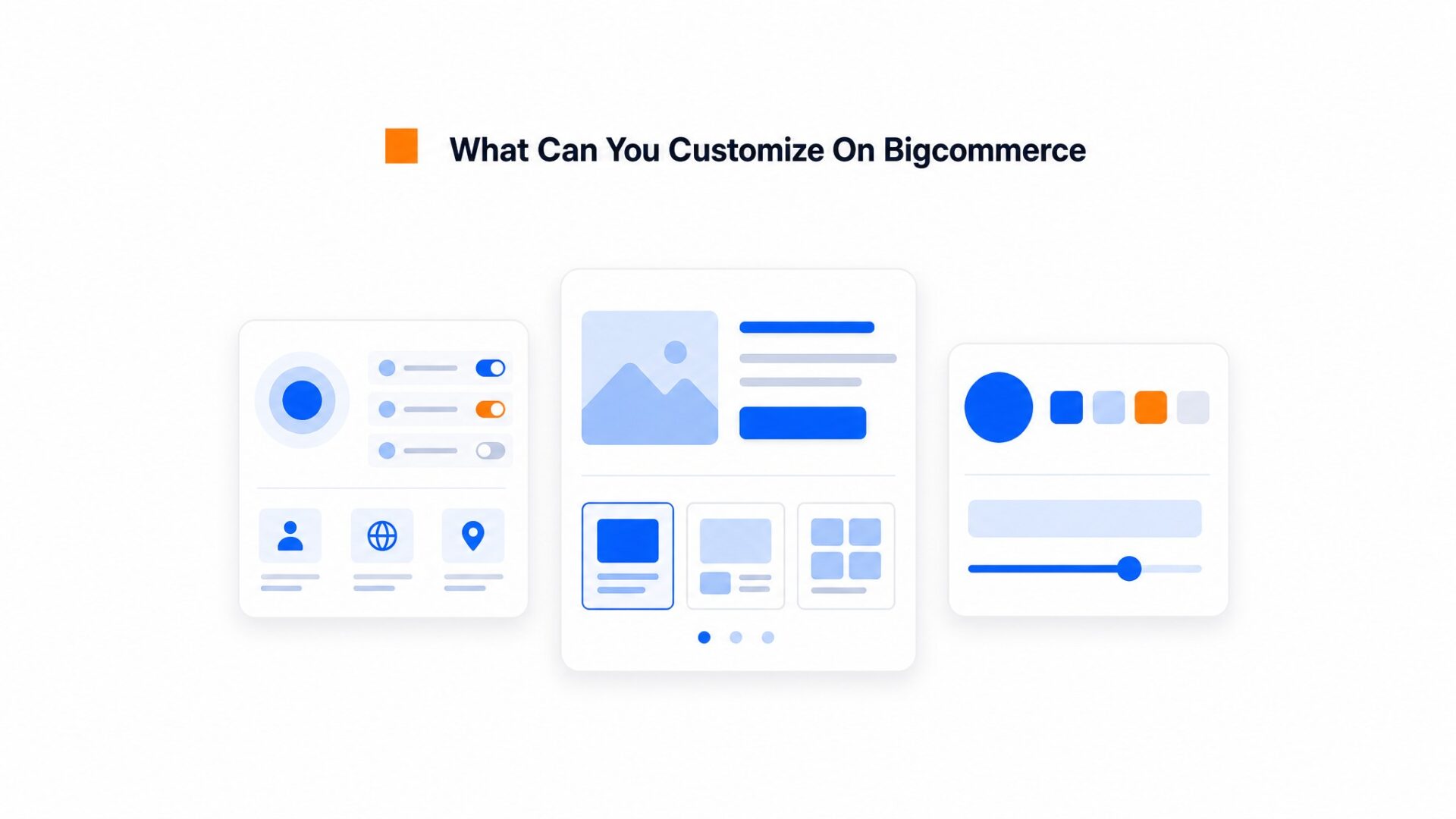
Every element of the video bubble can be adjusted to match your store layout and conversion goals without touching code. The dashboard organizes options into three areas: who sees the widget, what they can do with it, and how it looks.
Page targeting and timing
Visibility rules let you show the widget only on specific page types or URLs. Set it to appear on product pages under $50, cart pages with abandoned items, or specific collections like /new, arrivals. The targeting also supports time, delay triggers and scroll depth. Most stores set a 3 to 5 second delay so the visitor sees the page content before the bubble slides in. Exit, intent targeting is available too, though it works better on desktop than mobile browsers.
CTAs and form fields
BigCommerce stores typically see better engagement when the CTA text matches the page intent. On product pages, “Ask about this item” outperforms generic “Contact us” text. The button color inherits from your theme automatically, but you can override it in the dashboard if your brand uses specific hex codes.
Form customization runs deep.
You can add custom questions beyond name and email, map those fields to your CRM or email platform, and set up conditional logic so visitors only see certain questions based on their previous answers. See integrations and platforms for the full list of CRM and email connections that work with BigCommerce form submissions.
Visual branding
The bubble position can be set to bottom left or bottom right with pixel, level offset adjustments. This matters on BigCommerce because many themes have sticky add to cart bars or live chat widgets that compete for the same corner space. The thumbnail image that displays before the video plays should be a static frame showing your face clearly. Avoid screenshots with text overlays that become unreadable at the 120×120 pixel display size.
Test your final configuration on BigCommerce’s checkout page specifically. Some custom themes strip external scripts during the final purchase flow, which silently breaks lead capture without any visible error.
What should you check before going live?
Open your BigCommerce store in Chrome, Safari, and Firefox before you announce anything. The video bubble should sit in the bottom corner without overlapping your navigation menu, cart icon, or footer buttons.
Mobile matters more for BigCommerce stores.
Over half your visitors will see that widget on a phone. Load your store on iOS Safari and Android Chrome. The bubble should resize without forcing full screen video playback, and the close button needs to land where a thumb can actually reach it. If the widget covers your mobile hamburger menu or checkout button, adjust the position offset in your dashboard settings.
Check your page targeting
Verify your page targeting logic is working as intended. A video greeting on your homepage might annoy shoppers on the checkout page.
Run through your store like a customer: hit the homepage, browse a category, view a product, add to cart, then proceed to checkout. The widget should only appear where you configured it to show.
BigCommerce checkout pages sometimes load scripts differently than the rest of your theme. If your widget disappears on checkout, check that your script injection covers the checkout template or adjust your targeting to exclude those pages entirely.
Run a speed check with Google Web Vitals guidance after installing. Video assets add weight. If your LCP score drops, check two things: is the script loading asynchronously, and is the video file under 5MB? Both fixes take about 30 seconds in the dashboard.
Test your form submissions end to end. Fill out the contact form inside the widget, submit it, and confirm the lead hits your inbox or CRM.
Broken forms kill trust faster than no form at all.
BigCommerce merchants typically measure video widget impact through conversation rate changes and average order value shifts. The data below outlines baseline expectations and configuration thresholds that influence these metrics.
Understanding these benchmarks helps store owners set realistic targets before adjusting widget placement or call to action settings.
Stores using video widgets on high, intent pages observe inquiry volume increases averaging 53 percent compared to static contact forms. This figure derives from aggregated merchant data across mid, market BigCommerce installations.
The yearly operational cost for a standard Build plan sits at 2,388 DKK, which translates to roughly 320 USD depending on current exchange rates. Merchants calculate break even by dividing this annual cost by the average margin per video, generated conversion.
Before interpreting analytics, verify that the tracking window aligns with the typical BigCommerce purchase cycle. A 25 percent reduction in bounce rates often appears on product pages where the widget loads within 1.5 seconds.
Accessibility compliance requires that video widgets meet WCAG 2.1 standards for keyboard navigation and screen reader compatibility. W3C accessibility guidance recommends providing text alternatives for all video content and ensuring that autoplay functions respect user preferences.
Checklist for data validation
- Confirm that conversion attribution windows match your average sales cycle length.
- Filter out internal traffic and team testing sessions from widget interaction logs.
- Compare mobile versus desktop inquiry rates separately, as device type skews engagement metrics significantly.
Merchants running the Build plan typically recover the annual subscription cost after generating twelve to fifteen incremental conversions, assuming an average order value above 85 USD. This threshold drops lower for stores with higher margin products or repeat purchase rates.
BigCommerce stores see the strongest widget performance on pages where visitor intent already indicates purchase consideration rather than casual browsing. Install the widget on product and checkout pages first, then measure for seven days before expanding to category pages.
Common questions
How do I add CompleteGreet to my BigCommerce store without editing theme code?
Install CompleteGreet through BigCommerce’s Script Manager in under five minutes. Log into your BigCommerce admin, go to Storefront > Script Manager, and create a new script. Paste your CompleteGreet embed code, set the location to Footer, and save. The widget loads automatically on every page. No theme file edits or developer help needed.
Why is my CompleteGreet video bubble not showing in the BigCommerce theme preview?
BigCommerce’s theme preview runs in a sandboxed environment that blocks some third party scripts from loading. The widget works fine on the live storefront. To test before publishing, use BigCommerce’s View Store link or check your actual site URL. The preview limitation affects many analytics and chat tools, not just video widgets.
Can I show CompleteGreet only on BigCommerce product pages and hide it on checkout?
Yes, page level targeting is built into CompleteGreet’s dashboard. Set rules to show the widget only on URLs containing /products/ or specific product handles. Exclude checkout pages by adding /checkout/ to your hide list. These filters respect BigCommerce’s URL structure and update in real time without touching theme code.
Does CompleteGreet slow down BigCommerce site speed or affect Core Web Vitals?
Async loading keeps page speed scores clean. The script loads after your BigCommerce content renders, so it does not block the initial paint. Most stores see no measurable impact on Largest Contentful Paint or Time to Interactive. The video file itself loads only when a visitor clicks the bubble, not on page load.
How much does CompleteGreet cost per month for a BigCommerce store?
CompleteGreet starts at $29/month when billed yearly for up to 5,000 unique visitors. BigCommerce stores on the Standard plan typically fit this tier. There are no overage fees if you exceed your visitor count occasionally. Annual billing is already reflected in the $29/month yearly price. All plans include unlimited video greetings and form submissions.