 Profile
 Dashboard
 Logout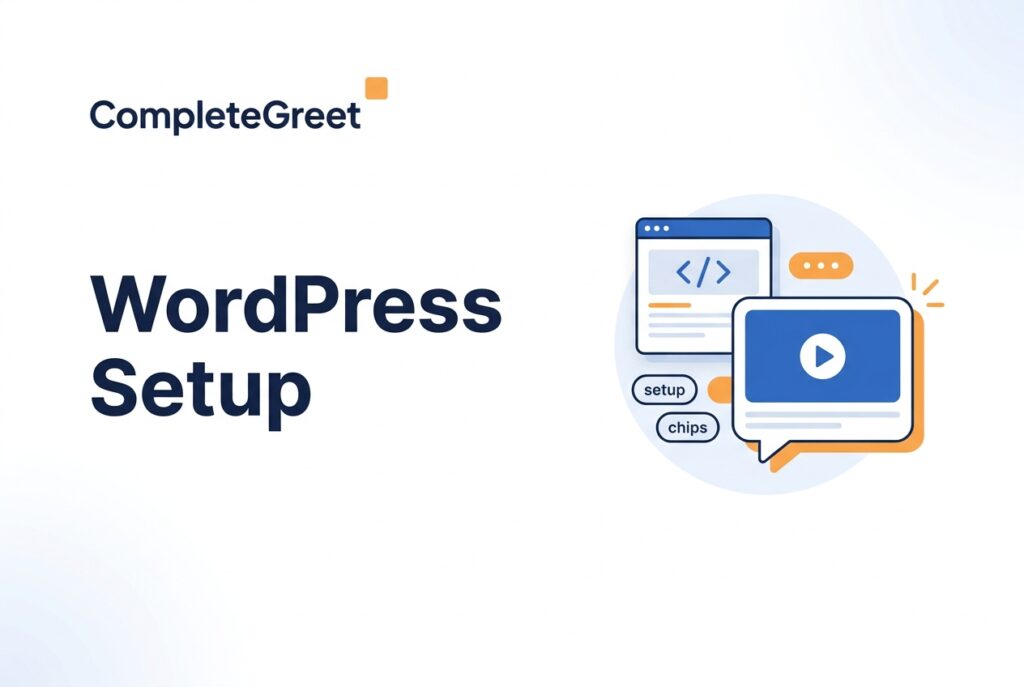
A WordPress video widget can show a personal greeting and offer a contact, booking or page link. This is a CompleteGreet setup guide. If you are still choosing a product, compare website video widgets first.
Choose the experience before installing it
An ordinary video block displays a player inside your content. A video bubble widget floats above the page and opens when a visitor interacts with it. Shoppable video adds store-product connections. Decide which behaviour you need so you do not install a greeting and expect it to function as a product catalogue.
Record the question your video will answer and choose one relevant next action. Keep the same answer in visible page text for visitors who cannot or prefer not to watch.
Install through the current supported route
Use the WordPress installation instructions supplied by CompleteGreet. Get the plugin or your site’s embed code from the official installation flow. Do not copy a sample script URL, shortcode or site identifier from an unrelated tutorial.
If you use an embed code, add it through your site’s supported custom-code area or an appropriate script-management plugin. If you use the CompleteGreet plugin, follow its connection instructions. Install the widget once; running both routes can load it twice.
Keep a staging or recoverable backup available before changing your WordPress installation. The exact controls depend on your theme, plugins and access permissions.
Configure the greeting and next action
Upload the recording, choose its position and set the pages where it should appear. Use a destination that matches the promise in the video. A consultation greeting should lead to the relevant booking or contact step, not an unrelated product page.
Check page rules using real URLs. Include and exclude trailing slashes or query parameters only as supported by the current settings. Confirm that the widget stays out of checkout or other sensitive steps unless there is a specific reason to put it there.
Test before showing it to visitors
Open a logged-out page after clearing the relevant cache. Test playback and dismissal on desktop and mobile. Make sure the player does not cover navigation, form fields, cookie controls or the primary action.
Check keyboard operation and provide captions or equivalent text. Follow W3C accessibility guidance when evaluating the complete page, rather than assuming an installed widget makes the site accessible.
Use a clearly marked test enquiry when checking a form or booking path, and confirm the result reaches the intended destination. Do not assume a visible button proves the complete flow works.
If the widget does not appear
Check that the installation is active, the page matches the display rules and the site uses the intended widget. Then check consent settings and caching or script-delay settings. Change one thing at a time. Do not disable every performance or security plugin as a first step.
Measure loading before and after installation under the same conditions. An asynchronous script can still use network and processing resources. Google’s Web Vitals guidance explains the measures to watch.
Costs and results
Choose a plan for your visitor and video requirements, using the current pricing page. Installation time depends on your site and testing needs. Neither a quick installation nor a video play establishes a conversion improvement; track completed enquiries or purchases separately.