 Profile
 Dashboard
 Logout
Table of contents
Key takeaways
- Installation takes about four minutes and requires no coding beyond copying and pasting a single line.
- CompleteGreet offers page level targeting, custom CTAs, form fields, and visual styling that adapts to your Ecwid theme without code changes.
- Open your Ecwid store in Chrome, Safari, and Firefox before you announce anything.
How do you install CompleteGreet on Ecwid?
Installation takes about four minutes and requires no coding beyond copying and pasting a single line.
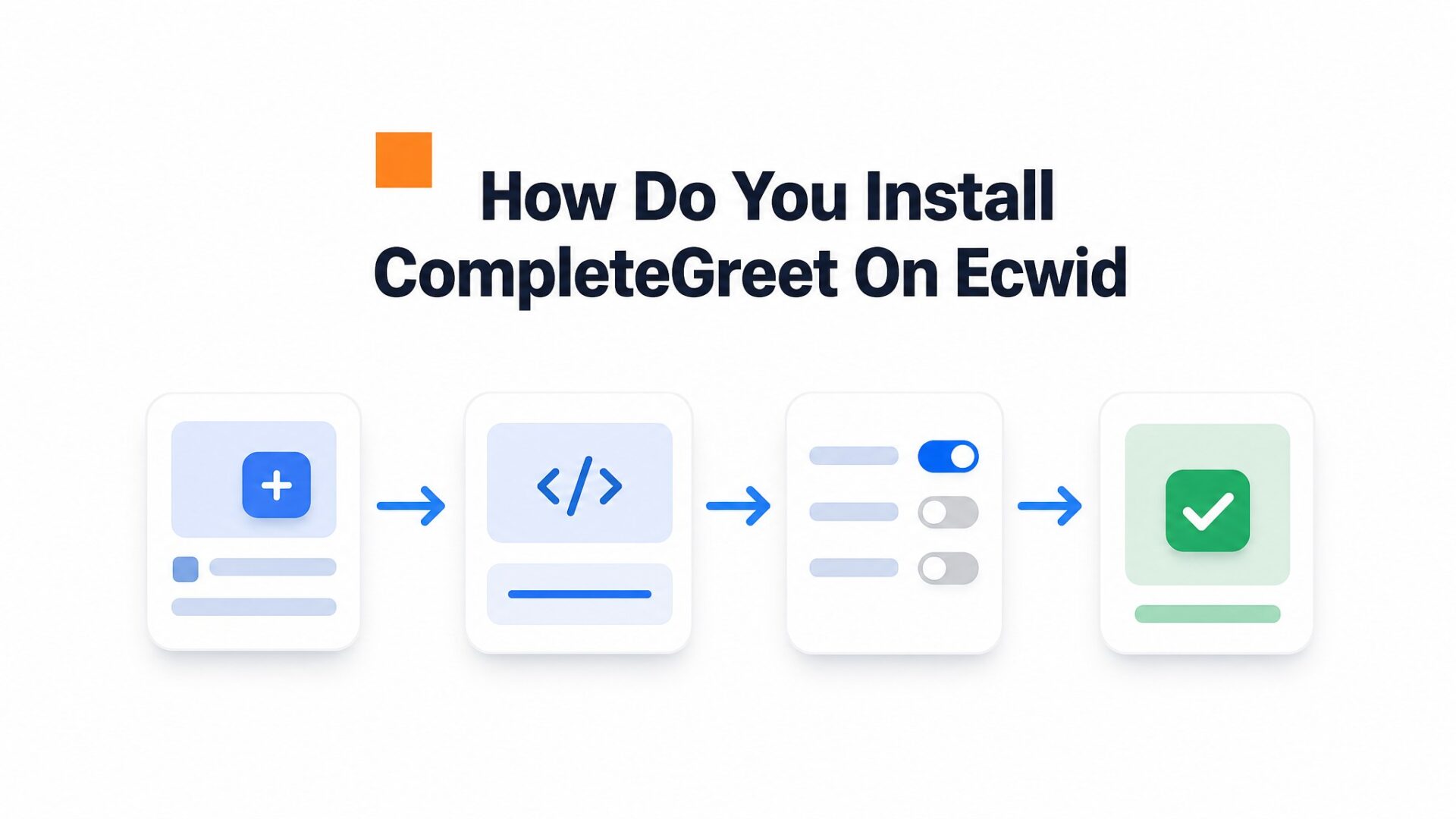
- Create a free account on CompleteGreet. The setup wizard will ask you to upload your greeting video and pick your widget position. Once you finish, click the “Get Code” button in the top right corner. This copies your embed script to the clipboard.
- Open your Ecwid admin in a new tab. Click Settings in the left sidebar, then select Design. Scroll down to the “Header & Footer” section and find the “Custom Header Code” text field. Paste your CompleteGreet code there.
- Click Save at the bottom of the Design page. Ecwid will apply the code to every page of your store automatically.
- Load your storefront in a new tab and look for the video bubble in the corner you selected. If it does not appear immediately, clear your browser cache or open an incognito window. Some Ecwid themes load scripts asynchronously, so the bubble might take a few seconds to appear on first visit.
Check your mobile view.
Most teams skip this and regret it. Open your store on an actual phone and verify the bubble sits where a thumb can reach it without blocking your add to cart button. If the position is off, return to your CompleteGreet dashboard and adjust the offset values. The changes push live instantly without needing to touch the Ecwid code again.
What can you customize on Ecwid?
CompleteGreet offers page level targeting, custom CTAs, form fields, and visual styling that adapts to your Ecwid theme without code changes.
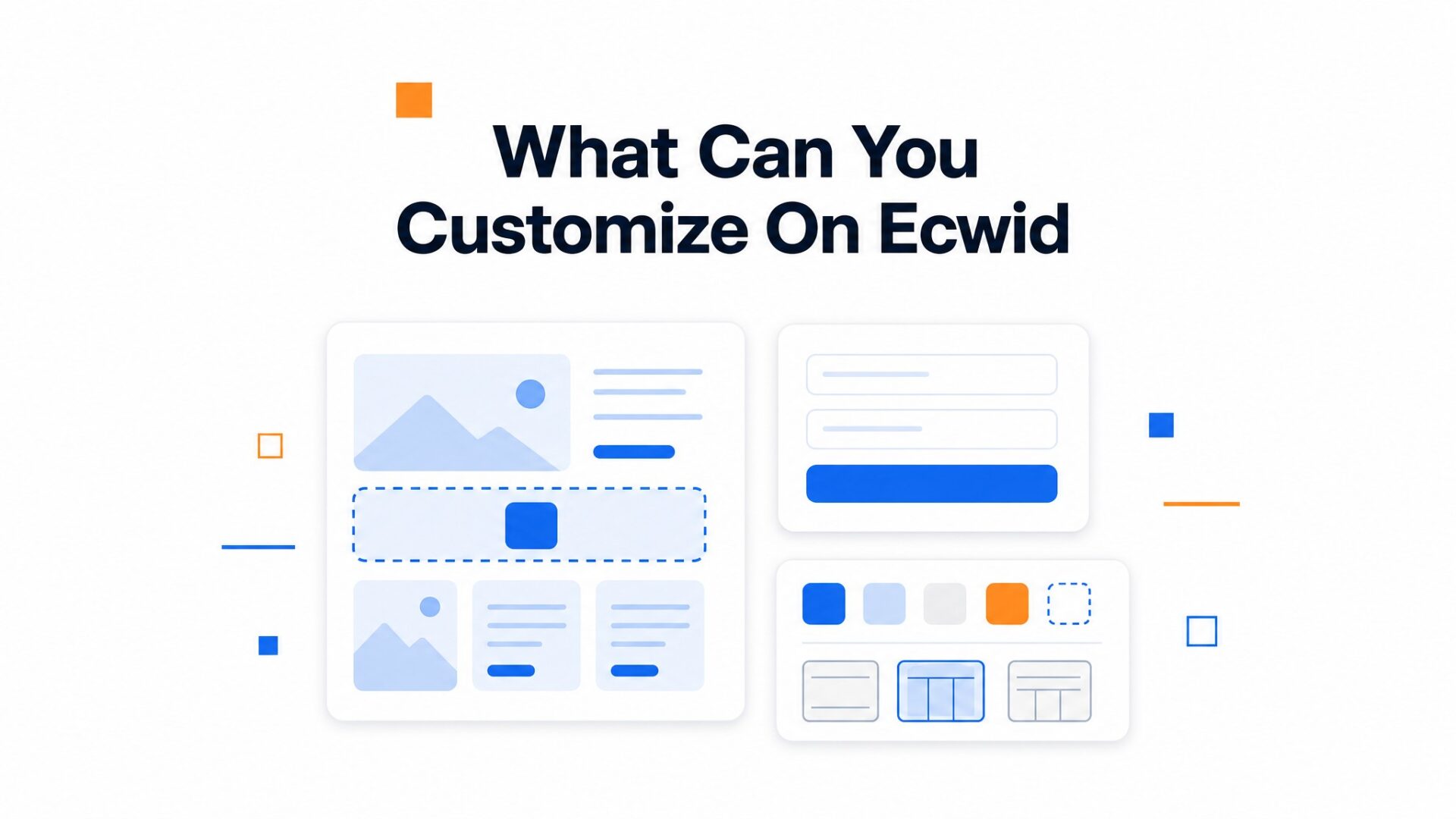
Page targeting lets you show the widget on specific URLs or hide it where it would distract. Most Ecwid stores run it on product pages and the homepage but exclude checkout and cart pages. The delay timer controls when the bubble first appears.
Set it to 15 seconds. That catches visitors who are actually reading, not the ones who leave in three seconds.
CTA buttons support three actions: link to a calendar, open an inline form, or draft an email. Form triggers keep traffic on your Ecwid store instead of sending people elsewhere. Button text has a 25 character limit. “Get Help” works. “Schedule Your Free Consultation” gets cut off.
Forms accept up to five custom fields plus the default name and email. Map these to your CRM or receive them as plain emails. The phone field validates against country codes by default, so international stores should either make it optional or add helper text. Form submissions trigger a brief confirmation animation. NNGroup research on micro, interactions suggests these small acknowledgments reduce perceived friction, though you cannot disable this particular animation if your brand prefers absolute minimalism.
Visual controls include bubble color, position from screen edges, and mobile behavior. The color picker accepts hex codes, not just presets, so you can match your Ecwid theme exactly. Desktop positioning at 20 pixels from the right edge looks balanced on most monitors.
Mobile has separate offset controls. Set the bottom margin too low and the bubble covers the checkout button on iPhones. Too high and Android users cannot reach the close button with their thumb.
Test both before you launch.
The “show on scroll” trigger fires at a percentage of page depth, not pixels. On a long product description, 50% scroll is deep engagement. On a short homepage, it fires almost immediately. Check this against your actual page lengths.
What should you check before going live?
Open your Ecwid store in Chrome, Safari, and Firefox before you announce anything. The video bubble should sit in the bottom corner without overlapping your nav or checkout buttons.
Mobile matters more.
Over half your visitors will see that widget on a phone. Load your store on iOS Safari and Android Chrome. The bubble should resize without forcing full screen video playback, and the close button needs to land where a thumb can actually reach it. If the widget covers your mobile menu or the “Add to Cart” button, adjust the position offset in your dashboard settings.
Run a speed check with Google PageSpeed Insights after installing. Video assets add weight. If your LCP score drops, check two things: is the script loading asynchronously, and is the video file under 5MB? Both fixes take about 30 seconds in the dashboard. For more on keeping performance scores healthy, see the Google Web Vitals guidance.
Test your targeting rules on live pages. If you set the widget to show only on product pages, visit your homepage and confirm it stays hidden. Then open a product page and verify it appears within the delay window you configured. Broken targeting annoys repeat visitors who see the same greeting every time they browse.
Form submissions need an end, to, end check too. Fill out the contact form inside the widget, submit it, and confirm the lead hits your inbox or CRM. Broken forms kill trust faster than no form at all.
Ecwid stores operate within a closed ecosystem that limits direct theme editing, which makes third party video integration dependent on specific widget compatibility. Merchants can’t modify core templates directly, so any video solution must interface through official app channels or embedded HTML blocks.
The following data outlines technical requirements, customization boundaries, and performance benchmarks specific to Ecwid implementations.
Implementation on Ecwid requires three core validations. First, confirm the storefront theme supports custom JavaScript injection in the footer section. Second, verify that the video widget defers loading until after the initial page paint to prevent Largest Contentful Paint penalties. Third, test that the close button meets W3C accessibility guidance for minimum touch target sizes on mobile devices.
Stores on Venture plans and above typically handle external scripts without bandwidth restrictions, while Free plan stores may encounter script loading delays when traffic’s high. The widget should initialize only when the user scrolls to the viewport fold so it doesn’t consume CPU resources during the initial page load.
Customization data points include trigger timing, display frequency caps, and geographic targeting. Set the trigger delay between 5 and 15 seconds based on average time, on, page data from Ecwid analytics. Frequency caps prevent repeat visitors from seeing the widget more than once per session, which reduces annoyance rates without sacrificing lead capture volume.
Ecwid’s closed architecture means video widgets must operate within strict Content Security Policy headers that block unauthorized third party domains. Stores running custom scripts outside the approved Ecwid app framework risk breaking checkout flows or triggering security warnings in Safari and Chrome browsers.
CompleteGreet handles these constraints by loading through Ecwid’s official app infrastructure, which maintains PCI compliance for payment pages. Merchants should prioritize testing the widget on mobile Safari first, since iOS devices impose stricter memory limits than Android counterparts, and a single high, resolution video file can exceed the 100 megabyte cache threshold on older iPhones.
Common questions
How do I add CompleteGreet to my Ecwid store without editing code?
CompleteGreet installs on Ecwid through the Custom JavaScript section in your store admin. Open your Ecwid control panel, go to Settings, then Customization, and paste your CompleteGreet script into the Custom JavaScript field. Save the changes and the video widget appears on every store page within minutes. No theme files or code editors required.
Why is my video bubble not showing in the Ecwid store preview?
The Ecwid store preview sometimes blocks third party scripts for security reasons. Check your live store URL instead of the admin preview to see the actual widget display. If the bubble still hides, clear your browser cache or test in an incognito window to rule out local caching issues.
Can I show CompleteGreet only on specific Ecwid product pages?
CompleteGreet lets you target specific URLs so the widget only appears on chosen Ecwid product pages. Add URL rules in your CompleteGreet dashboard to include or exclude pages by their Ecwid paths. This works well for high, ticket items where a personal greeting drives more conversions than on browse pages.
Does CompleteGreet slow down Ecwid store loading speed?
CompleteGreet loads asynchronously so it does not block your Ecwid store from rendering. The script waits until after your product images and checkout elements load before initializing the video bubble. Most Ecwid stores see no measurable impact on page speed scores or Core Web Vitals after adding the widget.
How do I change the video widget position on mobile Ecwid stores?
Mobile positioning controls sit in the Display Settings tab of your CompleteGreet dashboard. Select left or right corner placement and adjust the bottom and side offset values in pixels. Test the position on your actual mobile device since Ecwid mobile layouts vary by theme and screen size.
How much does CompleteGreet cost for an Ecwid store?
CompleteGreet starts at $29/month when billed yearly for 5,000 unique visitors with no overage fees. Higher traffic Ecwid stores can upgrade to plans covering 25,000 or 100,000 unique visitors. All plans include unlimited video plays, form submissions, and email notifications regardless of how many times visitors interact with your greeting.