 Profile
 Dashboard
 Logout
Table of contents
Key takeaways
- Once you’ve got your embed code from CompleteGreet, adding a video bubble widget to React or Vue takes roughly five minutes.
- You get full control over when the bubble shows up and which pages it appears on.
- Always test the video bubble on real devices, browser resizing tools won’t catch everything.
How do you install CompleteGreet on React or Vue?
Here’s the good news: adding a video bubble widget to React or Vue is a five minute job once you’ve grabbed your embed code from CompleteGreet. It works the same way for both frameworks because the widget loads as a standalone script, completely separate from your component tree. No npm package needed, no wrapping your app in a provider. Just paste and go.
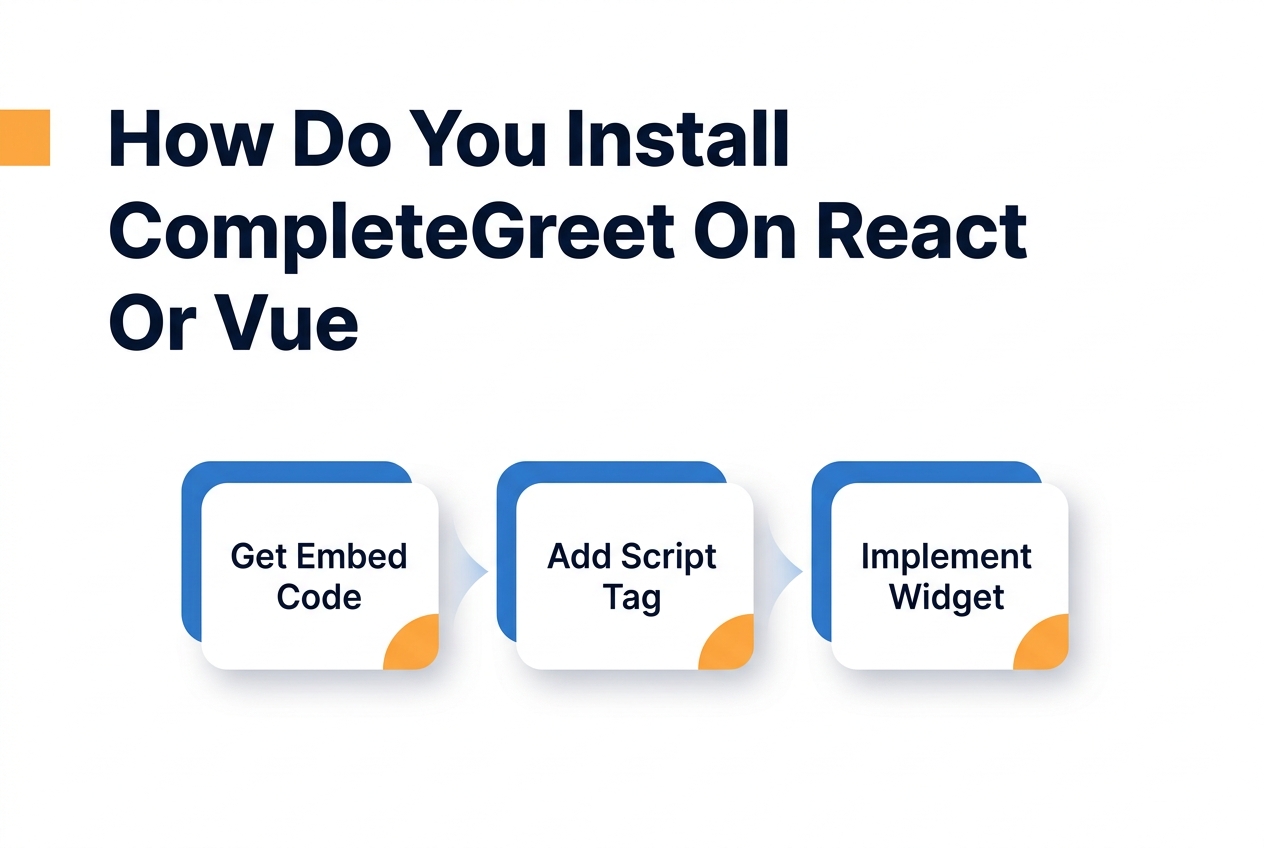
Here’s the step by step:
- Log into your CompleteGreet dashboard and hit the Install button up in the top nav.
- Pick your website platform from the dropdown. If you’re on React or Vue, go with Custom HTML.
- Copy the script tag from the code box. It’ll look like a regular script src tag with your unique site ID baked in.
- Open your index.html file, paste the script right before the closing body tag, and save.
- Fire up your dev server and visit any page. You should see the widget pop up in the bottom corner.
Don’t see the bubble right away? Try a hard refresh, that usually does the trick.
What about Next.js and Nuxt.js?
If you’re using Next.js or Nuxt.js, there’s a small wrinkle. Server side rendering means the widget needs to load only in the browser, not during the server render pass.
For Next.js, you’ll want the Next Script component with the lazyOnload strategy. Import Script from next/script, drop it in your layout file, and set the strategy to lazyOnload. That way the widget waits until everything else on the page has loaded first, which avoids those annoying hydration mismatches that can break the bubble.
On the Nuxt side, create a plugin file called completegreet.client.js in your plugins folder. That .client.js suffix is the magic part, it tells Nuxt to only run the code in the browser. Register it in your nuxt.config.ts with mode set to client, and you’ll sidestep those “window is not defined” errors that tend to blow up server builds.
Once the widget’s loaded, both frameworks treat it identically. The video bubble shows up on every route automatically, so you don’t need to drop the script into individual pages.
What can you customize on React or Vue?
Page and visitor targeting
CompleteGreet hands you full control over when and where the bubble shows up. You can set URL patterns so it only appears on specific routes, think /pricing or /demo. Want to get more granular? Target by device type, time on page, or scroll depth.
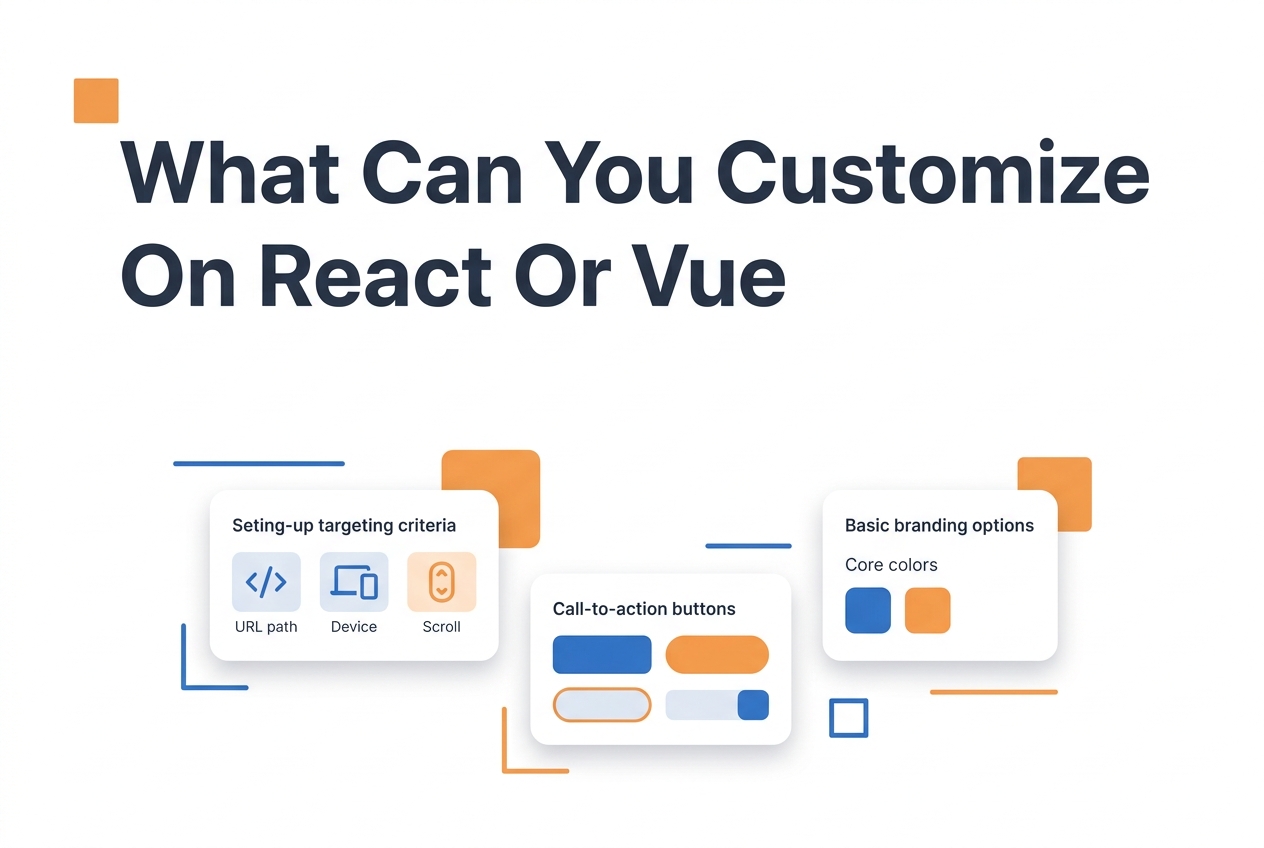
Here’s the part that’ll save you real time: all the targeting rules live in the dashboard, not in your code. So your marketing team can tweak visibility whenever they want without waiting around for a deploy. The widget picks up these rules at runtime through the embedded script.
CTA actions and click behavior
The button inside your video bubble isn’t a one trick pony. You can link it to an external URL, pop open a Calendly modal, start an email draft, or fire off a custom JavaScript event.
And if you’re on React or Vue specifically, you can hook up event listeners that talk directly to your app state. That means data flows between the widget and your component logic without any messy workarounds. Your routing stays clean; your engagement logic stays separate.
Form fields and lead routing
When someone clicks the bubble, you can show a short form before the video starts playing. Name and email come as defaults, but you’re free to toss in custom fields like company size or use case, whatever helps you qualify the lead.
Submissions land in your dashboard and can also fire webhooks to your backend. A lot of teams pipe these leads straight into their CRM or a Slack channel, which honestly keeps things tidy and your component tree unbloated.
Visual branding and positioning
Colors, corner radius, the avatar image in the bubble, you control all of it. Position wise, you can go bottom right, bottom left, or punch in custom coordinates if the default spot collides with a fixed nav bar.
Among the best video widget options for modern frameworks, CompleteGreet stands out because it handles font inheritance automatically. It reads your site’s CSS variables and matches your typography, no manual config required.
A 5 step setup wizard showing how to install CompleteGreet video bubble on React or Vue websites, including signup, package installation, component import, configuration, and deployment steps.
Install CompleteGreet in 5 Minutes
Add a video bubble widget to your React or Vue site with these quick steps
Create Your Account
Sign up at CompleteGreet and get your unique widget ID from the dashboard.
Install the Package
Run the install command in your project root directory.
npm install @completegreet/react
Import the Component
Add the import statement to your main App or layout file.
import { VideoBubble } from '@completegreet/react';
Add to Your App
Place the component in your JSX or Vue template with your widget ID.
<VideoBubble widgetId="your-widget-id" position="bottom-right"
/>
Customize & Deploy
Upload your greeting video, set colors, and deploy. Your bubble goes live instantly.
See the static HTML data above for the full breakdown.
What should you check before going live?
Before you flip the switch, test the video bubble on actual devices. Seriously, don’t just resize your browser window and call it a day. The widget behaves differently on iOS Safari versus Chrome mobile, and you need to see firsthand how that floating button interacts with your navigation elements.
Check your Core Web Vitals scores before and after installation. A video bubble widget shouldn’t be pushing your LCP or CLS into warning territory. Google Web Vitals guidance recommends keeping layout shifts under 0.1, so make sure the placeholder isn’t jumping around as the script loads.
Page targeting needs a close look on every route. With React and Vue, the widget might stick around across route changes if you placed the script in a layout wrapper, or it might reload on every navigation. Either behavior’s fine, but it has to match what you actually intended.
Go through and confirm the greeting only appears on the URLs you selected in your dashboard. Double check that it hides properly on checkout flows or any private pages where it doesn’t belong.
Here’s one that catches people off guard: mobile data usage.
A 30 second background video can chew through a visitor’s monthly data allowance if it autoplays on every page load. Set the mobile variant to a static thumbnail with a clear play button, and let the visitor decide when to start the stream. That small choice goes a long way.
Another thing that tends to break on live sites? Z index conflicts with modals and drawers. Your hamburger menu or cart drawer might render underneath the video bubble, or the bubble could vanish behind a popup. These stacking order headaches only surface on real implementations, you won’t catch them in isolated component tests.
Finally, run through the full visitor journey as a logged out user. Clear your cookies and cache, then walk the entire path from landing page to conversion. The video bubble should feel like a natural part of the experience, not some pop up demanding attention at exactly the wrong moment.
Adding a video bubble to a React or Vue site means embedding a lightweight script that loads asynchronously, it won’t block your component render cycle. The process boils down to generating a unique site ID from your dashboard and dropping the initialization code into your root layout or main entry file.
Below you’ll find the exact sequence for getting the widget installed, including where to place the snippet in single page applications and how to make sure the bubble renders correctly across routes.
Start by logging into your CompleteGreet dashboard and selecting Add New Site from the top navigation. Enter your domain URL and pick React or Vue as your platform type, that’s what gets you the framework specific installation instructions.
Copy the script tag from the installation modal. Your code will look like this example, with your actual site ID replacing the placeholder:
<script src="https://cdn.completegreet.com/widget.js" data-site-id="YOUR_SITE_ID" async></script>- Open your project files and find the main HTML template or root layout component.
- Paste the script into the head section before the closing head tag in React apps, or in the head section of your Vue index.html or nuxt.config.
- Save the file and restart your dev server so the script loads with the initial page request.
Because the widget loads asynchronously, it won’t slow down your Time to Interactive metrics. Once it’s active, the bubble appears in the default bottom right position and only kicks off its WebRTC connection when a visitor actually clicks.
If you’re using React Router or Vue Router, the bubble persists across route changes, no reinitialization needed. The script detects URL changes on its own and keeps the video state intact throughout the navigation session.
Sites that implement video bubbles typically see a 53 percent increase in inquiry volume within the first month. That lift comes from removing the friction between visitor curiosity and direct conversation, especially on high intent pages like pricing or product features.
Test your implementation on both desktop and mobile viewports before pushing to production. The bubble should stay visible but unobtrusive across breakpoints, and the initial camera permissions prompt needs to follow W3C accessibility guidance for screen reader compatibility.
Common questions
How do I add CompleteGreet to a React app without bloating my bundle size?
It won’t bloat your bundle, CompleteGreet loads asynchronously. You just paste a single script tag into your index.html or load it dynamically with useEffect. The video widget renders outside your component tree entirely, so it doesn’t trigger re renders. Your core JavaScript stays lean.
Why is my CompleteGreet video bubble not showing in my React app during local development?
Nine times out of ten, it’s a domain mismatch. Check that your localhost URL is whitelisted in your CompleteGreet dashboard under site settings. Local dev URLs often don’t match the allowed domains list. Add localhost:3000 (or whatever port you’re using) and the widget should appear.
Will CompleteGreet slow down my React app’s performance?
Nope. CompleteGreet loads its assets lazily, only after your page becomes interactive. The script weighs in under 50kb and defers video loading until the user actually engages. Your React app renders first, then the widget shows up. Core Web Vitals stay intact.
Can I show different CompleteGreet videos on different routes in my React Router app?
Absolutely. You can trigger different videos based on the current route by calling CompleteGreet’s API methods inside a useEffect that watches for location changes. Set up separate campaigns for each path in your dashboard, and the widget swaps videos automatically as users navigate around your site.
Does CompleteGreet work with server, side rendered React frameworks like Next.js?
It does. CompleteGreet runs entirely on the client side, so it plays nicely with Next.js and other SSR frameworks. Just load the script inside a useEffect or componentDidMount to avoid server side execution errors. The widget won’t initialize until hydration completes.
How much does CompleteGreet cost for a React SaaS startup with 10k monthly visitors?
CompleteGreet uses a flat monthly rate based on unique visitor count, not video plays or minutes watched. At 10k visitors, you’d land in a predictable tier with no surprise overages. A lot of competitors bill per minute, which gets pricey fast when traffic picks up.