 Profile
 Dashboard
 Logout
Table of contents
Key takeaways
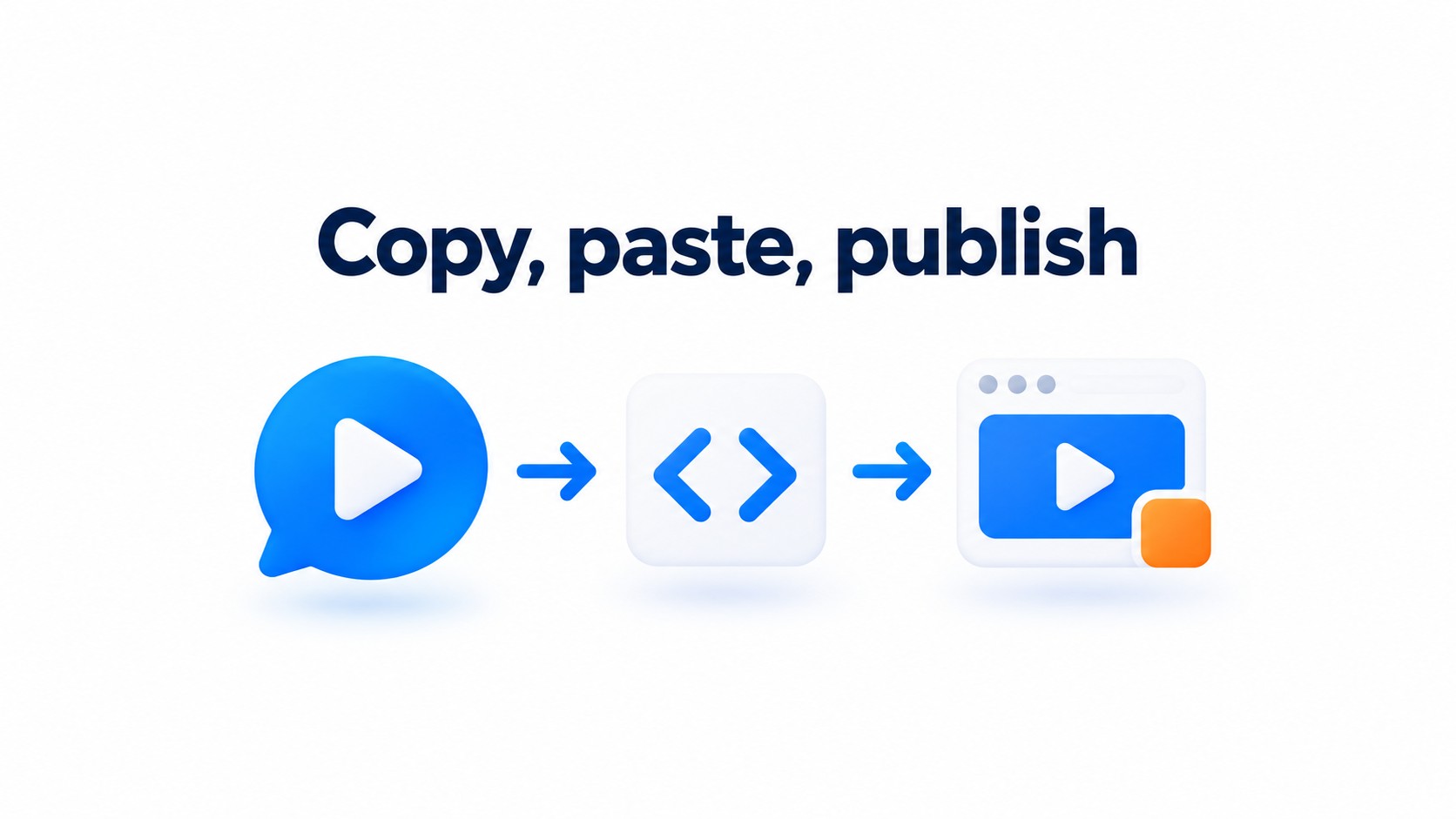
- To install CompleteGreet, create a video bubble, copy its embed code, and paste it into an Elementor HTML widget.
- Elementor provides the page, while the video bubble’s settings control its targeting, action, and appearance.
- Check the published page on desktop and mobile, then confirm the bubble appears only where its page targeting rule allows it.
How do you install CompleteGreet on Elementor?
To install CompleteGreet, create a video bubble, copy its embed code, and paste it into an Elementor HTML widget. Check the published page rather than relying only on the editor preview.
-
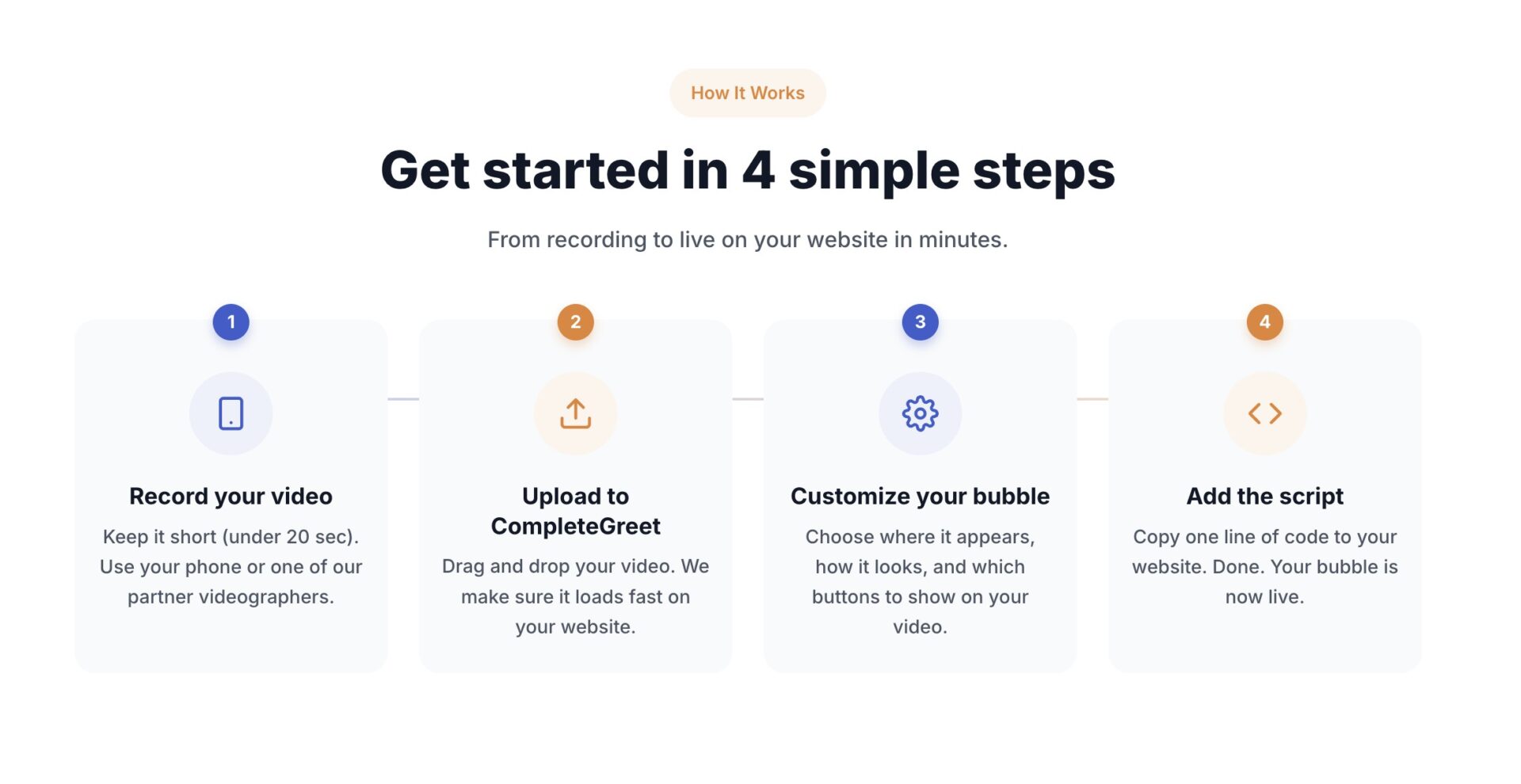
Sign in to CompleteGreet and open the dashboard. Start a new video bubble, add the video, and follow the prompts to choose how it should appear on the site.
-
Copy the embed code from the bubble setup or installation area. Keep this tab open so you can switch between the two dashboards instead of searching for a copied snippet later.
-
In WordPress, open the page with Elementor. Click the plus icon, search for HTML in the Elements panel, then drag the HTML widget onto the canvas where the bubble should load.
-
Paste the CompleteGreet code into the HTML widget and click Update. Check the published page in a separate browser tab; the canvas preview may not show the script.
Adding code to one page won’t cover the rest of the site. For a bubble that should appear across several pages, use a sitewide location or repeat the widget on each page where it belongs.
What can you customize on Elementor?
Elementor provides the page, while the video bubble’s settings control its targeting, action, and appearance. Keep targeting specific: show a welcome bubble on key landing pages, not on pages where it could interrupt a task.
Use page targeting to choose where the bubble appears.
Choose a phone call, chat, custom link, booking option, or form as the action. Forms can collect contact details or written answers, then show a confirmation or redirect visitors after submission. Keep the form short if the video is already asking for a decision.
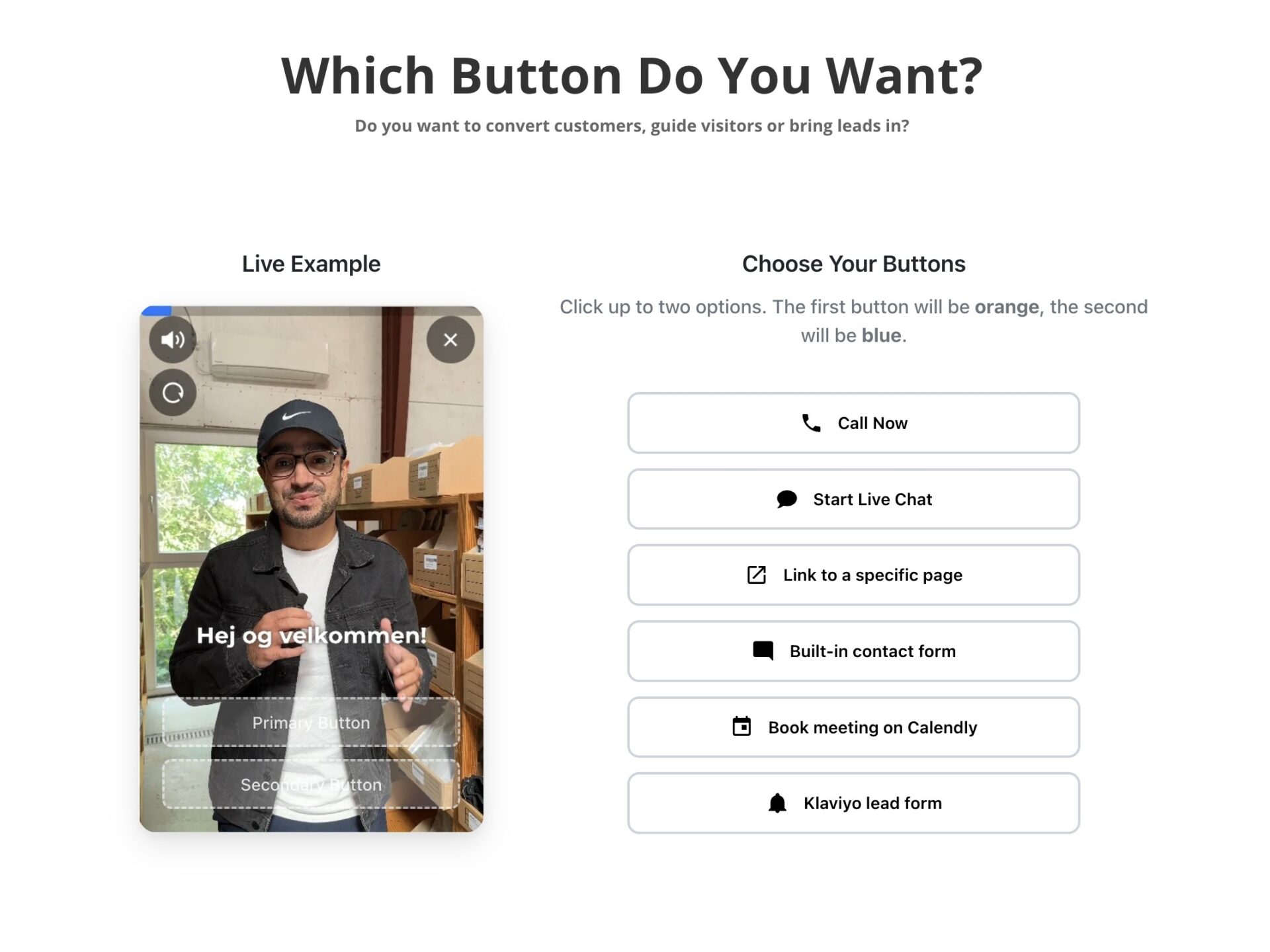
Brand settings cover colors, button appearance, size, and bubble position. Separate controls handle desktop and mobile. A position that clears desktop navigation can cover a menu button on a phone.
You can remove the Built With badge, too. Set up the bubble on one target page, then test its action and form submission before using the same settings across the site.
A service business could use a welcome bubble on its quote page, a booking action on service pages, and no bubble on the confirmation page. List the URLs and intended actions, then check each page directly. Visitors shouldn’t see a booking prompt while trying to request a quote.
A call button can open a calling app on a supported device. A form keeps them on the page to enter details, and for a quote request, name, email, and project type may be enough to start. Button text should describe the next step, such as Request a quote rather than Submit.
Leave room for the next task on a confirmation page.
Test the form once with a required field missing and once with a complete submission. Confirm that the message appears or the redirect reaches the right page, then check that the visitor can still find the page navigation after the widget opens.
What should you check before going live?
Check the published page on desktop and mobile, then confirm the bubble appears only where its page targeting rule allows it. The editor preview is only a first pass.
Use Elementor’s responsive controls to inspect desktop, tablet, and mobile layouts. Then open the published page on a phone and tap the bubble, close button, and any action inside it. Every button should be reachable.
On desktop, resize the browser window. Make sure the bubble stays clear of the navigation, cookie notice, and sticky footer buttons; overlap is easy to miss.
CompleteGreet can show bubbles on specific URLs. Identify which pages should display the greeting and which should stay clear, then check both groups live. A rule aimed at the wrong page can leave the widget visible where it distracts or absent where it could answer a visitor’s question.
Test at least one published page from each group. If a URL rule changes, repeat both checks; testing only the edited page can miss an unintended change elsewhere.
Playback settings affect how a video behaves and fits within an Elementor page.
Use autoplay only when it suits the page, and check whether sound starts without visitor input. Keep playback controls visible so visitors can pause or adjust the video.
Check captions, keyboard access, and player controls alongside the visual layout. Preview the video at desktop, tablet, and mobile sizes before publishing.
A video that looks right in the editor can still feel cramped on a narrow screen. Preview Elementor’s mobile breakpoint and make sure the play control is easy to tap.
Common questions
Which video sources can Elementor’s Video widget play?
Elementor’s Video widget supports YouTube, Vimeo, Dailymotion, VideoPress, and self hosted video. For YouTube, paste the video URL and set optional start or end times in seconds. A self hosted clip can come from the Media Library or an external file URL, so choose the source before adjusting playback settings.
How do I place a video widget on an Elementor page?
In the Elementor Editor, click the plus icon and drag the Video widget onto the page canvas. Then choose a supported source and add its video URL or file. For YouTube, start and end times are optional settings, so they can be left blank for normal playback.
What should I check if an Elementor video widget stays blank?
Check that the selected source matches the link or file you added. Elementor’s widget accepts YouTube, Vimeo, Dailymotion, VideoPress, and self hosted video; a self hosted clip must come from the Media Library or an external file URL. Recheck the video URL, then preview the page again.
Can I set different video display options for mobile in Elementor?
Yes. Elementor has responsive controls for desktop, tablet, and mobile, so you can adjust the widget’s device specific presentation instead of assuming one layout will fit every screen. Test the page at mobile size after changing the settings, and check that the video controls and play button remain easy to use.
Can a CompleteGreet video bubble appear only on selected Elementor pages?
Yes. CompleteGreet can show bubbles on specific URLs, which lets a site owner target selected pages instead of displaying the greeting everywhere. This is a video bubble for greeting visitors, not Elementor’s standard Video widget embedded in the page content.