 Profile
 Dashboard
 Logout
Table of contents
Key takeaways
- Paste the CompleteGreet site script into HubSpot’s header code field, then save the domain settings.
- You can control where the video widget appears, what action it offers, what information a form collects, and how the bubble fits your brand.
- Test the published page on desktop and a phone, then confirm the widget appears only on the URLs you selected.
How do you install CompleteGreet on HubSpot CMS?
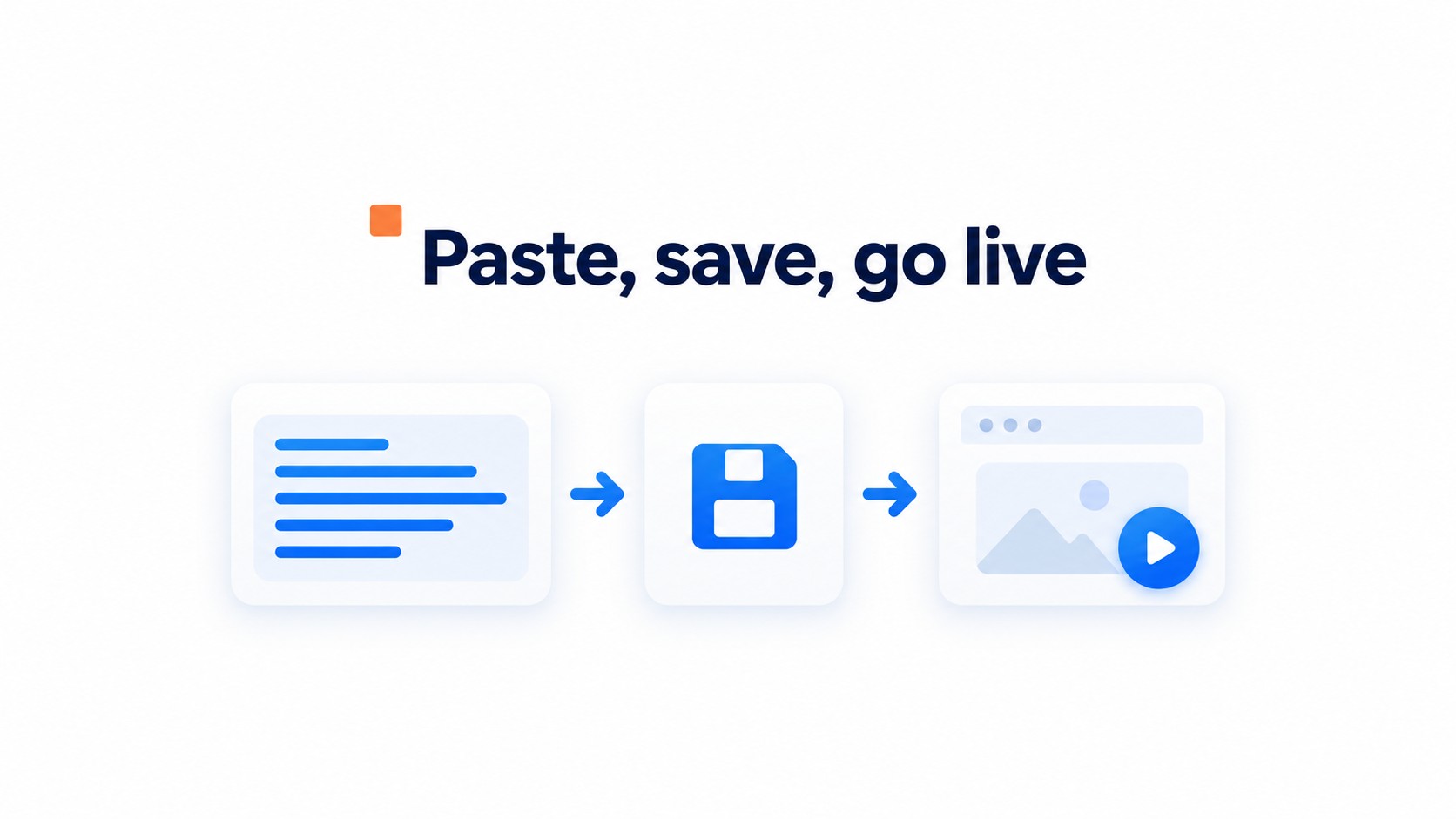
Paste the CompleteGreet site script into HubSpot’s header code field, then save the domain settings. The bubble can load across that domain.
-
In CompleteGreet, open the installation instructions for your website and copy the site script. Keep the code unchanged.
-
In HubSpot, click the Settings icon, then choose Content and Pages in the left sidebar.
-
Open Choose a domain to edit its settings. Select the HubSpot domain where the bubble should appear, or choose Default settings for all domains.
-
Find Site header HTML. For a specific domain, click Override default settings if needed, keep any existing code you still need, paste the script, and click Save. Header and footer editing options vary by HubSpot subscription and content type.
-
For one page only, open Content, then Website Pages. Click the page name, open Settings and Advanced, paste the code into Head HTML under Additional code snippets, then click Publish or Update.
A domain specific setting can override the default for all domains, so check the selected domain if the bubble is missing. Use this script method for a floating CompleteGreet bubble; HubSpot’s built in Video module puts a video in the page layout instead. CompleteGreet also lists its HubSpot and website integrations.
What can you customize on HubSpot CMS?
You can control where the video widget appears, what action it offers, what information a form collects, and how the bubble fits your brand. Keep page placement and widget behavior as separate settings. CompleteGreet can show bubbles on specific URLs, so a product page can use a different greeting from the homepage.
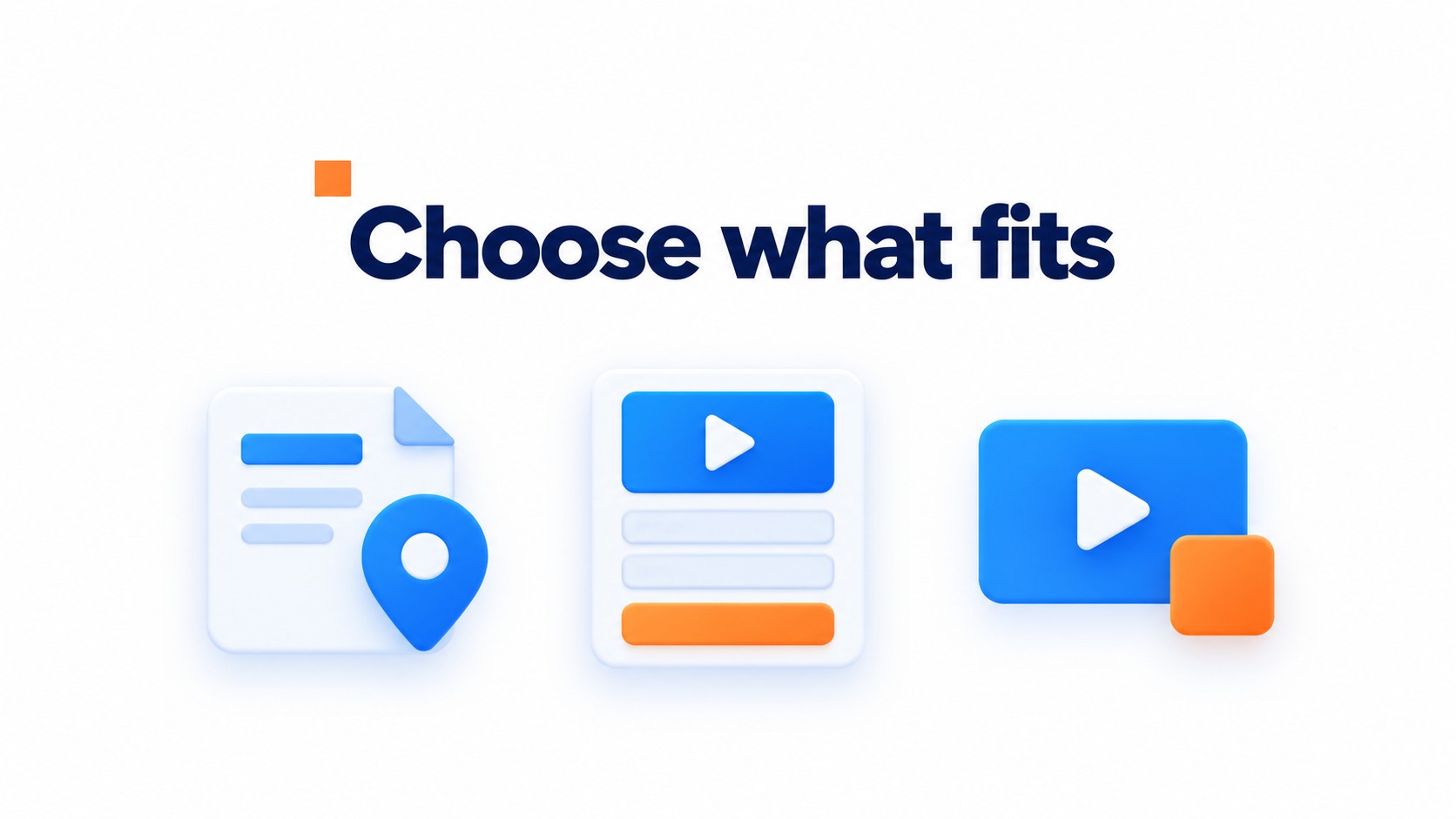
For the CTA, pick one next step and make its label plain: book a call, open a link, or start a chat. A visitor shouldn’t have to guess what a button does.
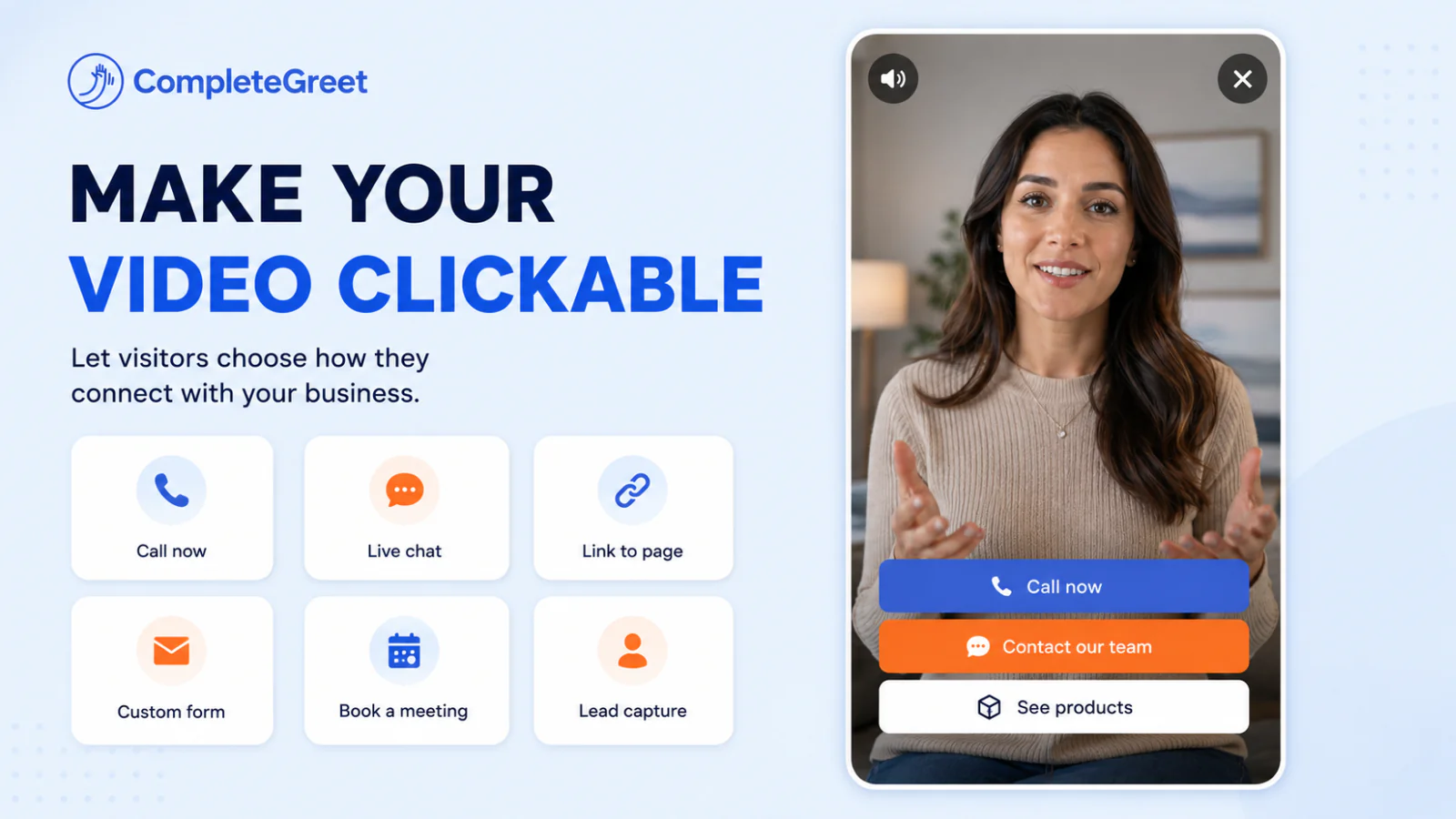
Keep forms short. Ask only for details needed to route or answer the inquiry; extra fields make the form feel like work before the conversation has started.
Branding choices should follow the page around the widget: use a bubble color that’s already in the site palette, and check that the label stays readable against it. If your account includes branding removal, you can remove the “Built With” badge to keep the experience fully on brand.
Match each greeting to the visitor’s task
For a software company, someone on a pricing page may want a sales conversation, while a visitor reading a setup guide may need support. Give those page groups different greetings instead of showing a sales prompt everywhere. Check the targeting with the final published address, not only the CMS preview, and open both the plain page address and one with campaign parameters to confirm the intended greeting appears.
A link CTA and a form inside the widget serve different jobs.
A booking link sends the visitor to another page, while an in widget form can capture details before the visitor leaves the current page. For a demo request, name, work email, and company make a practical three field starting point. Add a phone field only when someone will use it to contact the lead, and make sure the submit action confirms what happens next, such as a follow up from sales.
What should you check before going live?
Test the published page on desktop and a phone, then confirm the widget appears only on the URLs you selected. The editor preview isn’t enough.
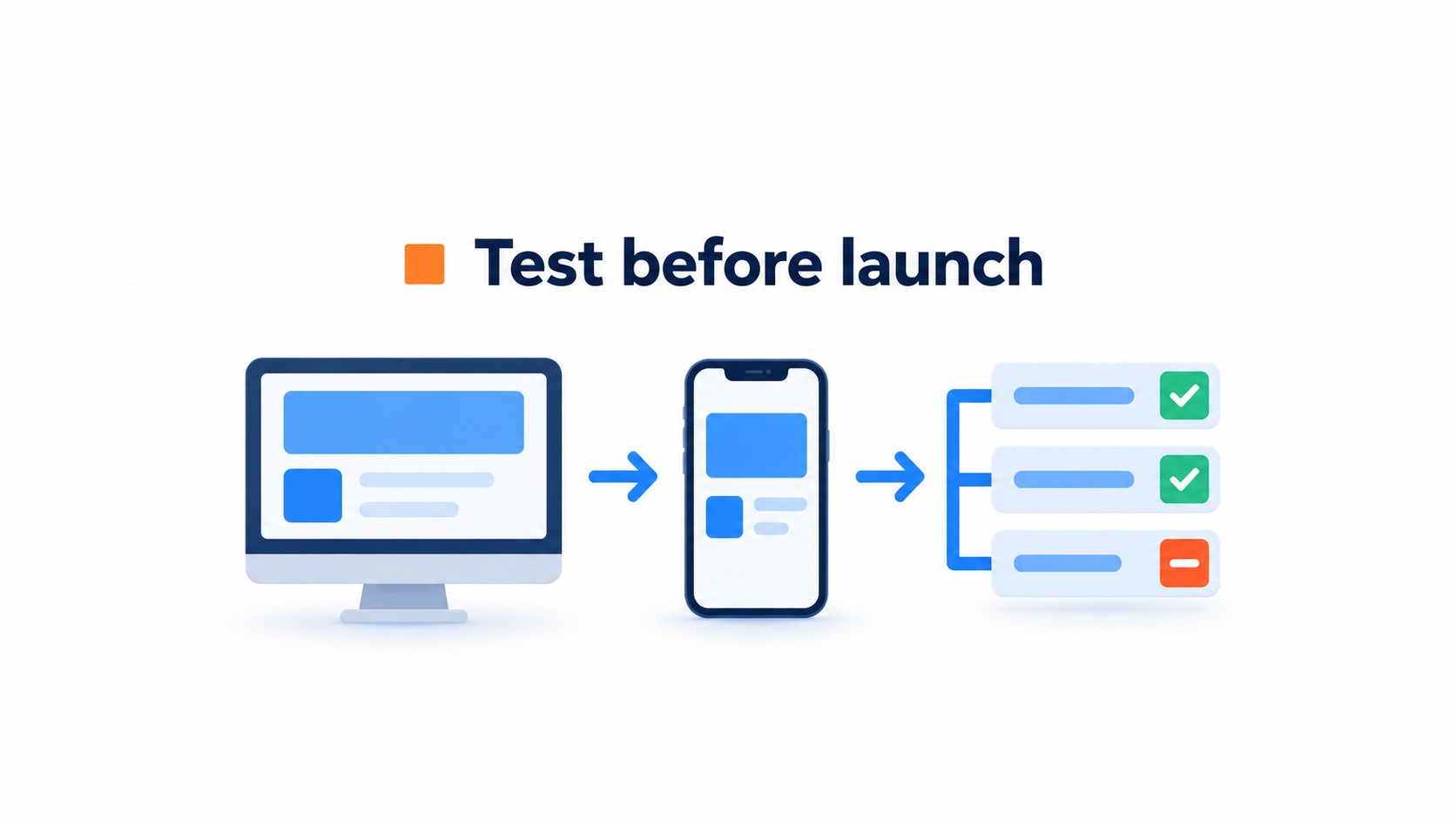
Check the live layout
Open the published page, not only the HubSpot editor preview; its editing frame can hide collisions with fixed site elements. Check the actual page.
On desktop, open the menu and scroll to the footer to see whether the bubble covers a navigation item or consent notice. On a phone, test the close control with your thumb and rotate the screen once. A widget can look fine in a narrow browser window but sit too close to the edge on a real device.
Verify page targeting
Test one URL where the bubble should appear and another where it should stay hidden. CompleteGreet can show bubbles on specific URLs, so use the published page paths your visitors will actually open.
If the site has language folders or pages with trailing slashes, check those exact versions too. Keep the consent notice visible for one pass, then dismiss it and check the bubble position again.
Check accessibility as well as placement before publishing your video on a HubSpot page.
WCAG requires captions for prerecorded audio in synchronized video, except when the video is a clearly labeled alternative to existing text. Add a transcript too when viewers may benefit from reading the content instead of playing the video.
Captions should include spoken words and meaningful sounds, not just a summary of the dialogue.
Check that captions stay synchronized with the video and remain readable against the background. Use only the keyboard to confirm the player controls can be reached before publishing in HubSpot CMS.
Common questions
How do I add CompleteGreet to a HubSpot CMS site?
Paste the CompleteGreet installation script into the site’s global header in HubSpot CMS, then publish and test a live page. The script makes the greeting available across the site, while CompleteGreet page targeting controls where the bubble appears. Use the script shown in the widget setup rather than HubSpot’s standard Video module, which places a video player in page content.
Why is the CompleteGreet video bubble missing from my HubSpot CMS preview?
A HubSpot CMS editor preview may not behave like the published page, so check the live URL before changing the setup. Confirm the CompleteGreet script is saved in the global header and the exact page URL is included in targeting. If it still does not show, test in a private browser window after publishing to rule out a stale page view.
Can I show CompleteGreet only on selected HubSpot CMS pages?
Yes. CompleteGreet supports showing the bubble on selected URLs, so a HubSpot CMS product or landing page can be targeted without displaying it across every page. Set the rule in CompleteGreet, then test the published page and one URL that should stay hidden. Check the full path and trailing slash because targeting depends on the URL entered.
Does the CompleteGreet video widget slow down a HubSpot CMS site?
The CompleteGreet embed loads asynchronously, so a HubSpot CMS page can continue processing its content while the widget script downloads. That helps avoid blocking the page, but it is not a promise of no speed impact. After publishing, compare the same page before and after installation on mobile, and make sure the greeting does not delay access to the page’s main content.
How do I check the CompleteGreet bubble on mobile in HubSpot CMS?
Check the published HubSpot CMS page at phone width and on a real phone; the editor preview alone can miss overlap with sticky buttons or navigation. CompleteGreet lets you adjust the bubble position for mobile and desktop. Move it away from the primary call to action and cookie notice, then tap the bubble to confirm it opens and closes cleanly.