 Profile
 Dashboard
 Logout
Table of contents
Key takeaways
- You can get CompleteGreet running on Wix in under five minutes using the built in custom code panel. Seriously, it’s that quick.
- You get full control over targeting, CTAs, lead forms, and visual branding, all from the dashboard, no code editing needed.
- Before going live with your video bubble widget, make sure you’ve checked three things: how it looks across devices, your page targeting rules, and whether it’s hurting site performance.
Here’s why CompleteGreet stands out as a video widget for Wix: it only bills you for unique visitors. Not total views, not sessions, just unique visitors. Most competitors? They charge per video play or tack on overage fees that blow up your bill when traffic spikes. CompleteGreet starts at $29/month when billed yearly for 5,000 unique visitors, and there are no surprise charges waiting for you.
The whole setup takes under five minutes on Wix. You paste one script into your custom code section, and the bubble shows up right where you want it. Now, Vidyard and Loom are solid if you’re a sales team that needs CRM integrations, but their pricing gets unpredictable as usage climbs. And Bonjoro? It’s really built for one to one personalized videos, which is way more than you need for a homepage greeting.
CompleteGreet works on any Wix plan that supports custom code, even the free tier while you’re still building things out. It also supports Shopify, WordPress, Squarespace, and Webflow using the exact same script. So you’re not locked into one platform. If you decide to switch hosts down the road, you don’t have to rebuild your widget from scratch. Same greeting, works everywhere.
It’s built specifically for trust building and greetings, not for survey heavy or chat first workflows.
How do you install CompleteGreet on Wix?
Getting CompleteGreet on your Wix site takes under five minutes, and you don’t need a developer or any plugins from the Wix App Market. A video bubble widget is basically a small floating video player that sits on your page, plays your greeting, and captures leads, without ever sending visitors away from your site.
Here’s exactly how to do it:
-
Log into your CompleteGreet dashboard, hit “Get Embed Code,” and copy the script snippet. It’ll look like a single line of JavaScript with your unique site ID baked in.
-
Head over to your Wix site editor. Click the Settings gear icon in the top toolbar, then pick “Custom Code” from the dropdown. That opens up the code injection panel, it’s where all your third party scripts live.
-
Click “Add Custom Code” in the top right corner. Paste your CompleteGreet snippet into the text box and give it a name like “CompleteGreet Video Widget” so you can actually find it later. Set the “Add Code to Pages” dropdown to “All Pages” (unless you only want the bubble on certain URLs). For the “Place Code in” setting, just leave it on “Head”, that’s the default and it’s exactly right.
-
Hit Apply, then Publish your site. And here’s an important note, the bubble won’t show up in the editor preview. You’ve got to publish first to see it live.
Wix loads custom code in the head section by default, which happens to be exactly where the CompleteGreet script needs to run. That saves you from the annoying placement headaches you’d run into on some other platforms.
One thing worth mentioning: Wix’s editor preview can sometimes take 5 to 10 seconds to load scripts. So if you publish and don’t see the bubble right away, just give it a moment and refresh. The script’s there, it just needs a beat to initialize on Wix’s infrastructure.
Before you dive into customization, pull up your live site on both desktop and mobile. The bubble should be sitting in the bottom corner, autoplaying your greeting on mute, and expanding when you click it.
What can you customize on Wix?
Quite a lot, actually. CompleteGreet lets you control targeting, calls to action, lead forms, and visual branding, all without writing a single line of code.
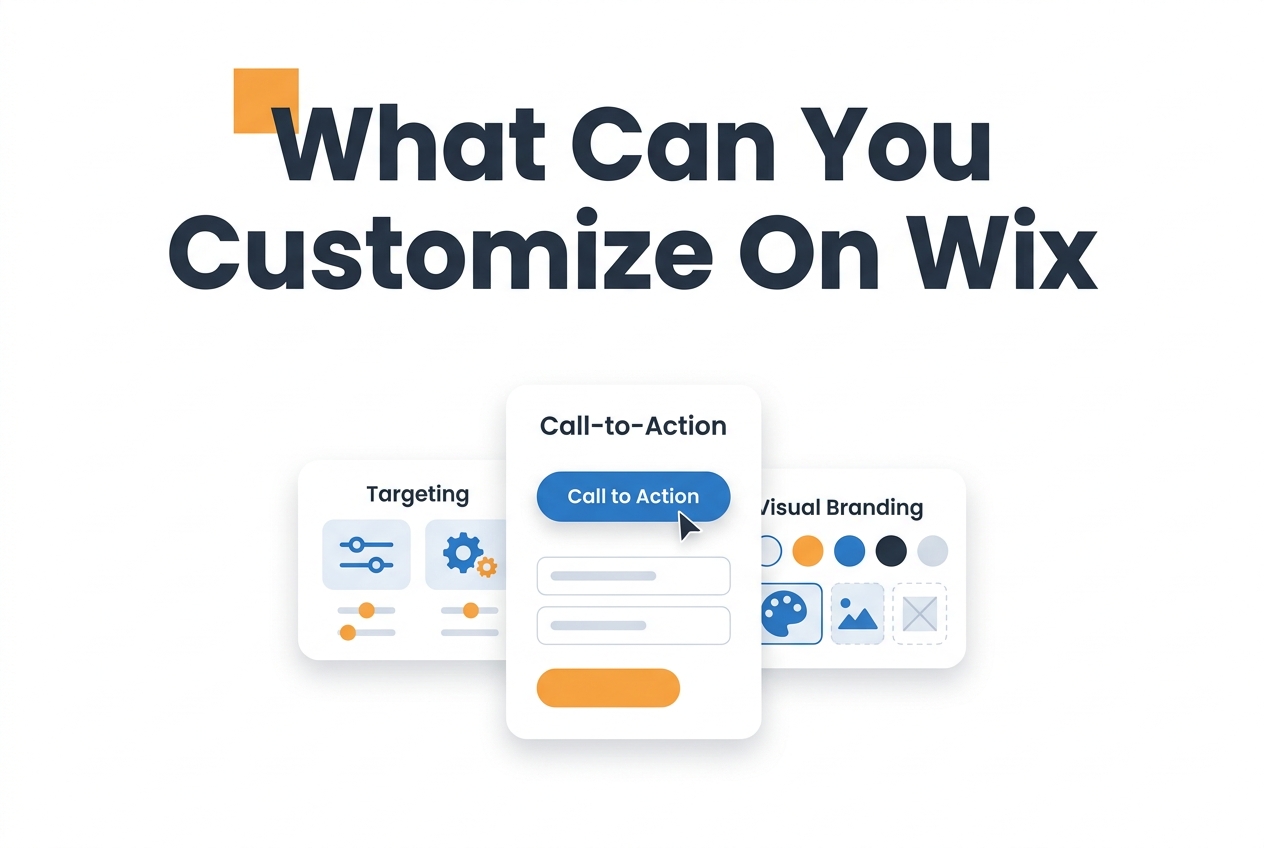
Page and visitor targeting
You get to pick exactly where the widget shows up. Want it only on your pricing page after someone scrolls halfway down? Done. Want to show it just to returning visitors? You can do that too. Target by URL patterns, visitor behavior, whatever makes sense. And the targeting logic works the same whether you’re on Wix, WordPress, Shopify, or a custom HTML site.
Here’s the thing, though, exclusions matter just as much as inclusions.
You’ll probably want to hide the widget on your checkout page, your cookie policy, or any URL that matches a pattern you define. Nobody wants a video greeting popping up while they’re entering their credit card info.
Calls to action
The CTA buttons are totally customizable. Link them to your calendar booking page, a product listing, or even a phone number.
You can tweak the button text, background color, and size right from the dashboard. What works best for most setups? Two buttons, one primary action and a secondary dismiss option.
There’s also the option to have the video play on hover or only when someone deliberately clicks. It sounds like a small thing, but honestly, this choice impacts engagement rates way more than most teams realize.
Lead capture forms
You can drop name, email, phone fields, or even custom questions right into the widget flow. All submissions land in your CompleteGreet dashboard, and from there you can sync them to your CRM through Zapier, webhooks, or direct integrations.
Branding and position
Upload a custom thumbnail or a short looping preview clip. Stick the widget in the bottom right or bottom left corner. Set the accent color to your exact brand hex code, it’ll match perfectly.
If you’re weighing your options, our video widget comparison breaks down which customization features actually matter across different platforms.
The mobile layout adjusts separately from desktop, which is a big deal.
You can turn off the widget entirely on phones, shrink the thumbnail, or shift it to a less intrusive spot. Given that Wix sites often see 60% or more of their traffic from mobile, this is one setting you really want to nail before you hit publish.
Install CompleteGreet on Wix in 5 Minutes
Follow these 5 simple steps to add a video widget to your Wix site
Create Your CompleteGreet Account
Sign up at CompleteGreet and create your first video widget campaign.
Copy Your Embed Code
In your dashboard, click “Get Code” to copy your unique widget snippet.
Open Wix Editor
Go to your Wix dashboard → Edit Site. Click the “+” to add an element.
Add Embed Code Element
Select “Embed Code” → “Embed HTML” and paste your CompleteGreet code.
Position & Publish
Resize and position the widget container, then click “Publish” to go live.
Infographic showing a 5 step process to install the CompleteGreet video widget on a Wix website, including creating an account, copying embed code, opening the Wix editor, adding an embed code element, and publishing the site.
See the static HTML data above for the full breakdown.
What should you check before going live?
Before you push a video bubble widget live, there are three things you really need to check: how it looks on different devices, whether your page targeting rules are set correctly, and if it’s dragging down your site’s performance.
Start on desktop. Make sure the widget loads within the first few seconds and that the thumbnail is visible without having to scroll. Click the play button, does it actually work? Does the video open in a modal or overlay that’s properly centered on screen?
Then grab your actual phone. Don’t just resize your browser window and call it a day, iOS Safari and Chrome on Android handle autoplay permissions differently, and the bubble has a habit of covering navigation menus or cookie banners on smaller screens.
Trust me, a widget that looks flawless on a 27 inch monitor can completely block the hamburger menu on an iPhone SE. Test both portrait and landscape while you’re at it.
Page targeting is where most teams trip up.
The default setting usually throws the widget on every single page, including checkout and your privacy policy, places where it just feels intrusive. Take a few minutes to map out exactly which URLs should trigger the widget, and then test a couple that shouldn’t. Most Wix sites have specific checkout paths you’ll want to exclude.
Think about it, someone reading your terms of service really doesn’t need a video greeting.
You’ll also want to check your Core Web Vitals before and after installation. According to Google Web Vitals guidance, you’re aiming to keep Cumulative Layout Shift below 0.1 and Interaction to Next Paint under 200 milliseconds.
Video widgets that load heavy scripts or shove content around can blow past those thresholds faster than you’d think.
Run a quick Lighthouse audit in Chrome DevTools to catch any issues before they start messing with your search rankings. Clear your browser cache and visit the site like a first time user would.
If the widget shows up where it should, plays when it should, and doesn’t make your phone feel sluggish, you’re good to go.
Video widgets turn passive browsing into real conversations by putting a human face just one click away from your visitor. On Wix, where the platform handles site speed and mobile responsiveness for you, the widget you choose has to integrate cleanly without breaking that performance.
One thing to know: Wix limits code injection on free plans, so you’ll need a Premium site to add the CompleteGreet snippet. Once you’ve upgraded, the script goes straight into the Custom Code section of your dashboard.
If you want to restrict the widget to certain pages later on, tweak the page targeting rules inside your CompleteGreet dashboard instead of going back into the Wix code. It keeps your Wix setup clean and lets you test different targeting rules without having to republish the site every time.
Accessibility is what separates a professional widget from an intrusive distraction. Tools that follow W3C accessibility guidance support keyboard navigation and screen reader labels, which means your site stays compliant and usable for everyone who visits.
And please, test your installation on an actual mobile device before telling anyone the widget is live. A bubble that covers the checkout button on someone’s phone will cost you way more than it gains.
Common questions
How much does CompleteGreet cost per month for a small business website?
It starts at $29/month when billed yearly for 5,000 unique visitors. That flat rate covers unlimited video plays, so you’re never stressing about per minute fees or surprise overages. If you need more room, there’s a $35 plan for 10,000 visitors and a $71 plan for 30,000, all billed by unique visitors only.
Which website platforms does CompleteGreet work with?
CompleteGreet plays nicely with Shopify, WordPress, Wix, Squarespace, Webflow, WooCommerce, Magento, and really any site that accepts custom HTML. It works on React based sites too. You embed one script and the video bubble appears wherever you’ve placed it.
How long does it take to set up CompleteGreet on a Shopify store?
Most Shopify stores get CompleteGreet up and running in under 10 minutes. You install the app from the Shopify App Store, record or upload your greeting video, and drop in the bubble. No coding involved. The same fast setup process works for WordPress, Wix, and Squarespace.
What happens if my website gets more visitors than my CompleteGreet plan allows?
CompleteGreet counts unique visitors per month, not total pageviews, not video minutes. If you go over your plan limit, you just bump up to the next tier. There aren’t any overage fees or hidden charges. Your bill stays predictable, period.
Can I use CompleteGreet on multiple websites with one account?
Standard plans cover one website each, so if you need multiple sites you’d want the Enterprise plan. Most small businesses kick things off with a single site plan and scale up later. The dashboard does make it simple to manage multiple bubbles on that one site, though.
What type of businesses get the most value from CompleteGreet video greetings?
Service businesses, coaches, consultants, and ecommerce stores selling high trust products tend to see the strongest results. Having a real human face on your homepage answers those unspoken questions visitors have and cuts down on hesitation. CompleteGreet’s really built for trust and greetings specifically, so if you need heavy survey workflows, you’d want to look at other tools.