
 Profile
 Dashboard
 Logout
Table of contents
Key takeaways
- Install CompleteGreet by copying its widget script into Framer’s project custom code, then publish the site.
- On a Framer site, targeting, widget actions, form entry, and branding are controlled in the widget service rather than Framer’s page editor.
- Test the published page on desktop and on a phone.
How do you install CompleteGreet on Framer?
Install CompleteGreet by copying its widget script into Framer’s project custom code, then publish the site. The script loads the floating widget across your pages.

-
In CompleteGreet, open the widget setup and copy the installation script. Use the script for the widget you configured, not an embed code for a video placed inside a page.
-
In Framer, open the project and choose Project Settings, then Custom Code in the left sidebar. Click Add Script, or the + icon if you already have code entries. Give the entry a name you’ll recognize later.
-
Choose the start of head as the placement and select All pages. Paste the full script into the code field. Keep the script intact.
-
Save the entry, return to the site editor, and click Publish. Changes in Project Settings won’t appear on the live site until a new publish completes. Check the published URL.
The Custom Code screen sits in Project Settings, outside the canvas editor.
Use the public URL for the first check. The editor preview is different from the published site, and a private browser window helps rule out an old page copy or an existing login session.
After publishing a portfolio site, for example, load its home page and wait several seconds for the floating widget. Then paste a second page’s URL into the browser to check that All pages applies there too.
Check the same URL at a narrow phone width, around 390 pixels, as well as on desktop. If the widget appears on desktop but not on the phone, check for a fixed navigation bar or cookie notice covering it before changing the installation script.
If the widget is missing everywhere, return to Custom Code. Confirm the entry is saved, enabled, and still set to start of head. Correct it, publish again, and reload the live page.
What can you customize on Framer?
On a Framer site, targeting, widget actions, form entry, and branding are controlled in the widget service rather than Framer’s page editor. Framer controls the surrounding layout.
Set the widget to appear on specific URLs, then check the live page at the exact address you targeted. A trailing slash can trip up a quick test, so use the published URL instead of relying only on the editor preview.
Choose the action that fits the page: a link, booking, chat, call, product page link, or form. Keep the main button label direct so visitors know what happens before they tap.
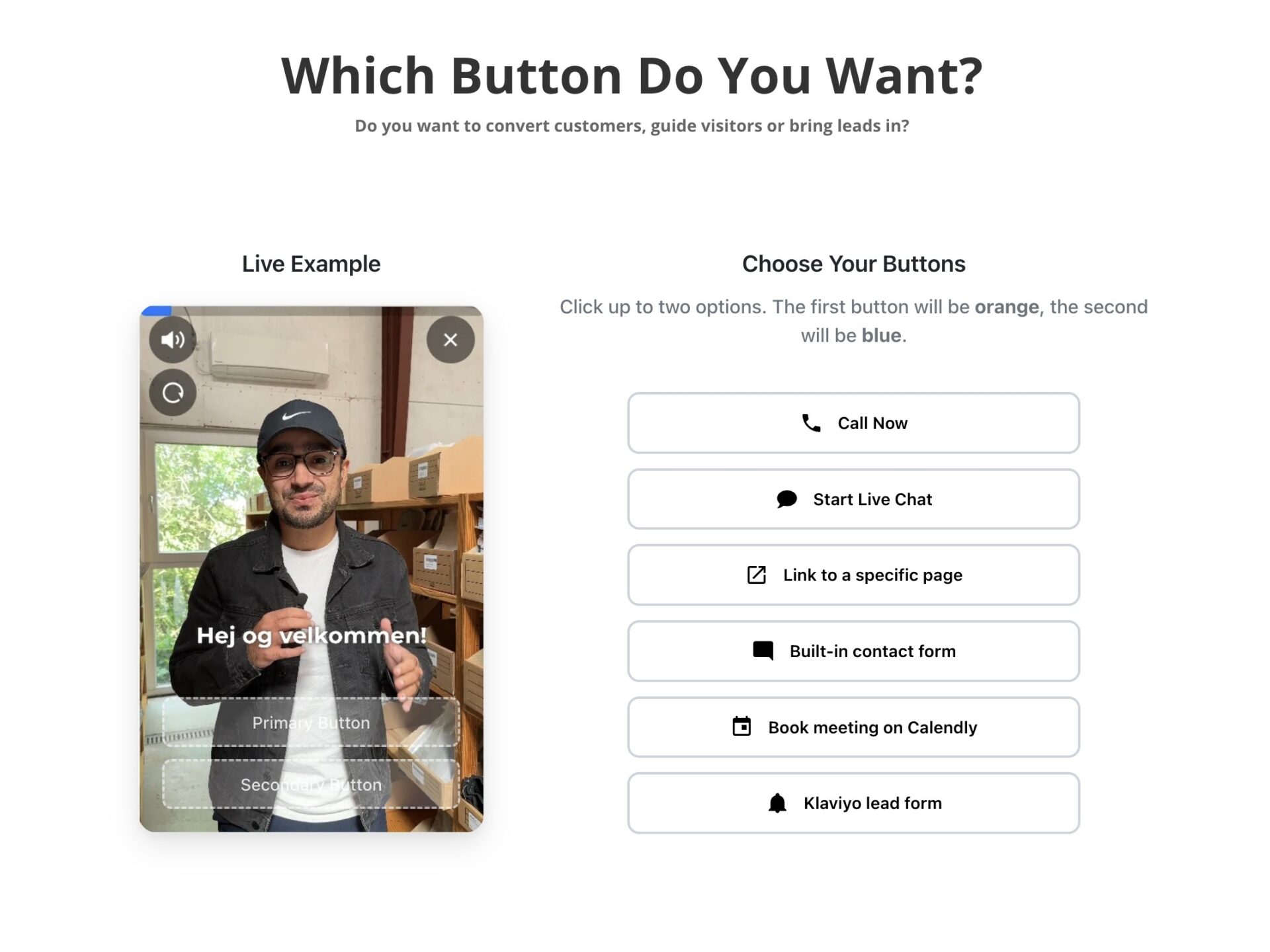
A form lets visitors send details without leaving the page. Test its required fields and submission destination on the published site, not just in the settings screen.
Branding has a practical limit: Framer’s page styles don’t automatically control an embedded widget. CompleteGreet’s BUILD plan includes the option to remove its Built With badge. Check the widget preview for the final appearance before publishing.
What should you check before going live?
Test the published page on desktop and on a phone. Check that the video bubble stays clear of navigation, cookie notices, and fixed buttons. A preview is not enough.

On desktop, open the bubble and try every control. Close it and make sure the page still scrolls normally. On a phone, tap the close control and each button inside the video; small targets that work with a mouse can be awkward under a thumb.
Check the narrowest mobile breakpoint too. Framer layouts can shift elements closer together there.
Page targeting needs a separate test. Open the exact URL where the bubble should appear, then check the homepage and a nearby page where it should stay hidden.
CompleteGreet supports showing bubbles on specific URLs. Test both sides of each rule; a hidden bubble alone doesn’t prove the setup is correct. Confirm the rule matches the published page path, especially for a nested page such as a product page below a category path. Keep the test URLs in a short list while adjusting the rule, so each change gets checked against the same pages.
Framer supports inline video components and embeds, while a video widget can appear separately from page content. Choose based on where the video should sit and how visitors should encounter it.
A floating presenter bubble serves a different purpose from an inline Framer video.
Use Framer’s Video component for video placed within a page, or its YouTube and Vimeo components for hosted clips. Use an Embed component when a service requires an iframe or script.
Check that the format suits the video’s placement and doesn’t cover navigation or consent controls. Preview the published page on desktop and mobile before launch.
Common questions
Which Framer element accepts a video widget script?
For a floating CompleteGreet widget, paste the installation script into Project Settings, then Custom Code, as described above. Framer’s Embed component is for content placed within the page, including iframe embeds and scripts that create them. Check the published site after adding the script to confirm the widget loads where expected.
What should I verify when a Framer Embed component stays blank?
For an iframe embed, check that the URL or script is entered in the Embed component and that the source permits embedding. Some sites block it through HTTP headers. For the floating CompleteGreet widget, check the script in Project Settings, then Custom Code, and confirm URL targeting includes the published page address. Test the live published page before assuming the installation failed.
Does Framer’s Video component work like a floating video bubble?
No. Framer’s Video component displays video within the page layout, while a floating CompleteGreet greeting uses an embedded widget script. Use Framer’s Video component for uploaded or hosted footage, with options such as autoplay and a poster image. Use Project Settings, then Custom Code, for the floating CompleteGreet greeting.
Can Framer CMS fields control the video shown on each detail page?
Yes. Add a plain text Video URL field for an external video, or a File field for an uploaded format such as MP4, then connect that field to Framer’s Video component with a variable. The video can change with each CMS item. A CompleteGreet greeting is a separate widget embed, not an inline CMS video field.