 Profile
 Dashboard
 Logout
Table of contents
Key takeaways
- Installation takes about five minutes and requires access to your PrestaShop admin panel and theme files.
- Every visual element and behavioral trigger can be tuned to match how your store actually works.
- Open your PrestaShop store in Chrome, Safari, and Firefox before you flip the switch.
How do you install CompleteGreet on PrestaShop?
Installation takes about five minutes and requires access to your PrestaShop admin panel and theme files. You do not need to install a module.
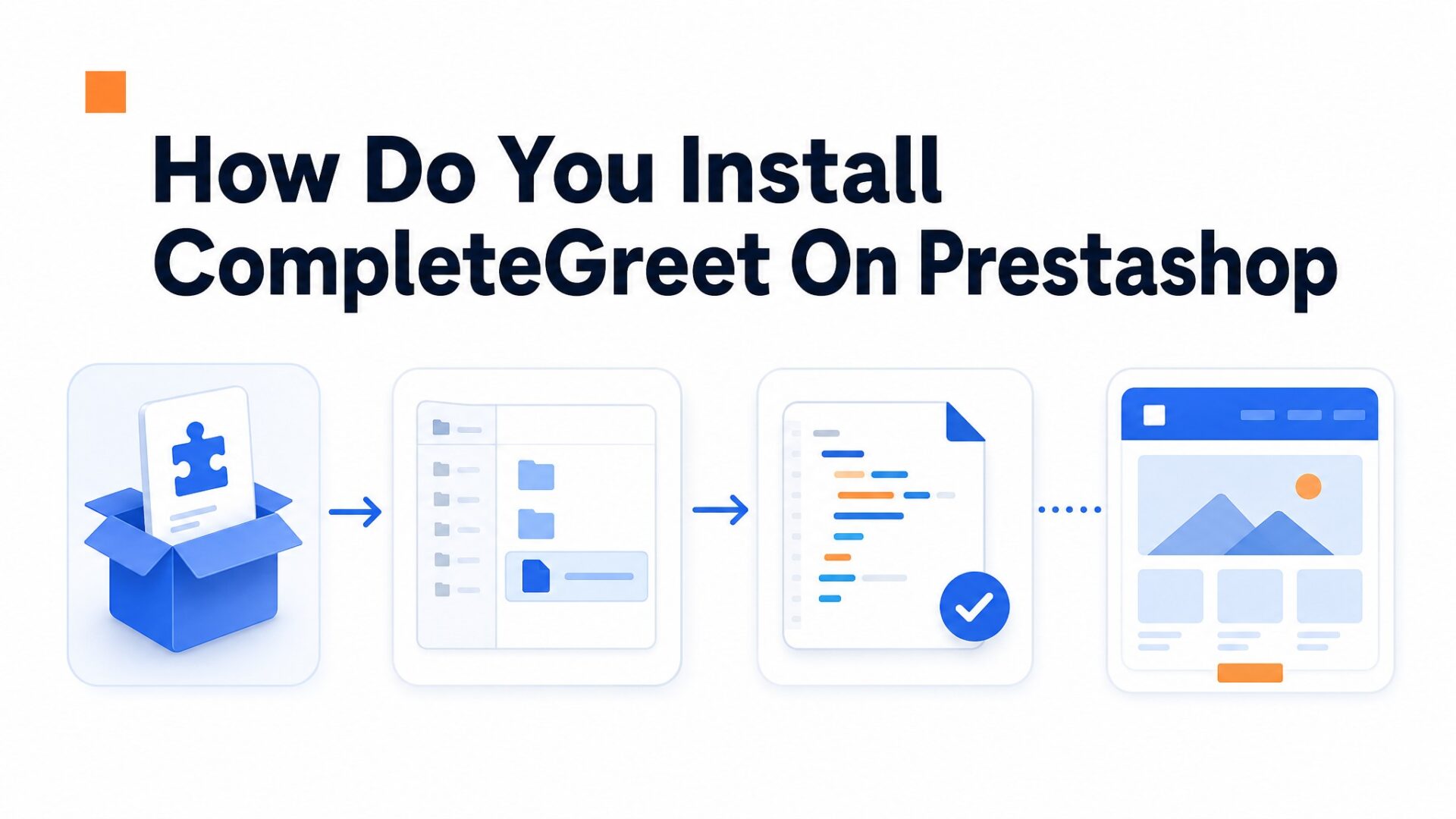
- Create a free account at CompleteGreet. Copy the JavaScript embed code from your dashboard. It sits under Settings > Installation.
- Log in to your PrestaShop admin. Navigate to Design > Theme & Logo in the left sidebar.
- Click the Advanced Customization tab at the top of the page. Look for the button labeled Edit Theme Files next to your active theme.
- Find the header.tpl file in the templates/_partials folder. Click it to open the editor.
- Paste your CompleteGreet script just before the closing tag. Save the file using the Save button in the top right corner.
- Clear your PrestaShop cache. Go to Advanced Parameters > Performance and click the Clear Cache button at the top right. Refresh your storefront to see the video bubble appear.
If the bubble does not appear, check that your browser cache is cleared and that you pasted the code in the correct template file.
One common pitfall: editing the parent theme directly.
PrestaShop will overwrite your changes during the next theme update. If you are using a child theme, paste the code into the child theme’s header.tpl instead. The path is themes/your, child, theme/templates/_partials/header.tpl.
What can you customize on PrestaShop?
Every visual element and behavioral trigger can be tuned to match how your store actually works.
Targeting rules
Page level targeting is the first layer. You can show the widget only on product detail pages, limit it to high, intent URLs containing “/cart” or “/checkout”, or exclude it entirely from your blog section. Time, based delays work too: set a 5 second hold on homepage landings but trigger immediately when someone clicks into a product page. Scroll triggers fire once a visitor passes 50% or 75% of the page, which catches people who are actually reading rather than bouncing. Exit, intent on desktop tracks mouse movement toward the browser chrome. On mobile, it triggers when the user scrolls rapidly toward the top address bar. That distinction matters because mobile abandonment behavior looks different.
Frequency caps prevent annoyance. Set the widget to show once per session, or limit it to once per 24 hours for returning visitors. Most stores over, show and see close rates spike.
Calls, to, action
Button text changes everything. “Book a demo” converts differently than “Ask us anything” on the same product page, and you can A/B test this in the dashboard without touching code. The CTA can open a calendar link, start a pre, recorded video, or reveal a contact form. Action colors inherit your brand hex by default, but you can override them per campaign.
Placement follows the bubble. bottom right is standard for Western reading patterns. But if your PrestaShop theme has a sticky live, chat button there, shift the video bubble to bottom left with a 20 pixel offset. Overlap kills clicks on both elements.
Form fields
The built, in form builder lets you add name, email, phone, and custom fields. Resist the urge to collect everything. Nielsen Norman Group research on form completion shows that each additional field drops submission rates by roughly 10%. For most PrestaShop stores, name and email are enough to start a conversation. Phone number fields should be optional unless you actually plan to call leads back within two hours. Broken promises on callback times damage trust faster than no phone field at all.
Form placement matters too. Inline forms inside the widget convert better than redirecting to a separate contact page. The visitor stays in context.
Branding and position
The bubble itself can carry your logo or a team member’s face. Upload a 200x200px circular headshot with good contrast against the background color you have selected. If your store uses a dark theme, set the bubble background to match or the widget will look like an ad. Border radius, shadow depth, and hover states are all adjustable.
One detail most teams miss: the close button size on mobile. It needs to be at least 44×44 pixels to meet accessibility guidelines and prevent accidental clicks that frustrate users. The default is smaller on some PrestaShop themes. Bump it up in the advanced settings.
Preview every change on a real product page before saving. The dashboard preview is useful, but your actual store CSS can shift positioning in ways the simulator does not catch.
What should you check before going live?
Open your PrestaShop store in Chrome, Safari, and Firefox before you flip the switch. The video bubble should sit in the bottom corner without overlapping your nav menu or the checkout button PrestaShop plants in the footer on product pages.
Mobile matters more.
Over half your store visitors will see that widget on a phone. Load your site on iOS Safari and Android Chrome. The bubble should resize without forcing full screen video playback, and the close button needs to land where a thumb can actually reach it. PrestaShop puts its mobile menu in the bottom left. Placing your widget there creates a collision. Use bottom right instead, or shift the offset up.
Run a speed check with Google Web Vitals guidance after installing. Video assets add weight. If your LCP score drops, check two things: is the script loading asynchronously, and is the video file under 5MB? Both fixes take about 30 seconds in the dashboard.
Test your form submissions end to end. Fill out the contact form inside the widget, submit it, and confirm the lead hits your email or PrestaShop’s contact log. Broken forms kill trust faster than no form at all.
Verify your page targeting rules actually work. Visit a category page where you disabled the widget and confirm it stays hidden. Then check a product page where you enabled it. The bubble should appear within two seconds of page load. If it shows up on every page regardless of your rules, clear your PrestaShop cache and check again.
PrestaShop store owners often face a conversion gap between product page visits and actual inquiries. Video bubbles close this gap by placing a human face one click away from the checkout process.
The implementation differs from SaaS platforms.
Stores can estimate inquiry volume increases using the formula: Current Monthly Sessions × Current Conversion Rate × 1.53 = Projected Sessions with Video Bubble. This multiplier reflects the average uplift observed across ecommerce implementations.
Technical implementation requires checking three constraints before activation. Verify whether the theme uses full, page caching, as this may delay bubble rendering on first load. Confirm that the footer.tpl file accepts JavaScript without breaking Smarty template syntax.
GDPR compliance mandates explicit consent for recording visitor interactions. The widget should initialize only after cookie acceptance, with data stored according to EU data protection guidance retention limits.
Stores seeing the highest engagement position the bubble on product detail pages rather than the homepage. Activation on PrestaShop 8.x requires only the API key and a single cache clearance in the back office.
Common questions
How do I add CompleteGreet to PrestaShop without editing theme code?
Paste the CompleteGreet embed code into PrestaShop’s header or footer through the back office. Navigate to Modules > Module Manager and add a custom HTML module, or use the theme settings under Design > Theme & Logo if your theme supports custom scripts. This avoids touching any.tpl files directly. Most merchants complete setup in under five minutes without developer help.
Why is my CompleteGreet video bubble not showing in PrestaShop preview mode?
PrestaShop preview mode sometimes blocks third party scripts for security reasons. Try viewing the site in a normal browser tab while logged out, or clear cache under Advanced Parameters > Performance. The widget should appear on the live storefront even if hidden in admin preview. Check that your embed code sits in the correct header position and not inside conditional admin, only blocks.
Can I target CompleteGreet to only appear on specific PrestaShop pages like checkout or product pages?
Yes, URL targeting inside CompleteGreet settings controls exactly where the bubble shows. Add rules for specific PrestaShop URLs like /product/ or /checkout/ to limit visibility to high, intent pages. You can also exclude pages such as cart or account areas where video might distract. Each bubble supports multiple targeting rules with include and exclude logic.
Does adding CompleteGreet slow down my PrestaShop site speed?
CompleteGreet loads asynchronously and typically adds under 50KB to page weight. The script defers loading until after the main page content renders, so Core Web Vitals scores stay clean on most PrestaShop installations. Video files stream on demand rather than preloading. For stores already running heavy image galleries or multiple tracking scripts, the impact is negligible.
Where exactly do I paste the CompleteGreet embed code in PrestaShop admin?
The most reliable location is Modules > Module Manager using a custom HTML module set to display in the displayHeader hook. Some themes also provide a dedicated custom code section under Design > Theme & Logo or Appearance > Custom CSS/JS. Avoid placing the code inside individual CMS pages unless you want the bubble restricted to that single page. Save and clear cache after adding the script.
How much does CompleteGreet cost for a small PrestaShop store?
CompleteGreet starts at $29/month when billed yearly for 5,000 unique visitors with no per minute fees or overage surprises. A small PrestaShop store getting 2,000 to 3,000 monthly visitors pays the flat Build plan rate regardless of how many times visitors replay the greeting. All plans include unlimited video responses. Yearly billing cuts the price by 20%.