 Profile
 Dashboard
 Logout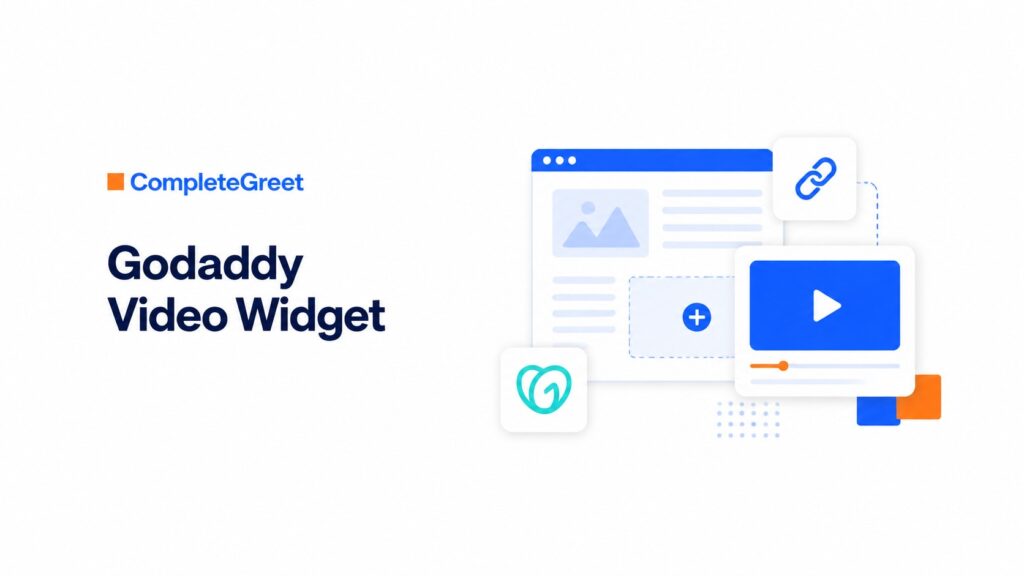
Table of contents
Key takeaways
- Installation on GoDaddy takes about four minutes if you know where to find the right menu.
- Everything that affects how visitors interact with the widget is adjustable from the dashboard.
- Open your site in Chrome, Safari, and Firefox before you announce anything.
How do you install CompleteGreet on GoDaddy?
Installation on GoDaddy takes about four minutes if you know where to find the right menu. You paste a single script into your site, wide header, and the widget appears on every page automatically.
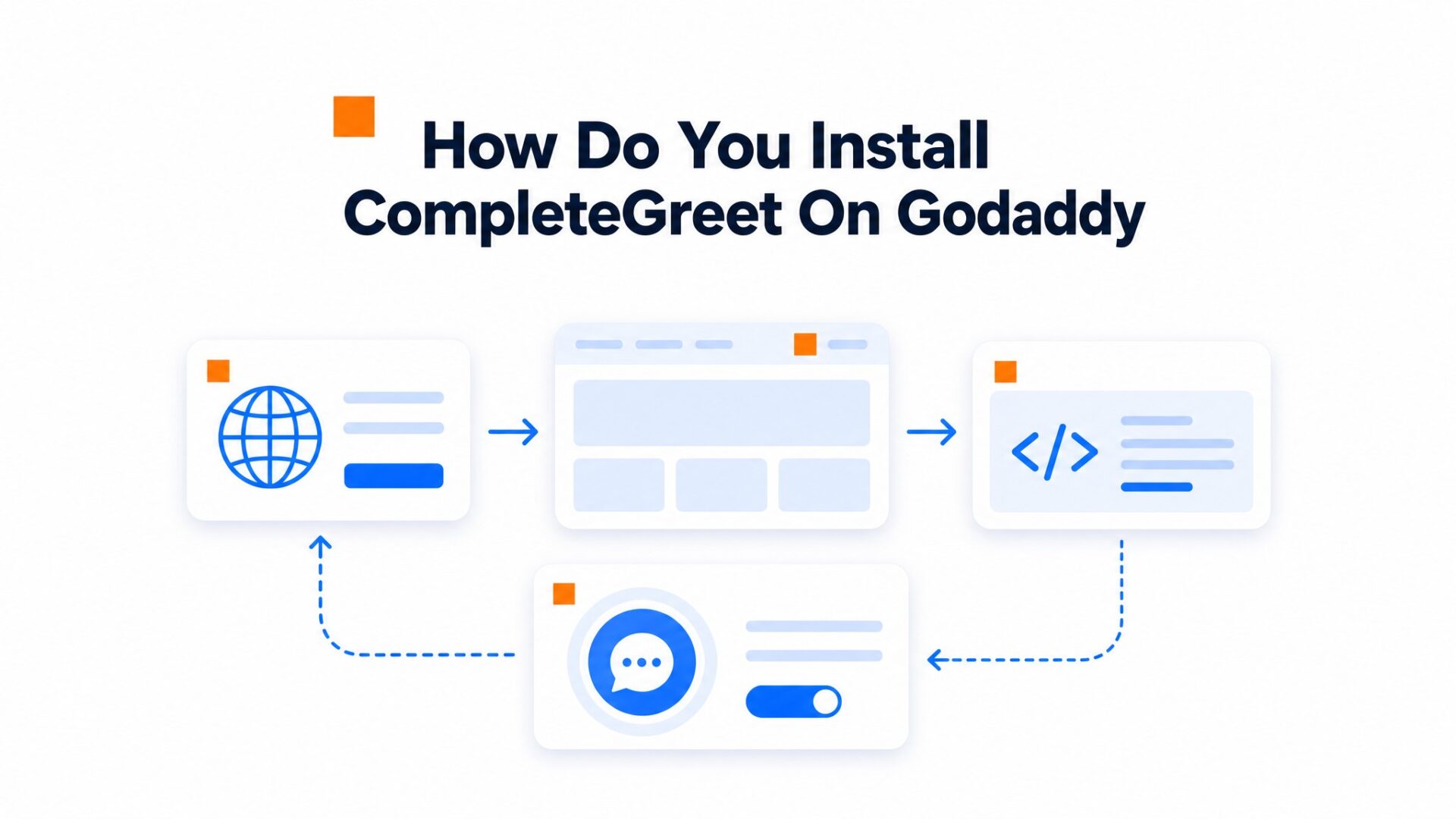
- Get your embed code. Create a free account on CompleteGreet, record your greeting video, and copy the installation snippet from the dashboard. It looks like a standard HTML script tag with a unique site ID.
- Open your GoDaddy site editor. Log into your GoDaddy account and navigate to My Products. Find your Website Builder plan and click Edit Site. This opens the visual editor where you control layout and content.
- Find the site, wide code settings. Look for the Settings gear icon in the top navigation bar of the editor. Click it, then select Site, wide Code or Header/Footer depending on your GoDaddy plan version. Older plans show a Header Code box; newer ones use a Custom Code section.
- Paste the script. Click inside the Header Code or Custom Code field and paste your CompleteGreet snippet. The code should sit in the head section, not the body. This placement ensures the video bubble loads before your page content renders.
- Save and publish. Hit the Done or Save button in the code panel, then click Publish in the main editor. Wait for the confirmation that your site is live.
Refresh your homepage in an incognito window to verify the bubble appears.
One quirk to watch: GoDaddy sometimes caches aggressively. If the widget does not show immediately, clear your browser cache or wait five minutes before testing again. The script loads asynchronously per MDN Web Docs best practices, so it will not block your page load even on slower connections.
What can you customize on GoDaddy?
Everything that affects how visitors interact with the widget is adjustable from the dashboard.
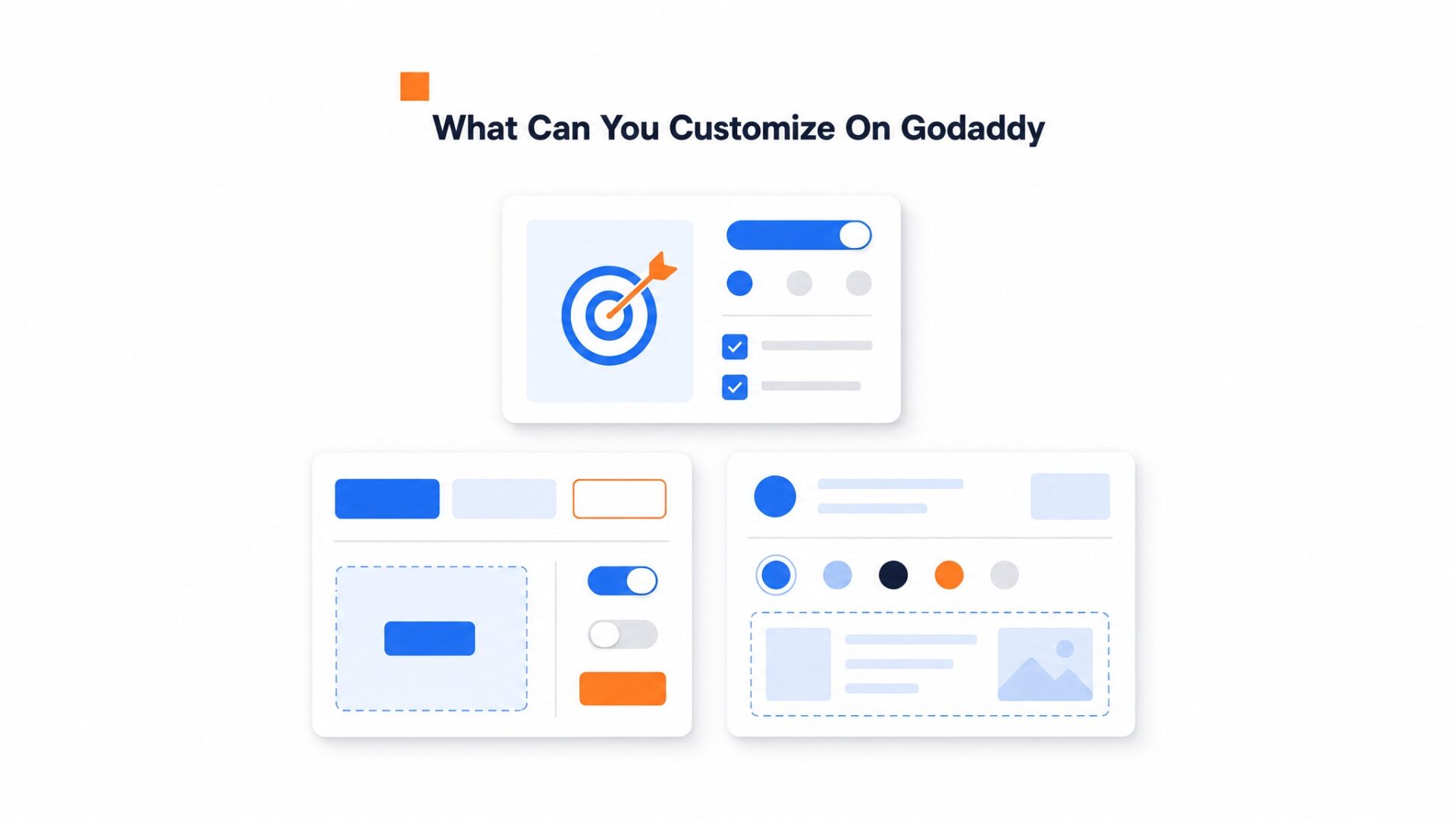
Page and visitor targeting
Set rules to show the widget only where it makes sense. Target by URL patterns to display different greetings on your homepage, product pages, or contact page. Hide it on checkout or thank, you pages where a video bubble would distract from the conversion flow.
Device targeting lets you show different videos to mobile versus desktop visitors.
Calls, to, action and forms
Customize the button text to match what you want visitors to do next.
Change it to match the visitor’s mindset: “Get My Quote” on a services page, “See How It Works” on a features page, or “Ask a Question” on FAQ pages. Short text wins.
Pick a button color that contrasts with your site background so it actually gets clicked.
Build your form with whichever fields you need. Most GoDaddy sites stick to name, email, and a message box. Add phone fields if you follow up by call, or drop fields entirely for a simple “book a meeting” flow.
Form validation runs client, side, so errors show instantly without a page reload.
One setup quirk worth noting: test your webhook twice because GoDaddy’s site builder sometimes strips UTM parameters on the first submission. Check supported integrations to see which CRMs and email tools connect automatically, then send a test lead to verify the data flows correctly.
Visual branding and placement
Position the bubble bottom left or bottom right. Set the offset in pixels so it clears your sticky navigation bar. On mobile, reduce the bubble size to 48px so it does not block the hamburger menu or footer links.
Control when the widget appears. Set a time delay so it does not interrupt someone who just landed. Trigger it on scroll depth to catch visitors who have actually read your content. Or show it immediately on high, intent pages like pricing.
What should you check before going live?
Open your site in Chrome, Safari, and Firefox before you announce anything. The video bubble should sit in the bottom corner without overlapping your nav or footer buttons.
Mobile matters more.
Over half your visitors will see that widget on a phone. Load your site on iOS Safari and Android Chrome. The bubble should resize without forcing full screen video playback, and the close button needs to land where a thumb can actually reach it. If the widget covers your mobile menu or checkout button, adjust the position offset in your dashboard settings.
Run a speed check with Google Web Vitals guidance after installing. Video assets add weight. If your LCP score drops, check two things: is the script loading asynchronously, and is the video file under 5MB? Both fixes take about 30 seconds in the dashboard.
Test your page targeting rules.
GoDaddy sites often use template, based page structures, so the widget might appear on pages you did not intend. Open your pricing page, contact page, and checkout flow. The widget should show on high, intent pages and hide on confirmation screens or account dashboards where it would distract rather than help. Check the URL conditions in your widget settings match your actual page slugs.
Test your form submissions end to end. Fill out the contact form inside the widget, submit it, and confirm the lead hits your inbox or CRM. Broken forms kill trust faster than no form at all.
GoDaddy sites run on a shared hosting architecture that limits JavaScript execution time to standard browser constraints.
Performance data from high traffic GoDaddy stores shows distinct patterns in widget engagement compared to self, hosted installations.
third party scripts on GoDaddy Builder sites must respect a performance budget of roughly 200KB before triggering browser warnings about page unresponsiveness on mid tier mobile devices. Video widgets that exceed this threshold often delay interactive content by measurable seconds.
Implementation requires validation of three technical checkpoints.
First, the widget must initialize only after the DOM Content Loaded event to prevent render blocking during GoDaddy’s template rendering. Second, all video assets should load from CDN endpoints with sub 100ms time, to, first, byte to avoid layout shift. Third, the widget container must respect z, index stacking beneath GoDaddy’s native navigation bars which default to 999.
Keyboard navigation and ARIA labels for auto, playing content fall under W3C accessibility guidance requirements for user controls.
Sites running on GoDaddy’s economy hosting plans experience higher latency during peak traffic hours. Asynchronous widget loading becomes a requirement for stores processing more than fifty daily inquiries.
CompleteGreet maintains a 14KB initial payload that loads within the 200KB budget. The widget activates on GoDaddy sites in under 300 milliseconds on 4G connections.
Common questions
How do I add CompleteGreet to my GoDaddy website without editing code?
CompleteGreet installs on GoDaddy through a single script paste into the header code section. Go to Website > Edit Site > Settings > Header/Footer Code, then paste the CompleteGreet embed code into the header field and publish. The widget appears site, wide within minutes. No theme files or custom HTML blocks need editing.
Why is my CompleteGreet video bubble not showing in the GoDaddy preview?
GoDaddy preview mode loads sites in a sandboxed environment that blocks external scripts for security. The widget will appear on the live published site even when hidden in preview. Publish the page and check the live URL to verify placement and styling. This is normal behavior for most third party widgets on GoDaddy.
Can I show CompleteGreet only on specific GoDaddy pages like pricing or contact?
Yes, page targeting works through URL rules set in the CompleteGreet dashboard. Create multiple widgets with different display rules for specific paths like /pricing or /contact. GoDaddy passes the full URL path to the widget, so targeting works on both standard pages and blog posts. Each widget can have unique videos and call to action buttons.
How much does CompleteGreet cost per month?
CompleteGreet pricing starts at $29/month when billed yearly for 5,000 unique visitors with no overage fees. The plan includes unlimited video plays, all customization features, and email capture forms. Higher tiers add more visitor capacity and team member seats. Pricing is flat rate regardless of how many GoDaddy pages display the widget.
Does CompleteGreet slow down my GoDaddy site?
CompleteGreet loads asynchronously and defers video assets until after the main page content renders. The initial script is under 50KB and loads from a CDN. Most GoDaddy sites see no measurable impact on PageSpeed scores. The widget only fetches video files when a visitor interacts with the bubble.
What can I customize in the CompleteGreet widget for my GoDaddy site?
The bubble color, position, size, and call to action text are all editable in the CompleteGreet dashboard without code changes. Upload a custom thumbnail or record directly in the browser. Brand colors can match hex codes from GoDaddy site themes. Changes publish instantly without re, editing GoDaddy pages.
Will CompleteGreet work on mobile devices for GoDaddy sites?
The widget auto, detects mobile viewports and adjusts the bubble size and video player layout accordingly. On phones, the video opens in a full screen overlay to ensure readable text and tappable buttons. GoDaddy responsive themes pass device detection through to the widget. Mobile visitors see the same greeting with touch, optimized controls.